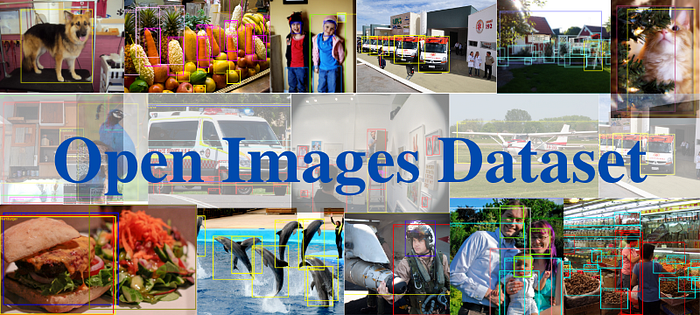


Are you that kind of nerd who wants to build a custom image classifier but doesn't know how to download only "Images" from Google's OpenImages Dataset instead of labels.
Are you that kind of geek who wants to build a custom object detector but doesn't know how to download only selected classes from the 600 object classes available in Google's OpenImages Dataset.
Well, my friends, you are not alone I also used to have these same questions until I stumbled upon this package which I found a few weeks back.
But before learning to use this package let's deep dive into knowing the essential facts about Google's OpenImages Dataset.
Google's Open Images Dataset: An Initiative to bring order in Chaos
Open Images Dataset is called as the Goliath among the existing computer vision datasets. It has ~9M images annotated with image-level labels, object bounding boxes, object segmentation masks, visual relationships, and localized narratives. It contains a total of 16M bounding boxes for 600 object classes on 1.9M images, making it the largest existing dataset with object location annotations.
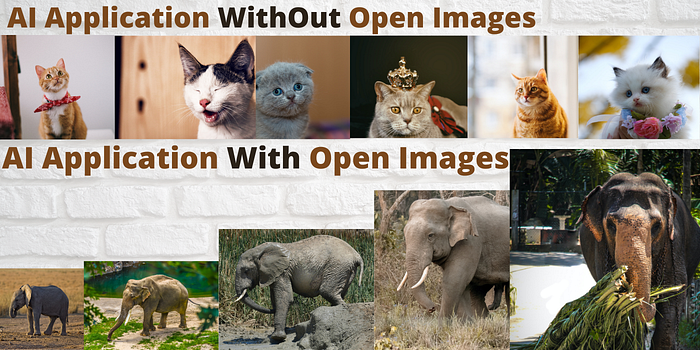
As it's being said a picture worth a thousand words hence, the above image showcase that if you do not use the Open Images Dataset your application might turn into another Object Detector or another Image Classifier. But if you leverage the power of Google's Open Images Dataset you might turn your AI application into a Generalizable Scalable solution that might serve the need of many or a community.[Isn't it that the reason we all working hard under different roofs, to help who cannot help themselves through AI, well that's up to you to decide].
Developer Mode: It's time to do some Installation
Back Story:
A few weeks back when I was searching for a better solution to download Google's Open Images Dataset for my custom Gluten/Not-Gluten food Classifier, my persistent search took me to the Python package named "openimages" which released recently in the month of February.
Hence, in this part of the blog post, I'll share the steps I took to install the python package into my Linux system and how I used the module present in the python package at its fullest to download images for few of the classes available in the dataset. Along with it, I'll share the command required to download images and annotations for any class labels.
Package Description:
The openimages package comes with one "download" module which provides an API with two download functions and a corresponding CLI (command-line interface) including script entry points that can be used to perform downloading of images and corresponding annotations from the OpenImages dataset.
Installation Procedure:
Creating a Virtual environment:
As a best practice always use Python "Virtual Environments", to install Python packages for any particular application because it's better to install packages or libraries in an isolated location rather than installing it globally.
For Linux user, type the below command
virtualenv <DIR>
source <DIR>/bin/activate
if you are window user, then use
virtualenv <DIR>
<DIR>\Scripts\activate
When virtualenv is active, your shell prompt is prefixed with <DIR>.
Now Start Installing packages within a virtual environment without affecting the host system setup. Let's begin by upgrading pip:
<DIR>:~$ pip install --upgrade pipThe openimages package works on Python 3.6+ version. So, do make sure you have a version that supports openimages. Now in the active virtual environment, type.
<DIR>:~$ pip install openimagesthis command will download some libraries which are quite essential for downloading images and corresponding annotations from Google's OpenImages Dataset.
The libraries that will be installed are listed below:
ImageHash-4.1.0
absl-py-0.9.0
astunparse-1.6.3
boto3–1.13.16
botocore-1.16.16
cachetools-4.1.0
cvdata-0.0.7
docutils-0.15.2
gast-0.3.3
google-auth-1.15.0
google-auth-oauthlib-0.4.1
google-pasta-0.2.0
grpcio-1.29.0
jmespath-0.10.0
keras-preprocessing-1.1.2
markdown-3.2.2
oauthlib-3.1.0
opencv-python-4.2.0.34
openimages-0.0.1
opt-einsum-3.2.1
protobuf-3.12.1
pyasn1–0.4.8
pyasn1-modules-0.2.8
requests-oauthlib-1.3.0
rsa-4.0
s3transfer-0.3.3
tensorboard-2.2.1
tensorboard-plugin-wit-1.6.0.post3
tensorflow-cpu-2.2.0
tensorflow-estimator-2.2.0
termcolor-1.1.0
This is how the output looks like once the installation of the package is completed [open_images_second_trial] is nothing but a virtual environment name.

Along with these packages, two python entry points are also installed in the environment, corresponding to the public API functions oi_download_dataset and oi_download_images described below:
openimages.download.download_imagesfor downloading images onlyopenimages.download.download_datasetfor downloading images and corresponding annotations.
Entry Points + CLI == "Your gateway to downloading Dataset"
In this section, I'll introduce you all with the command line arguments required to download images and annotation for your dataset, by using the provided entry points. Do refer to the below image to develop the understanding.
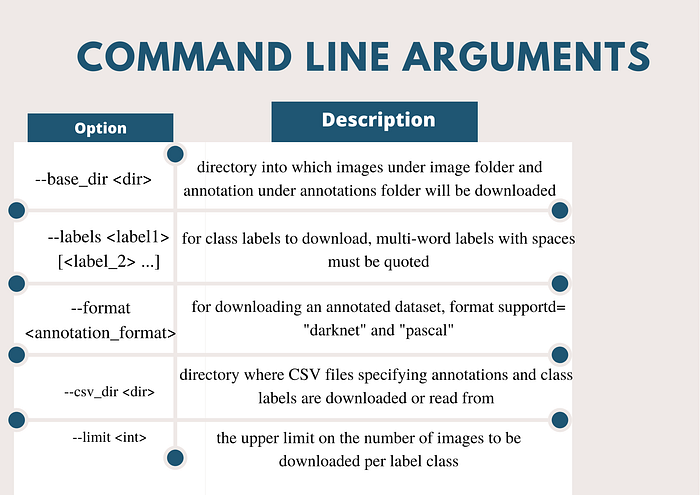
After knowing about the Command Line Arguments[CLI], it's time to use it for further actions, Any guesses, yes you are right for downloading images and their labels.
I: Usage Example to Download images and PASCAL format annotations for the class labels
<DIR>:~$ oi_download_dataset --csv_dir ~/<dir_A> --base_dir ~/<dir_A> --labels Zebra Binoculars --format pascal --limit 200it's preferable to keep the CSV dir and base dir at the same location, limit totally depends upon how many images with class labels you want to download.
Once you run this command, go have hot water or a beer because it will take time for the data to get downloaded into your computer storage.
II: Usage Example to Download images for the class label
<DIR>:~$ oi_download_images --csv_dir ~/<dir_A> --base_dir ~/<dir_A> --labels Surfboard --limit 200If you run this script for more than once which is definitive then it will read the CSV files from ~/<dir_A> rather than downloading the file again.

Once the download gets completed for your classes don't forget to exit your virtual environment, by simply typing:
<DIR>:~$ deactivate
:~$
Well, that marks the end of the entire process. I hope while you are reading these lines your data downloading process must have got started and you must be already making plans on which model to use or what learning rate to keep etc.
Resources:
- Openimage 0.0.1: Tools for downloading images and corresponding annotations from Google's OpenImages dataset.
- OpenImages Dataset Github repo.
- OIDv4 Toolkit: A practical tool to download images and labels for object detection and image classification tasks.
- Fast Image Downloader for Open Images V4.
Thank you for your attention
You using your time to read my work means the world to me. I fully mean that.
Also, follow me on Medium, LinkedIn, or Twitter if you want to! I would love that.