

Azure Virtual Machines (VM) is one of several types of on-demand, scalable computing resources that Azure offers. Typically, you choose a VM when you need more control over the computing environment than the other choices offer. This article gives you information about what you should consider before you create a VM, how you create it, and how you manage it.
Azure VM gives you the flexibility of virtualization without having to buy and maintain the physical hardware that runs it. However, you still need to maintain the VM by performing tasks, such as configuring, patching, and installing the software that runs on it.
Azure's virtual machines provide flexible, scalable, and cost-efficient computing. They offer isolation, security, and support for various workloads like development, testing, and disaster recovery. Integration with Azure services and hybrid cloud capabilities further enhance their utility for diverse business needs.
VM Categories and Series:
Azure Virtual Machine can work on five operating systems (Windows, RHEL, CentOS, Ubuntu, and SUSE). Some features are region-specific, guaranteed to find an Azure VM to match the workload irrespective of the region.
Various types of Azure Virtual Machine are configured to perform specific tasks required to compute, memory, or storage abilities. Each kind has a distinct CPU relying on the nature of the workload used to support workloads with additional features.
· A-Series (Entry-level Virtual Machines)
Entry-level VMs are economical and contain CPU performance and memory configuration that provides a basic level of workloads such as small to medium databases, low traffic web servers, code repositories, servers for proofs-of-concept, and development and test servers.
· Bs-Series (Economical Burstable Virtual Machines)
Economical Burstable VMs are the same as A-Series VMs. They can run at a low to moderate baseline CPU utilization, but it requires to burst to high CPU utilization when demand rises.
· D-Series (General-purpose VMs)
General-purpose VMs contain a one vCPU-to-4 GiB memory ratio and are best suitable for testing and development, from small- to medium-sized databases and web servers that undergo low to mid-volume traffic.
· E-Series (Optimized for in-memory applications)
E-Series VMs are optimized for in-memory applications such as SAP HANA. These are best suited for memory-intensive enterprise applications, in-memory analytics workloads, sizable relational database servers, etc.
· F-Series (Compute-optimized VMs)
Compute-optimized VMs contain a one vCPU-to-2 GiB memory ratio suitable for application servers, network appliances, batch processes, and web servers that receive a higher traffic volume.
· G-Series (Memory and Storage Optimized Virtual Machines)
G-Series VMs have two times more memory and four times more SSD than D-Series VMs. It contains ½ TB of RAM and 32 CPU cores, providing unparalleled performance, memory, and local SSD storage capacity.
· H-Series (High performance compute)
The high-performance compute Azure Virtual Machine types can be optimized for workloads for dense computation (i.e., reservoir simulation or weather modeling). Generally, they contain vCPU-to-memory ratios of 7x, but they can deploy and maintain high-performance compute VMs up to 14x ratio.
· Ls-Series (Storage-optimized VMs)
Storage optimized VMs contain a one vCPU-to-8 GiB ratio with a high disk to reduce latency. Hence, they are expensive to run for SQL and NoSQL databases, data warehousing, large transactional databases, and Big Data.
· M-Series (Memory-optimized VMs)
Memory-optimized VMs include a customized memory ratio that starts at 1 vCPU-to-8 GiB but goes up to 1 vCPU-to-28 GiB memory for extreme memory-optimized VMs. There are 93 memory-optimized VMs based on workloads, such as relational database servers and in-memory analytics.
· Mv2-Series (Largest memory-optimized virtual machines)
The Mv2-series VMs are hyper-threaded, which offers over 416 vCPU on a single VM and 3TB, 6TB, and 12TB memory configurations. It provides unparalleled computational performance to support a large in-memory database.
· N-Series (VMs for Graphics Processing (GPUs))
GPU Azure Virtual Machine type is best suitable for heavy graphic rendering and video editing workloads. They can also be used for modern training and differencing with deep learning and can use either single or multiple GPUs.
What are Azure Virtual Machines?
· Azure Virtual Machines (VM) is one of the many cloud computing solutions offered by Microsoft Azure. At its core, it's a virtualization technology that allows users to create and manage virtual machines in the cloud. This means you can run multiple operating systems on a single physical machine, which saves time, resources, and money.
· One of the great things about Azure VM is its flexibility. You can deploy Windows or Linux-based VMs using preconfigured templates or custom images tailored to your needs. Additionally, you can choose from different sizes depending on your workload requirements. It doesn't matter whether you need more CPU power, memory, or storage.
· Another key aspect of Azure VM is its scalability. As your business grows, so too does the demand for computing resources. With Azure VM, scaling up or down is easy — simply add or remove virtual machines as needed without having to worry about hardware limitations.
· If you're looking for an efficient way to run your applications in the cloud while staying flexible and scalable at all times, Azure Virtual Machines might just be what you need!
How do Azure Virtual Machines work?
· Azure Virtual Machines (VMs) are a popular cloud computing service offered by Microsoft Azure. They allow users to create and run virtual machines in the cloud using pre-configured templates or custom images.
· To get started with creating an Azure VM, users first need to choose their preferred operating system and the size of the VM based on their requirements. Once they have selected these options, they can then deploy the VM into their chosen region.
· Azure VMs work by running on top of a hypervisor that manages hardware resources such as CPU, RAM, and storage. This allows multiple virtual machines to run simultaneously on a single physical machine without interfering with each other.
· Users can also customize their VM's configuration settings, such as network security groups, public IP addresses, and more, through the Azure portal or APIs. Azure also offers features like autoscaling which automatically adjusts resources allocated to your VM depending on usage patterns. Azure Virtual Machines offer flexibility and scalability for organizations looking for cost-effective ways to manage their IT infrastructure in the cloud.
What are the benefits of using Azure Virtual Machines?
· Azure Virtual Machines (VMs) offer a wide range of benefits to businesses and organizations. Azure VMs allow for flexibility in terms of infrastructure, as users can choose from a variety of operating systems, software packages, and hardware configurations. This enables businesses to customize their VM environment according to their specific needs.
· Additionally, using Azure VMs means that businesses do not need to invest in physical servers. It can be costly and time-consuming. Instead, they can take advantage of the scalability offered by cloud computing technology.
· Another benefit is that Azure VMs enable remote access. It allows employees or team members working remotely to collaborate on projects seamlessly. Moreover, with built-in disaster recovery options, data loss due to unforeseen circumstances such as natural disasters is minimized.
· Azure's global presence ensures low latency connections across different regions allowing for faster performance speeds while maintaining data security and privacy measures. All these benefits make it easier for businesses and organizations to focus on achieving their goals without worrying about infrastructure management costs or complexity.
What are the limitations of using Azure Virtual Machines?
· While Azure Virtual Machines offer a wide range of benefits for businesses and individuals, it's essential to consider the limitations before making any decisions. There is a learning curve associated with using VMs efficiently. Also, frequent updates may require downtime, which can be costly for some businesses.
· Moreover, while Azure offers various pricing options depending on usage and workload requirements, running multiple virtual machines can increase the overall cost quickly. Additionally, data security concerns must also be considered when opting for cloud-based solutions like Azure.
· In conclusion (oops!), despite these limitations, Azure Virtual Machines remain an excellent choice if you're looking for flexibility and scalability without investing in physical infrastructure. With its vast range of features and customization options available at your fingertips through Microsoft's user-friendly interface — it's hard to ignore this powerful technology solution!
Comprehensive Information about Azure Virtual Machine:
Azure Virtual Machines (VMs) are a core offering in Microsoft Azure's cloud computing platform. They provide on-demand, scalable computing resources that allow you to run applications, workloads, and operating systems in a virtualized environment.
Key Features:
On-demand scalability: Easily scale your VMs up or down based on your needs, allowing for flexible resource allocation and cost optimization.
High availability: Implement redundancy and fault tolerance through features like VM scale sets and availability sets, ensuring uptime for critical workloads.
Wide range of options: Choose from a diverse selection of VM sizes and configurations to match your specific processing, memory, storage, and networking requirements.
Global reach: Deploy VMs in Azure regions across the world to support geographically distributed applications and users, reducing latency and improving performance.
Support for various operating systems: Run Windows, Linux, and even custom operating systems on your VMs, offering flexibility and compatibility with your existing infrastructure.
Integration with other Azure services: Leverage the extensive Azure ecosystem to seamlessly integrate your VMs with other services like Azure Storage, Azure SQL Database, and Azure Networking for a comprehensive cloud solution.
1. Core Components of Azure VM:-
Compute resources: CPU cores, memory, and temporary storage allocated to the VM for running applications.
Storage: Persistent storage options like Azure Managed Disks for attaching block storage or Azure Files for shared file systems.
Network interface card (NIC): Connects the VM to the Azure network for communication with other resources and the internet.
Operating system: The software platform that runs on the VM and manages its resources.
Security features: Built-in and customizable security mechanisms to protect your VMs from unauthorized access, malware, and other threats.
2. Azure VM Deployment:-
Resource Manager deployment: Declarative templates define VM configuration, including size, operating system, storage, and network settings.
Portal deployment: Use the Azure portal to configure and deploy VMs through a user-friendly interface.
CLI deployment: Leverage the Azure CLI or tools like Terraform for scripting and automating VM deployments.
Marketplace images: Deploy pre-configured VMs with popular software applications already installed.
3. Networking and Connectivity:-
Virtual networks: Create isolated and secure private networks for your VMs to communicate with each other and with on-premises resources.
Load balancers: Distribute traffic across multiple VMs for high availability and improved scalability.
VPN gateways: Connect your Azure VMs to your on-premises network for secure hybrid cloud deployments.
ExpressRoute: Establish a private, dedicated connection between your Azure network and your on-premises network for high-bandwidth applications.
4. Storage Options:-
Azure Managed Disks: Managed block storage for persistent data, offering various tiers for performance and cost optimization.
Azure Files: Scalable shared file system for storing and sharing data between VMs and applications.
Azure Blob Storage: Object storage for large amounts of unstructured data like backups, archives, and media files.
Standard HDDs and SSDs: Local storage options for temporary data used within the VM.
5. Monitoring and Management:-
Azure Monitor: Collect and analyze performance metrics from your VMs for proactive troubleshooting and resource optimization.
Azure Log Analytics: Analyze logs from your VMs for deeper insights into events and application health.
Azure Automation: Automate VM management tasks like provisioning, patching, and scaling.
Azure Policy: Define and enforce compliance policies for VM configurations and security best practices.
6. Security Considerations:-
Identity and access management: Implement role-based access control (RBAC) to restrict access to your VMs and resources.
Security groups: Define network access rules to control inbound and outbound traffic to your VMs.
Antivirus and antimalware: Deploy antivirus and antimalware solutions on your VMs for proactive threat protection.
Encryption: Encrypt your VM disks and data at rest and in transit to safeguard sensitive information.
Regular patching and updates: Apply security updates and patches to your VMs and software to mitigate vulnerabilities.
7. Cost Management:-
Pay-as-you-go billing: Only pay for the VM resources you use, allowing for flexible and cost-effective scaling.
Reserved instances: Purchase VM capacity upfront at a discounted rate for predictable workloads.
Spot VMs: Utilize unused Azure capacity at significantly lower prices for non-critical workloads.
Cost optimization tools: Leverage Azure Advisor and other tools to identify and implement cost-saving recommendations.
Definition of Relevant Services:
1. Azure Virtual Machine (VM): The primary focus of the document, Azure VMs provide scalable and flexible cloud computing solutions, allowing users to deploy and run virtualized instances of Windows or Linux servers.
2. Azure Virtual Network: Complements Azure VMs by enabling the creation of private and securely connected networks in the cloud, facilitating communication between virtual machines and establishing secure connections between resources.
3. Azure Blob Storage: A key component in the Azure VM landscape, Azure Blob Storage serves as Microsoft's object storage solution, commonly used to store VM-related data, including virtual hard disks (VHDs) and other configuration files.
4. Azure Managed Disks: Simplify the management of storage resources connected to Virtual Machines by abstracting the underlying storage infrastructure, providing features such as high availability and simplified scalability.
5. Azure Resource Manager (ARM): The deployment and management service in Azure, allowing users to provision and manage resources as a group, using templates to ensure consistent and repeatable deployments.
6. Azure Load Balancer: A Layer 4 load balancer that distributes incoming network traffic across multiple instances of Virtual Machines, enhancing availability and fault tolerance.
7. Azure Security Center: A unified security management system across Azure workloads, monitoring and strengthening the security posture of VMs, providing recommendations, and threat intelligence.
8. Azure Key Vault: A cloud service that safeguards cryptographic keys and secrets used by cloud applications and services, ensuring secure storage and management of sensitive information.
9. Azure Backup: A cloud-based backup service that plays a crucial role in protecting data and workloads associated with Azure VMs, providing features such as regular backups, retention policies, and point-in-time recovery options.
10. Azure Monitor: A comprehensive monitoring service that tracks VM performance, collects telemetry data, and provides insights into resource utilization.
Architecture Diagram:-
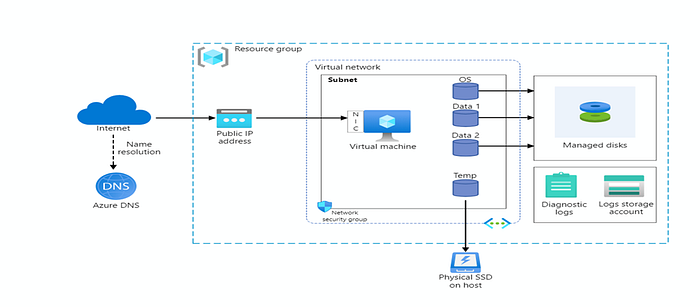
Step by step Implementation Procedure to deploy Virtual Machine:
Step 1:
Sign in and Create a virtual Machine and Deploying Region as North Europe also Available options selected as no infrastructure: -
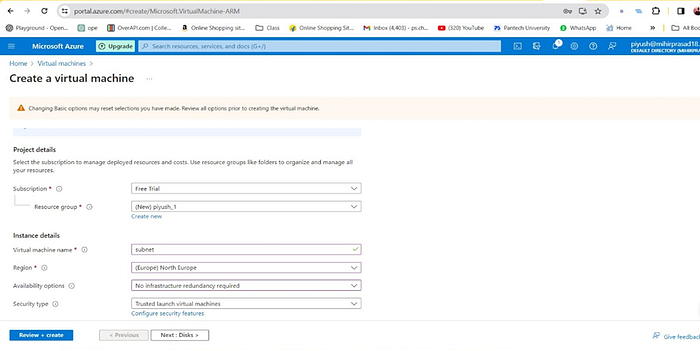
Step 2:
Select a Size for your VM from the drop-down for your computer resources such as RAM, Memory, vcpus. S

Step 3:
Username and Password for your VM in order to login as Admin.
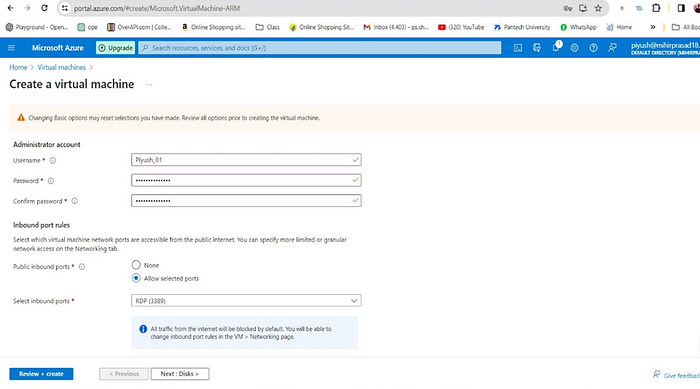
Step 4:
OS disk configuration:
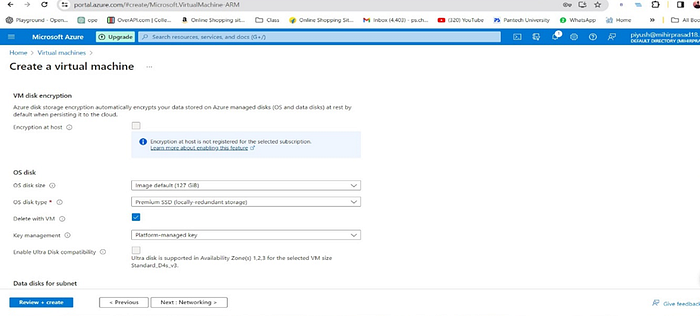
Step 5: Network interface configuration:
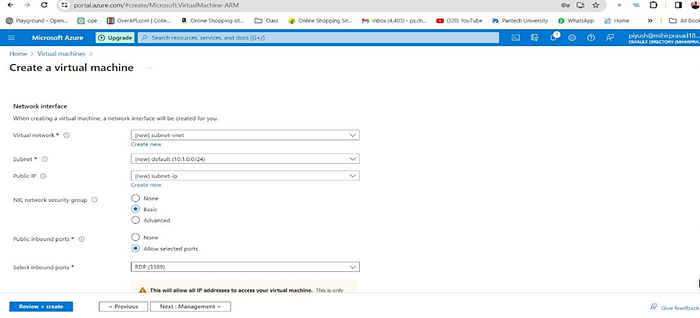
Step 5: After you have configured your VM as per your needs and requirements, you can review it.
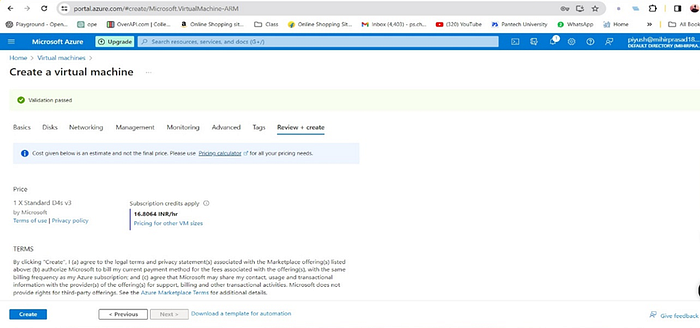
Step : 6 verify Details and then click on Create Button and it will start deployment process.

Step : 7 After deployment process done check all details and Copied the Public IP address to established the VM.

Step : 8 Now VM is ready

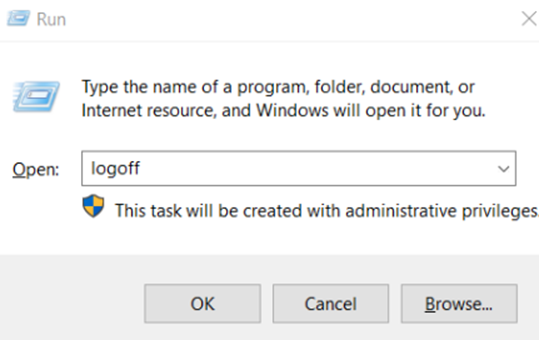
Step 9: logff VM by windows+r, type logff.
Uses of Azure Virtual Machines:
1.Application hosting:
Deploy web applications, APIs, and mobile backends with ease.
Scale your applications up or down based on traffic demands.
Choose from a variety of pre-configured VM images or customize your own.
2. Development and testing:
Create isolated development and testing environments.
Quickly spin up new VMs for different testing scenarios.
Collaborate with team members on projects using shared VMs.
3. Running resource-intensive workloads:
Use VMs for high-performance computing tasks like scientific simulations, video rendering, and machine learning.
Choose from a variety of VM sizes with different CPU, memory, and storage configurations.
Pay only for the resources you use.
4. Disaster recovery:
Create a backup of your on-premises applications in the cloud.
Failover to your Azure VMs in case of a disaster.
Minimize downtime and data loss.
5. Running legacy applications:
Migrate your existing applications to the cloud without having to rewrite them.
Run older operating systems and software that are not compatible with your current hardware.
Extend the life of your legacy applications.
6. Training environments:
Set up virtual machines for online training or education.
Provide students with a secure and isolated environment to learn new skills.
Scale your training environment up or down as needed.
7.Other uses:
Hosting virtual desktops
Running batch jobs
Building containerized applications
Experimenting with new technologies
Application of Azure Virtual Machine:
1. Website Hosting:
- You can host websites and web applications on Azure VMs. Configure the VM with the necessary web server software (e.g., IIS, Apache, Nginx) and deploy your website or web application.
2. Development and Testing:
- Azure VMs are often used for development and testing purposes. Developers can create VMs to test their applications in different environments, ensuring compatibility and performance.
3. Application Deployment:
- Deploy applications that require specific software configurations or dependencies on Azure VMs. This is particularly useful for legacy applications that may not be compatible with modern cloud-native platforms.
4. Data Storage and Backup:
- Azure VMs can be used to store and manage data. You can attach data disks to VMs for additional storage. VM snapshots and backups help in creating reliable backup solutions.
5. Virtual Network Appliances:
- Deploy network appliances such as firewalls, load balancers, and VPN gateways on Azure VMs to manage and secure network traffic within your infrastructure.
6. High-Performance Computing (HPC):
- Azure VMs can be configured to provide high-performance computing capabilities, making them suitable for complex scientific simulations, rendering, and other compute-intensive tasks.
7. Hybrid Cloud Scenarios:
- Integrate Azure VMs with on-premises infrastructure to create a hybrid cloud environment. This allows businesses to scale their infrastructure as needed while maintaining a connection to existing resources.
8. Desktop Virtualization (VDI):
- Use Azure VMs for virtual desktop infrastructure, allowing users to access their desktop environments remotely. This is useful for scenarios where centralized management of desktops is preferred.
9. Big Data Processing:
- Deploy Azure VMs to run big data processing frameworks like Apache Hadoop, Apache Spark, or other analytics tools to process and analyze large datasets.
10. Container Hosting:
- Host containerized applications using Azure VMs. You can run container orchestrators like Kubernetes on VMs to manage and orchestrate containerized workloads.
11. Machine Learning and AI:
- Train and deploy machine learning models on Azure VMs. You can configure VMs with the necessary frameworks and libraries to perform complex machine learning tasks.
12. Disaster Recovery:
- Implement disaster recovery solutions by replicating VMs to a secondary Azure region. In the event of a failure, you can quickly failover to the replicated VMs to ensure business continuity.
Application and Limitation
Application.
1. Azure VMs can be used for running server software, certain versions of Windows, and Linux
2. They support the creation of images with preinstalled applications, and these images can be globally replicated to target regions closer to the VM
3.Additionally, Azure VMs come in different sizes and types, such as general purpose, compute optimized, memory optimized, storage optimized, GPU, and high-performance compute
Limitations
1. Some limitations of Azure VMs include the maximum number of replicas per region when creating a VM Application version, which is three
2. Additionally, Azure VMs have limits on IOPS and throughput performance, which can cap an application's performance when it requests more than the allocated limits
3.There are also various subscription limits and quotas related to Azure VMs, such as the maximum number of users and service principals that can be owners of a single application
Case Study:
Industry: Manufacturing
Client Profile: A mid-sized manufacturing company with a diverse product line ranging from industrial machinery to consumer goods.
Challenge:
The client faced challenges in scaling their IT infrastructure to accommodate increased demand for their products. Their existing on-premises servers struggled to handle the growing workloads, leading to performance issues and delayed order processing. The company needed a flexible and scalable solution to improve its overall business agility.
Solution:
The solution involved migrating a significant portion of the client's IT infrastructure to Azure Virtual Machines (VMs). The transition to a cloud-based infrastructure provided several advantages:
Scalability: Azure VMs allowed the company to easily scale their compute resources based on demand. During peak seasons, additional VM instances could be provisioned, ensuring optimal performance and responsiveness.
Cost Efficiency: The pay-as-you-go model of Azure VMs helped the client optimize costs. They could scale up during busy periods and scale down during slower times, paying only for the resources they consumed.
High Availability: By deploying VMs across multiple Azure regions, the client enhanced the availability of their applications. In the event of a server failure or regional outage, the workload seamlessly shifted to healthy VM instances in other regions.
Dev-Test Environments: Azure VMs were leveraged for creating and managing development and testing environments. This streamlined the software development life cycle, allowing for quicker iterations and reducing time-to-market for new features and updates.
Automated Backups: The client implemented automated backup solutions using Azure VM snapshots. This ensured data integrity and simplified recovery in case of data loss or system failures.
Benefits:
Improved Business Agility:
The ability to quickly scale resources based on demand resulted in improved business agility. The company could adapt to market changes and handle fluctuations in order volumes more effectively.
Enhanced Performance:
Azure VMs provided superior performance compared to the client's aging on-premises infrastructure. This led to faster order processing, improved customer satisfaction, and increased sales.
Cost Savings:
The pay-as-you-go pricing model of Azure VMs allowed the client to optimize costs by aligning expenses with actual resource usage. This resulted in significant cost savings over time.
Reduced IT Management Overhead:
The move to Azure VMs reduced the burden of managing on-premises servers. Automated backups, updates, and monitoring tools simplified IT management tasks, allowing the IT team to focus on strategic initiatives.
Business Continuity:
The deployment of VMs across multiple regions and the implementation of automated backup strategies improved business continuity. The company was better prepared to handle unforeseen events, minimizing downtime and potential revenue loss.
Improved Business Agility:
The adoption of Azure Virtual Machines transformed the client's IT infrastructure, enabling them to respond more rapidly to changing business requirements. The scalable and cost-efficient nature of Azure VMs allowed the company to focus on innovation, reduce time-to-market, and ultimately enhance its overall business agility in a competitive market.