

Assuming the requirement you need to make PDF files from an external system accessible to your users. What are the possible technical options with Salesforce?
If you need to access documents stored on Sharepoint or Google Drive, you can think about using a solution like Files Connect to make them available to your users. However, what are the options if, for example, a confidential document has to be loaded from the ERP system on demand, but it is not readily accessible? This is usually the time to think about an API for querying such documents. For the transfer of the files, a standard such as Base64 is sometimes suitable, which allows binary data, e.g. documents or images, to be encoded as text.
In this post we will look at how to make such Base64 encoded files downloadable in Salesforce with small development effort via Lightning Web Components, using a PDF file as an example.
Creating a new Base64 to PDF utility LWC
We will start to create a new LWC with the name base64ToPdf. Creating the new LWC in VS Code should give you the following structure:
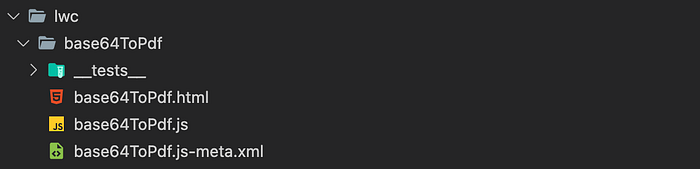
In addition to these files, we create another one, which we call example.js. This file contains an example Base64 encoded PDF document, which we swap out due to its length and import again later to keep the code in our actual LWC clean. We import the Base64 string into our component for demonstration purposes, normally you would get this of course as a response to an API request for example. The Base64 string in the following gist snippet is truncated.
Making a Base64 encoded PDF downloadable
As a first step we want to add a way to download an actual PDF file from our Base64 string via our LWC. For this we import our Base64 string from the example.js file and make use of the data URI scheme to build our download link which we will use in the LWC template in a second. In addition, we also specify the name the downloaded file should have in a separate property.
Within our LWC template we need to specify the link. For the href attribute we pass the defined data URI scheme and for the download attribute the desired file name. Furthermore, we also add CSS classes from the SLDS to our link to make it look like a lightning button.
Display a Base64 encoded PDF using an iFrame
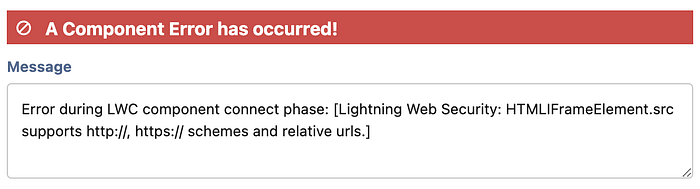
→ Update: Unfortunately, the direct PDF preview option described below in this section was only possible in earlier API versions and is now no longer possible due to stricter Lightning Web Security and would lead to the following error:
In order to make the PDF not only available for download, but also displayable to the user, we add a getter to our LWC, which passes the previously defined data URI scheme to the template of our component.
For the display of the PDF we can use an iFrame in our component template, to which we pass the value via our previously defined getter as src attribute like:
Please remember to also configure "data:" as CSP Trusted Site Definition in the setup of your org to avoid problems with blocked content.
To make the presentation of our LWC a bit more appealing, we have wrapped our download function as well as the iFrame in a Lightning Card which in the end looks as follows:

For the XML file of our LWC, you can of course decide to expose the component for direct use on a home page, for example, as I have done above to show our final component. However, since it is more of a small utility, it may be sufficient not to expose it at all and simply embed it as a child component in other LWCs based on your needs.
Conclusion
In this post, using the example of PDF documents, we have seen how to make Base64 encoded files downloadable in Salesforce with just a few lines of code. Of course, the LWC in this post is just a simple example and would need to be embedded into an actual use case accordingly.

The full source code including JEST unit tests and JSDoc comments is available on GitHub:
More content at PlainEnglish.io. Sign up for our free weekly newsletter. Follow us on Twitter, LinkedIn, YouTube, and Discord.
Interested in scaling your software startup? Check out Circuit.