
Part 1, deploying VMs in a public-only single region of the tutorial → https://medium.com/@gmusumeci/getting-started-with-terraform-and-google-cloud-platform-gcp-e718017376d1
Part 2, deploying VMs in a private-only single region with a load balancer and unmanaged instance groups → https://medium.com/@gmusumeci/getting-started-with-terraform-and-google-cloud-platform-gcp-deploying-vms-in-a-private-only-f9ab61fa7d15
Part 3, deploying VMs in a private-only single region with a load balancer with autoscaling → https://medium.com/@gmusumeci/getting-started-with-terraform-and-google-cloud-platform-gcp-deploying-vms-in-a-private-only-f8b5ce7858d8
Part 4, deploying a MySQL database instance with a public endpoint → https://medium.com/@gmusumeci/getting-started-with-terraform-and-google-cloud-platform-gcp-deploying-a-mysql-database-f55f3bf57ad3
In this tutorial, we will deploy a PostgreSQL database instance with a public endpoint.
1. Requirements
Please refer to part 1 of the tutorial for the requirements (Section 1, Requirements)
2. The Provider
The provider is the section of the Terraform script that will start the connection with GCP. The Terraform provider looks like this:
# setup the GCP provider
terraform {
  required_version = ">= 0.12"
}
provider "google" {
  project     = "my-gcp-project"
  credentials = file("kopicloud-tfadmin.json")
  region      = "europe-west1"
  zone        = "europe-west1-b"
}
To simplify the management of variables and help with the reusability of code we will move variables out the provider file. It is recommended to keep variables in the variables.tf file:
# define the GCP authentication file
variable "gcp_auth_file" {
  type = string
  description = "GCP authentication file"
}
# define GCP project name
variable "app_project" {
  type = string
  description = "GCP project name"
}
# define GCP region
variable "gcp_region_1" {
  type = string
  description = "GCP region"
}
# define GCP zone
variable "gcp_zone_1" {
  type = string
  description = "GCP zone"
}
Create a file terraform.tfvars with your GCP settings.
# GCP Settings
gcp_region_1  = "europe-west1"
gcp_zone_1    = "europe-west1-b"
gcp_auth_file = "../auth/kopicloud-tfadmin.json"# GCP Netwok
Update the provider section, usually in your main.tf or provider.tf, file to use the GCP variables defined above. In this case, we will need to use some features available at the google-beta provider too.
# setup the GCP provider | provider.tf
terraform {
  required_version = ">= 0.12"
}
provider "google" {
  project     = var.app_project
  credentials = file(var.gcp_auth_file)
  region      = var.gcp_region_1
  zone        = var.gcp_zone_1
}
provider "google-beta" {
  project     = var.app_project
  credentials = file(var.gcp_auth_file)
  region      = var.gcp_region_1
  zone        = var.gcp_zone_1
}
3. Create the PostgreSQL Database Instance
Create a postgresql-instance.tf file and then add the following code to create the database instance:
resource "google_sql_database_instance" "postgresql" {
  name = "${var.app_name}-db1"
  project = "${var.app_project}"
  region = "${var.gcp_region_1}"
  database_version = "${var.db_version}"

  settings {
    tier = "${var.db_tier}"
    activation_policy = "${var.db_activation_policy}"
    disk_autoresize = "${var.db_disk_autoresize}"
    disk_size = "${var.db_disk_size}"
    disk_type = "${var.db_disk_type}"
    pricing_plan = "${var.db_pricing_plan}"

    location_preference {
      zone = "${var.gcp_zone_1}"
    }

    maintenance_window {
      day  = "7"  # sunday
      hour = "3" # 3am
    }

    backup_configuration {
      binary_log_enabled = true
      enabled = true
      start_time = "00:00"
    }

    ip_configuration {
      ipv4_enabled = "true"
      authorized_networks {
        value = "${var.db_instance_access_cidr}"
      }
    }
  }
}
After that, we need to add a few more lines of code to create a database:
# create database
resource "google_sql_database" "postgresql_db" {
  name = "${var.db_name}"
  project = "${var.app_project}"
  instance = "${google_sql_database_instance.postgresql.name}"
  charset = "${var.db_charset}"
  collation = "${var.db_collation}"
}
Finally, we will add the section to create a database user in the same file:
# create user
resource "random_id" "user_password" {
  byte_length = 8
}
resource "google_sql_user" "postgresql_user" {
  name = "${var.db_user_name}"
  project  = "${var.app_project}"
  instance = "${google_sql_database_instance.postgresql.name}"
  host = "${var.db_user_host}"
  password = "${var.db_user_password == "" ?
    random_id.user_password.hex : var.db_user_password}"
}
Now, we are ready to create a file called postgresql-instance-variables.tf with the variables for the database instances, database, and user.
# database instance settings
variable db_version {
  description = "The version of of the database. For example,
    POSTGRES_9_6 or POSTGRES_11"
  default = "POSTGRES_11"
}
variable db_tier {
  description = "The machine tier (First Generation) or type (Second
    Generation). Reference: https://cloud.google.com/sql/pricing"
  default = "db-f1-micro"
}
variable db_activation_policy {
  description = "Specifies when the instance should be active.
    Options are ALWAYS, NEVER or ON_DEMAND"
  default = "ALWAYS"
}
variable db_disk_autoresize {
  description = "Second Generation only. Configuration to increase
    storage size automatically."
  default = true
}
variable db_disk_size {
  description = "Second generation only. The size of data disk, in
    GB. Size of a running instance cannot be reduced but can be
    increased."
  default = 10
}
variable db_disk_type {
  description = "Second generation only. The type of data disk:
    PD_SSD or PD_HDD"
  default = "PD_SSD"
}
variable db_pricing_plan {
  description = "First generation only. Pricing plan for this
    instance, can be one of PER_USE or PACKAGE"
  default = "PER_USE"
}
variable db_instance_access_cidr {
  description = "The IPv4 CIDR to provide access the database
    instance"
  default = "0.0.0.0/0"
}
# database settings
variable db_name {
  description = "Name of the default database to create"
  default = "tfdb"
}
variable db_charset {
  description = "The charset for the default database"
  default = ""
}
variable db_collation {
  description = "The collation for the default database. Example for
    MySQL databases: 'utf8_general_ci'"
  default = ""
}
# user settings
variable db_user_name {
  description = "The name of the default user"
  default = "dbadmin"
}
variable db_user_host {
  description = "The host for the default user"
  default = "%"
}
variable db_user_password {
  description = "The password for the default user. If not set, a
    random one will be generated and available in the
    generated_user_password output variable."
  default = ""
}
The final step is to create an output file called postgresql-instance-outputs.tf:
# Database output | postgresql-instance-output.tf
output db_instance_address {
  description = "IP address of the master database instance"
  value = "${google_sql_database_instance.my_sql.ip_address.0.
    ip_address}"
}output db_instance_name {
  description = "Name of the database instance"
  value = "${google_sql_database_instance.my_sql.name}"
}output db_instance_username {
  description = "Name of the database user"
  value = "${var.db_user_name}"
}output db_instance_generated_user_password {
  description = "The auto generated default user password if no
    input password was provided"
  value = "${random_id.user_password.hex}"
}
4. Build the Infrastructure using Terraform
Clone the code from my GitHub repository:
git clone https://github.com/guillermo-musumeci/terraform-gcp-postgresql.gitExecute the Terraform script, following instructions of Section 6, Build our Infrastructure with Terraform of part 1 of this tutorial.
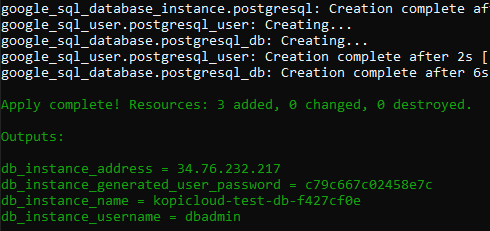
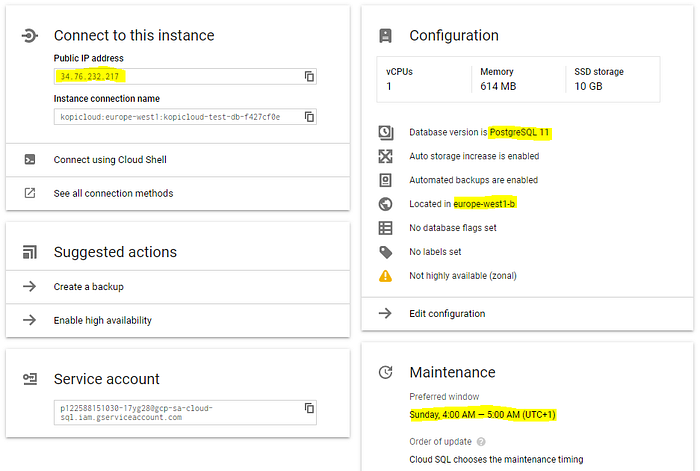
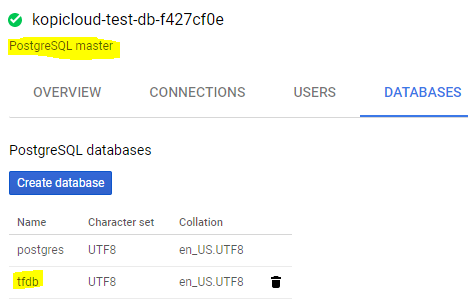
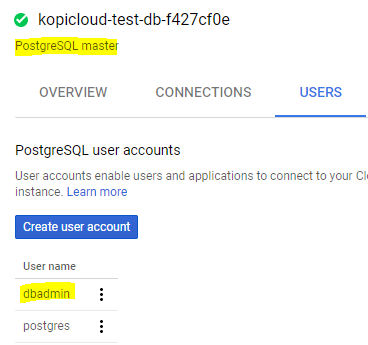
After Terraform script finished, go to Google Console, SQL to confirm the database was created successfully:
I hope you enjoy this post! Thank you for reading!