
· Load LlaMA 2 model with Hugging Face 🚀 ∘ Install dependencies for running Llama 2 with Hugging Face locally ∘ Downloading Llama 2 model ∘ Running the model using Hugging Face pipeline
Load LlaMA 2 model with Hugging Face 🚀
Install dependencies for running Llama 2 with Hugging Face locally
We need to ensure that the essential libraries are installed:
transformers: Hugging Face Transformers provides APIs to quickly download and use pretrained Transformer models.torch: PyTorch provides Tensors that can live either on the CPU or the GPU
Note: PyTorch is a GPU-Ready Tensor library. For CPU-support only, we can conveniently install Hugging Face Transformers and PyTorch library in one command line
pip install 'transformers[torch]'Explanation:
-
pip install torch transformerswould install two packages namedtorchandtransformers.
-
pip install transformers[torch], on the other hand, installs a variant of thetransformerspackage which contains support fortorch. Note that it has nothing to do with thetorchpackage itself, but is just a string defined by thetransformerspackage for a particular feature set that gets enabled. How the argumenttorchis interpreted is entirely up to itssetup.pyfile. (Brackets [optional] in PIP).
1° First, Download the library.
pip3 install 'transformers[torch]'2° Create an Account on Hugging Face
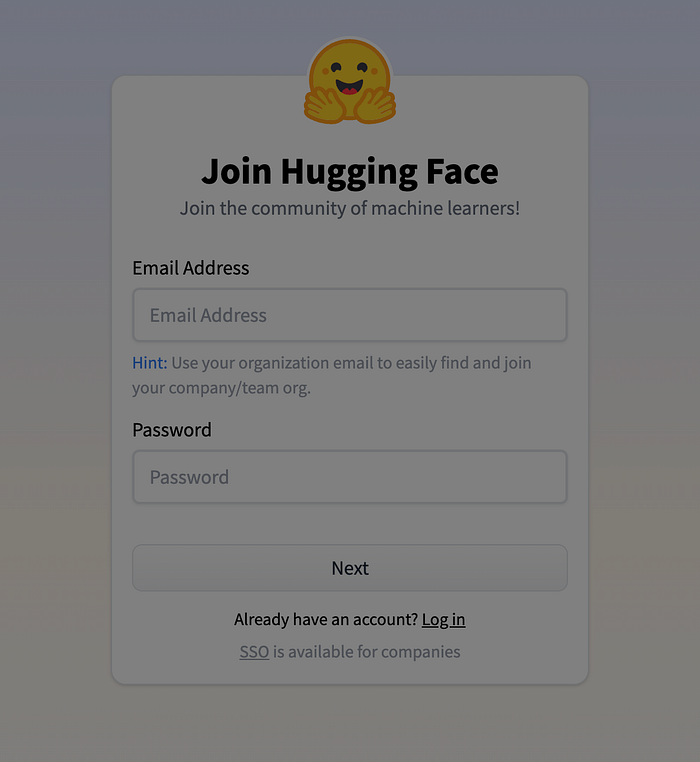
- Open a new tab and visit the Hugging Face website.
- Click on the "Sign In" button or sign up to Hugging Face.
- Once you have created your Hugging Face account, log in to the platform.
Obtaining the Hugging Face API Token
- Click on your profile picture at the top right corner of the page.
- Select "Access Token" from the dropdown menu.
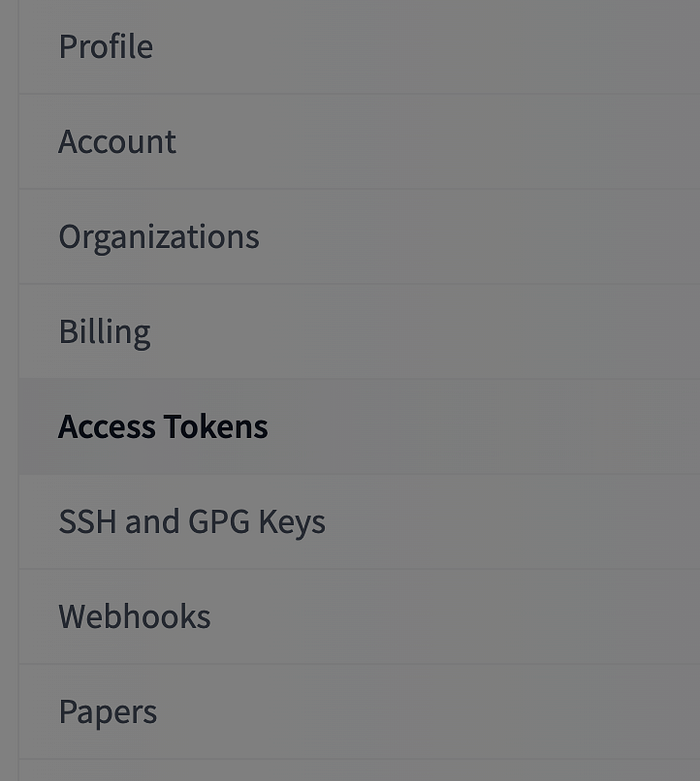
- Click on the "New Token" button.
- Give your token a name and click on the "Generate a token" button.
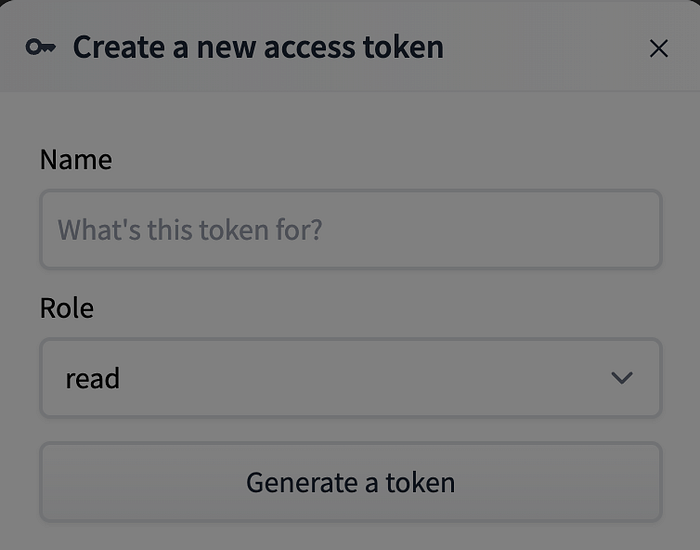
- Copy the Hugging Face API token. This token will be used to authenticate your requests to the Hugging Face API.
3° Login
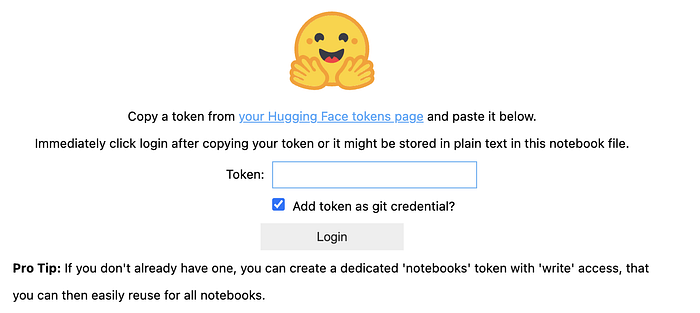
Once you have an account and your token, run the following command in your terminal or in your notebook:
huggingface-cli login

#or

huggingface-cli login --token YOUR_TOKEN_HERE
This command will prompt you to enter your Hugging Face token.

You can use the following command to check if you are logged and determine your currently active account
huggingface-cli whoamiNote: Alternatively, you can login using login() or login_notebook() in a script or a notebook:
#!pip3 install --upgrade huggingface_hub

from huggingface_hub import notebook_login
notebook_login()
You can only be logged in to one account at a time. (see more)
Downloading Llama 2 model
Note: Compared with the model used in the first part llama-2–7b-chat.Q2_K.gguf (Part. 1). We cannot use the tranformers library. GGML and GGUF models are not natively supported in transformers core. Instead of importing AutoModel from transformers we can import it from the ctransformers library to deal with GGML or GGUF models.
We gonna use the meta-llama/Llama-2–7b-hf model.
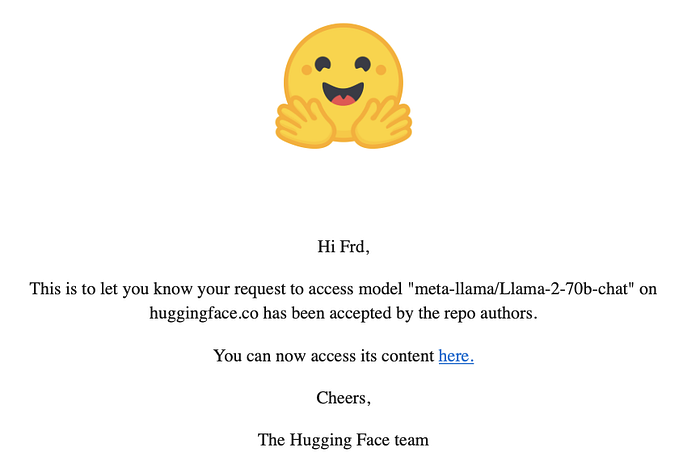
Note: In order to use Llama-2 with Hugging Face, you need to raise a request on the model page. (Make sure you are using the same email ids in both places).
There are several ways to download the model from Hugging Face to use it locally. Here are 3 ways to do it:
Method 1: Use from_pretrained() and save_pretrained() HF functions
- Download required files:
from transformers import AutoTokenizer, AutoModel

#Download your files online
tokenizer = AutoTokenizer.from_pretrained("meta-llama/Llama-2-7b-chat-hf")
model = AutoModel.from_pretrained("meta-llama/Llama-2-7b-chat-hf")- Use the
save_pretrained()function to download a file to a specific local path.
#Save your files to a specified directory
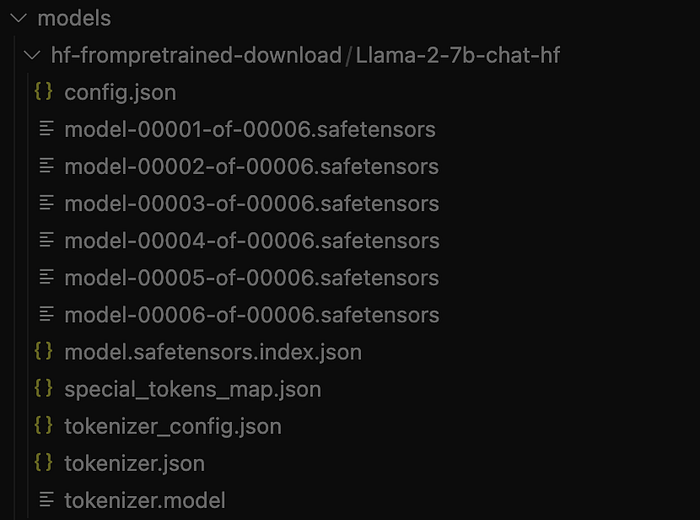
tokenizer.save_pretrained("./models/hf-frompretrained-download/Llama-2-7b-chat-hf/")
model.save_pretrained("./models/hf-frompretrained-download/Llama-2-7b-chat-hf/")- This method allow us to download only the required files from the model repository.
- Then, use the
from_pretrained()function to download the model offline.
#Reload your files offline
tokenizer = AutoTokenizer.from_pretrained("./models/hf-frompretrained-download/Llama-2-7b-chat-hf")
model = AutoModel.from_pretrained("./models/hf-frompretrained-download/Llama-2-7b-chat-hf")
Method 2: Use snapshot_download() HF functions
- Download a snapshot of the model repository:
MODEL_REPO = "meta-llama/Llama-2-7b-chat-hf"

model_path = snapshot_download(
    repo_id=MODEL_REPO,
    local_dir="./models/hf-snapshot-download/Llama-2-7b-chat-hf",
    cache_dir="./models/hf-snapshot-download/Llama-2-7b-chat-hf",
    local_files_only = False,
)
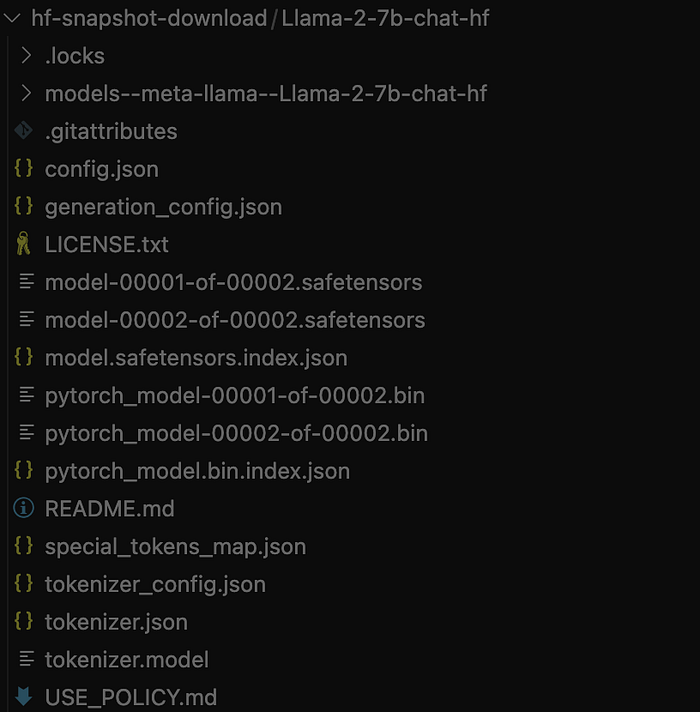
Unlike the previous method, this one download the entire content of the model's repository. We can filter the files extensions using `allow_patterns` and `ignore_patterns` parameters.
Method 3: Use git clone
- Clone the repository
cd models
cd hf-git-clone
git init
git lfs install
git clone <https://huggingface.co/meta-llama/Llama-2-7b-chat-hf>
Note: If Git credential manager asks you for your authentication credentials, use your token as https://<user_name>:<token>@huggingface.co/<repo_path>.(see more)
Running the model using Hugging Face pipeline
Once the model downloaded, we can generate responses using the Hugging Face Transformers Pipelines
from transformers import pipeline
import torch

model = "./models/hf-snapshot-download/Llama-2–7b-chat-hf"

llama_pipeline = pipeline(
  "text-generation", # LLM task
  model=model,
  torch_dtype=torch.bfloat16,
  device = -1, # or "cpu"
)
def get_llama_response(prompt: str) -> None:
    """
    Generate a response from the Llama model.

    Parameters:
        prompt (str): The user's input/question for the model.

    Returns:
        None: Prints the model's response.
    """

    sequences = llama_pipeline(
        prompt,
        do_sample=True,
        top_k=10,
        num_return_sequences=1,
        eos_token_id=tokenizer.eos_token_id,
        max_length=256,
    )

    print("Llama 2 Chatbot:", sequences[0]['generated_text'])


prompt = "Which planet is the closest to the sun?"
get_llama_response(prompt)
Llama 2 Chatbot: Which planet is the closest to the sun?

Answer: Mercury is the closest planet to the sun, with an average distance of about 58 million kilometers (36 million miles).
Congratulations! In this third and last article we've successfully installed Llama 2 with Hugging Face. We can now use it locally with CPU only.