
Starting out in Data Engineering (DE), the initial challenge I faced was selecting the right tools to bolster my tech stack. Overwhelmed my the tools in the market. I quickly came to the realization that the most effective way to solidify new knowledge in any toolset is through hands-on application. In this project, I'll be guiding you through a streamlined data pipeline I built to put my recently acquired Apache Kafka skills to the test.
GitHub repo: https://github.com/MinaBasem/San-Francisco-Fire-Incidents-Streaming/tree/main
Overview
Alright, let's get down to brass tacks on this project. We're here to learn the ropes of Kafka, what it can do, and when to throw it in the mix.
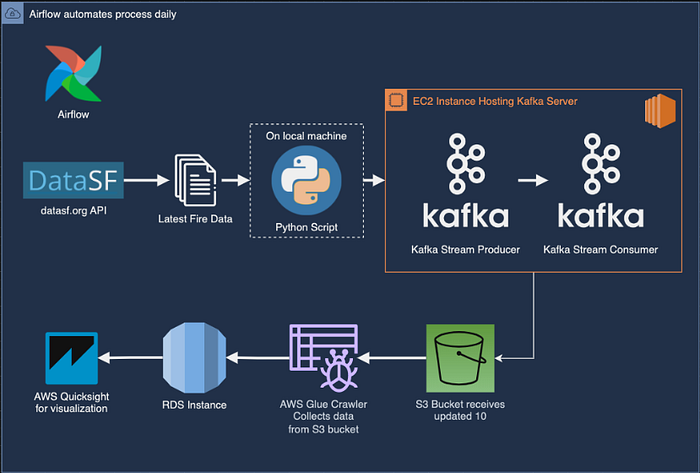
Data will be snagged from a JSON endpoint and funneled to a Kafka instance chilling on an EC2 instance. There, we'll create a brand new topic and set up a listener to catch what's flowing through.
An Airflow DAG will be the mastermind behind the whole operation, orchestrating things like running the import script and firing up both the Producer and Consumer scripts at the same time. The Producer script will create a file to stash all the streamed data, which will then be shipped off to an S3 bucket for safekeeping. Glue Crawler will come in later to wrangle all that data into a neat and tidy table, ready for you to query whenever with Athena. Finally, the data will find its permanent home in an RDS instance.
About the Dataset
The dataset used in this project is from DataSF — Fire Incidents, which is updated on a daily basis where fire incidents throughout San Francisco are recorded. This makes for a good dataset since it is updated DAILY (Live datasets are a good choice for Kafka use-cases).
Fire Incidents includes a summary of each (non-medical) incident to which the SF Fire Department responded. Each incident record includes the call number, incident number, address, number and type of each unit responding, call type, prime situation (field observation), actions taken, and property loss.
Here's a quick look at some of the columns we are faced with:

For the sake of our project, we will be using the JSON endpoint provided by the website, an endpoint that could be used to return the latest 10 rows will look like this:
https://data.sfgov.org/resource/wr8u-xric.csv?$order=incident_date DESC&$limit=10
However, feel free to change the amount of data than can be returned by the endpoint.
Setting up the EC2 instance and Kafka
The Kafka server can be hosted either locally or on cloud. In this project an EC2 instance will be used. I assume you know how to set up an EC2 instance so I will not dive into great detail here. The simplified steps to set up the EC2 instance are as follows:
- Start an EC2 instance (preferably a t2.micro since this is a small project)
- Launch the instance
- Install Java JDK and Kafka and set them up
- Configure the IP in
config/server.propertiesfile by adding the EC2 instance Public IPv4 - Start Zookeeper
bin/zookeeper-server-start.sh config/zookeeper.properties - Start Kafka Server
bin/kafka-server-start.sh config/server.properties
The Kafka setup should be complete.
Topic creation (test_1 in this case), producer, and consumer are next:
bin/kafka-topics.sh --create --topic test_1 --bootstrap-server 35.178.205.151:9092 --replication-factor 1 --partitions 1
bin/kafka-console-producer.sh --topic test_1 --bootstrap-server 35.178.205.151:9092
bin/kafka-console-consumer.sh --topic test_1 --bootstrap-server 35.178.205.151:9092 (In a new terminal)
Code files
We will create 3 scripts to automate this process
- import_fire_data.py:
Obtains data from the JSON endpoint as JSON, converts it to CSV and saved into a local file `Fire_SF.csv'. The obtained data has a total of 64 columns, in this script they are narrowed down to 28 columns, leaving only the more relevant data in hand.
- KafkaProducer.py:
Flushes any data stored beforehand. Starts the Kafka Producer session and serializes data to utf-8 (note that for some users, an api_version has to be specified). The script then streams data from the Fire_SF.csv file while converting each row to a JSON record. Finally, the script flushes all congested data after 60 seconds of sending the last record. Note: The KafkaProcuder.py and KafkaProducer.py are run simultaneously through the DAG so stream is made in real time.
- KafkaConsumer.py:
Creates a connection to the S3 bucket, in this case an S3 access point was used to connect to the S3 bucket. Consumer session is started and starts retreiving the streamed data. Creates a file JSON file named full_data_date.time.json where all streamed data is appended and uploaded to the bucket. A sample of the data sent to the bucket can be found below.

- airflow_scheduling.py:
Orchestrates the entire process and runs the DAG once a day Runs the import_fire_data.csv file, when finished, proceeds to run KafkaProducer.py and KafkaConsumer.py simultaneously.
Let's dive into detail
import_fire_data.py: Let's automate fetching and cleaning data!
import requests
import csv
import datetime
from io import StringIO

current_date = datetime.datetime.now().strftime("%Y-%m-%d")
def fetch_data(api_url):
    response = requests.get(api_url)
    if response.status_code == 200:
        return response.text
    else:
        raise Exception(f"Failed to fetch data from API. Status code: {response.status_code}")
def save_to_csv(csv_data, csv_filename, columns_to_exclude):
    csv_file = StringIO(csv_data)
    with open(csv_filename, 'w', newline='') as csvfile:
        reader = csv.reader(csv_file)
        header = next(reader, None)
        filtered_header = [col for col in header if col not in columns_to_exclude]
        filtered_data = [[row[i] for i in range(len(row)) if header[i] not in columns_to_exclude] for row in reader]
        writer = csv.writer(csvfile)
        writer.writerow(filtered_header)
        writer.writerows(filtered_data)
if __name__ == "__main__":
    api_url = "https://data.sfgov.org/resource/wr8u-xric.csv $order=incident_date DESC&$limit=10"
    csv_filename = 'Fire_SF.csv'
    columns_to_exclude = ['exposure_number', 'estimated_property_loss', 'box', 'estimated_contents_loss', 'mutual_aid', 'action_taken_secondary', 'action_taken_other', 'detector_alerted_occupants', 'ignition_factor_secondary',
                          'structure_type', 'structure_status', 'fire_spread', 'no_flame_spead', 'number_of_floors_with_minimum_damage', 'number_of_floors_with_heavy_damage', 'number_of_floors_with_extreme_damage',
                          'detectors_present', 'detector_type', 'detector_operation', 'detector_failure_reason', 'automatic_extinguishing_system_present', 'automatic_extinguishing_sytem_type', 'automatic_extinguishing_sytem_perfomance',
                          'automatic_extinguishing_sytem_failure_reason', 'supervisor_district', 'number_of_sprinkler_heads_operating', 'ignition_cause', 'heat_source', 'item_first_ignited', 'number_of_floors_with_significant_damage',
                          'detector_effectiveness', 'floor_of_fire_origin', 'first_unit_on_scene', 'other_units', 'other_personnel', 'station_area']
    csv_data = fetch_data(api_url)
    save_to_csv(csv_data, csv_filename, columns_to_exclude)
    print(f"CSV data has been successfully saved to {csv_filename}")
First, we've got some imports at the beginning. These are like grabbing the tools we'll need from our toolbox. requests helps us talk to the API, csv lets us work with comma-separated value files (CSV), datetime keeps track of dates, and StringIO is a little helper for handling text data in memory.
Alright, with our tools ready, we define a function called fetch_data. This function takes the API URL (web address) as an argument. What it does is send a request to that URL and grab the response. If the response comes back successfully (status code 200), the function returns the data as text. But if something goes wrong (different status code), the function throws an exception, basically raising a red flag to let us know there's a problem.
Next, we have another function called save_to_csv. This one takes three arguments: the data we want to save (as text), the filename for the CSV file, and a list of column names we want to exclude. Here's the cool part: this function first creates a special kind of file object in memory using StringIO. Then, it opens the actual CSV file for writing.
Now comes some data wrangling magic! We use a csv.reader to read the data line by line. We grab the header row (the first line with column names) and then use a little list comprehension to filter out the columns we don't want. We do the same for the data rows, making sure only the desired columns make it into the final CSV. Finally, a csv.writer helps us write the filtered header and data to the CSV file.
The last part of the code checks if we're running the script directly (not importing it as a module). If so, it sets the API URL to fetch the latest 10 fire incident records from San Francisco's Open Data portal. We also define the filename for the CSV and a long list of column names we're going to exclude (phew!).
Then, it calls the fetch_data function to grab the data from the API and stores it in a variable. Finally, it calls the save_to_csv function, passing the fetched data, the desired filename, and the list of columns to exclude. If everything goes well, you'll see a message printed to your console letting you know the CSV data has been saved successfully.
KafkaProducer.py: Fire it Up! Sending Data to Kafka with Python
import pandas as pd
from kafka import KafkaProducer
from time import sleep
from json import dumps
import json

producer = KafkaProducer(bootstrap_servers=['35.178.205.151:9092'],
                            value_serializer=lambda x: dumps(x).encode('utf-8'),
                            api_version=(2, 8, 0))

producer.flush()

df = pd.read_csv("Fire_SF.csv")

for index, row in df.iterrows():
    dict = df.sample(1).to_dict(orient="records")[0]
    producer.send('test_1', value=dict)
    print(index)
    print(dict)
    sleep(10)    # There has to be a delay since the consumer takes a while to send files to S3

print("Producer flushing in 60 seconds...")
sleep(30)
print("Producer flushing in 30 seconds...")
sleep(20)
print("Producer flushing in 10 seconds...")
sleep(10)
producer.flush()
print("Producer has been flushed.")
First, we've got our import statements at the beginning. These lines bring in the tools we'll need:
pandas(pd) for working with dataframes (fancy spreadsheets in Python)KafkaProducerfrom thekafkalibrary to interact with Kafkatimefor adding pauses (delays) between messagesjsonfor converting data to JSON format (a common format for exchanging data)
Now, let's set up the Kafka producer. This line creates an object called producer that will handle sending messages to Kafka. We provide some details like the bootstrap server address (35.178.205.151:9092) which tells the producer where to find the Kafka cluster.
There's also a bit of magic happening with value_serializer. This function ensures our data gets packaged correctly before sending. It converts any data we send (x) to JSON format and then encodes it as UTF-8 characters (a universal encoding for text). The api_version argument specifies the Kafka API version the producer will use.
We call producer.flush() here, which basically tells the producer to make sure any messages waiting in its internal buffer are sent before we proceed.
Alright, time for the main course! We use pd.read_csv to read the fire incident data from our "Fire_SF.csv" file and store it in a pandas dataframe (df).
The loop is where the action happens. Here's what goes down for each row in the dataframe:
- Grab a Random Sample: We use
df.sample(1)to randomly pick a single row from the dataframe. - Convert to Dictionary: We convert the chosen row into a Python dictionary using
to_dict(orient="records"). This dictionary format is convenient for sending data to Kafka. - Send to Kafka: We use
producer.send('test_1', value=dict)to send the dictionary (dict) to the Kafka topic named "test_1". - Print for Reference: We print the index of the row and the dictionary itself for your reference.
- Take a Break: Finally, we add a
sleep(10)statement to pause for 10 seconds. This delay is likely there because the consumer that reads from Kafka might take some time to process and potentially send the data to S3 (as mentioned in your comments).
After the loop finishes iterating through all the rows, we enter a countdown sequence using sleep statements. This is just a friendly reminder that the producer is flushing any remaining messages before we officially declare it done. Finally, we call producer.flush() again and print a message to confirm the producer has been flushed.
KafkaConsumer.py, from Stream to S3: Consuming Kafka Messages and Uploading to S3
# Consumer code as a single file

import os
import boto3
import json
import csv
import glob
from time import sleep
from json import dumps,loads
from s3fs import S3FileSystem
from datetime import datetime
from kafka import KafkaConsumer

s3 = boto3.resource('s3')
access_point_arn = "arn:aws:s3:eu-west-2:116685337455:accesspoint/test-access-point"

consumer = KafkaConsumer('test_1',
     bootstrap_servers=['35.178.205.151:9092'], #add your IP here
    value_deserializer=lambda x: loads(x.decode('utf-8')),
    api_version=(2, 8, 0))

#create an empty csv file and add 2 rows to it
with open('full_data.csv', 'w', newline='') as file:
    writer = csv.writer(file)
    writer.writerow(['key', 'value'])

# objective: collect all json rows and send them to a single file

now = datetime.now()
now = now.strftime("%Y-%m-%d.%H:%M:%S")

for count, i in enumerate(consumer):
    print(count)
    print(i.value)
    with open("temp_data/full_data_{}.json".format(now), 'a') as file:
        json.dump(i.value, file)
    s3.Bucket(access_point_arn).upload_file("temp_data/full_data_{}.json".format(now), "fire-sf-project" "/data/full_data_{}.json".format(now))
    print(" --- successfully uploaded")
This code acts as a consumer, listening for messages on a Kafka topic and sending them off for safekeeping in an S3 bucket. Let's unpack how it works!
1. Gearing Up:
First, we import a bunch of helpful libraries:
osfor interacting with the operating system (like creating files)boto3for interacting with AWS S3 servicesjsonfor working with JSON data formatcsvfor handling comma-separated value files (CSV)globfor finding files that match a specific pattern (more on this later)timefor adding pauses between messagesdatetimefor working with dates and timesKafkaConsumerfrom thekafkalibrary to interact with Kafka
We then set up an S3 resource (s3) and define the access point ARN (think of it as a unique address) for our S3 bucket.
2. Configuring the Consumer:
Next, we create a Kafka consumer (consumer) that listens for messages on the topic named "test_1". We provide the bootstrap server address to tell the consumer where to find the Kafka cluster. The value_deserializer function decodes the messages received from Kafka back into Python dictionaries. Finally, the api_version argument specifies the Kafka API version the consumer will use.
3. The Initial (Commented Out) Approach:
The commented-out section shows a previous attempt at processing messages. It would create a new JSON file for each message received, with a filename based on a counter and timestamp. Each message would then be saved to the temporary file, uploaded to S3, and the temporary file would be deleted.
4. The New Objective: One File to Rule Them All:
The commented-out approach creates a large number of files. The revised code addresses this by collecting all messages into a single, timestamped JSON file named "full_data_{timestamp}.json".
5. Consuming and Uploading:
Here's where the magic happens:
- We loop through messages received by the consumer (
consumer). - For each message, we print the message count and the actual message content for reference.
- We open a temporary JSON file named "temp_data/full_data_{timestamp}.json" in append mode (
'a'). This ensures all messages get added to the same file. - We use
json.dumpto write the current message as a JSON object to the open file. - We use the S3 resource (
s3) to upload the temporary JSON file to the specified location within our S3 bucket ("fire-sf-project/data/"). - Finally, we print a confirmation message indicating successful upload.
airflow_scheduling.py: Orchestrating the Flow, An Airflow DAG for Fire Incidents Data Processing
The maestro of the show would be nothing but… Airflow!
from datetime import datetime, timedelta
from airflow import DAG
from airflow.operators.python import PythonOperator
from airflow.operators.bash import BashOperator
from airflow.decorators import dag

default_args = {
    'owner': 'airflow',
    'start_date': datetime(2023, 1, 1),
    'depends_on_past': False,
    'retries': 1,
    'retry_delay': timedelta(minutes=5),
}

dag = DAG(
    dag_id='sf_fires_dag',
    default_args=default_args,
    description='Airflow DAG for San Fransisco Fire Incidents Kafka streaming project',
    schedule_interval=timedelta(days=1),
)

task_start_import = BashOperator(
    task_id='start_import',
    bash_command='python3 import_fire_data.py',
    dag=dag,
)

task_run_producer = BashOperator(
    task_id='run_producer',
    bash_command='python3 KafkaProducer.py',
    dag=dag,
)

task_run_consumer = BashOperator(
    task_id='run_consumer',
    bash_command='python3 KafkaConsumer.py',
    dag=dag,
)

task_start_import >> task_run_producer
task_start_import >> task_run_consumer
This DAG orchestrates the flow of data from initial import to streaming via Kafka. Let's jump in and see how it works!
1. Setting the Stage:
The code starts with essential imports:
datetimeandtimedeltafor working with dates and times- Libraries from Airflow:
DAGto define the directed acyclic graph (DAG) itselfPythonOperatorfor tasks written in PythonBashOperatorfor tasks executed as Bash commandsdagdecorator to register the DAG with Airflow
We then define some default arguments (default_args) for our DAG tasks. These include:
owner: Set to "airflow" (can be a specific user)start_date: The DAG will start running from January 1st, 2023depends_on_past: Tasks don't rely on the success of previous runsretries: Tasks will be retried once if they failretry_delay: A 5-minute wait between retries
2. Building the DAG:
The dag object is created using the DAG function. Here, we provide:
dag_id: A unique identifier for the DAG - "sf_fires_dag" in this casedefault_args: The default arguments defined earlierdescription: A human-readable description of the DAG's purposeschedule_interval: The DAG will run every day (timedelta(days=1))
3. Defining the Tasks:
Now comes the magic! We define three tasks using either PythonOperator or BashOperator:
task_start_import: This task usesBashOperatorto execute a Python script namedimport_fire_data.py. This script is likely responsible for fetching or importing the initial fire incident data.task_run_producer: This task usesBashOperatorto run another Python script namedKafkaProducer.py. This script is likely responsible for transforming the data and sending it to a Kafka topic.task_run_consumer: This task, again aBashOperator, executes theKafkaConsumer.pyscript. This script probably handles consuming the data from the Kafka topic and performing some further processing or storage.
4. Setting Dependencies:
The last two lines establish dependencies between the tasks:
task_start_import >> task_run_producer: This ensures the "start_import" task finishes successfully before the "run_producer" task starts.task_start_import >> task_run_consumer: Similarly, "start_import" must complete before "run_consumer" begins.
5. The Big Picture:
This Airflow DAG provides a structured way to automate the data processing pipeline for San Francisco fire incidents. The DAG imports data, sends it to Kafka via a producer, and then consumes it using a consumer script. The defined schedule ensures the pipeline runs daily, keeping your data processing workflow efficient and automated.
Summary
While we've focused on the general functionalities, keep in mind that a thorough grasp of the specific Python scripts would be necessary for a complete understanding of the entire data processing process.
By following these steps and leveraging the provided code snippets, we have briefly walked through this project and you have a solid foundation for building your own Kafka-based data pipelines. Remember to adapt the details (API endpoints, S3 buckets, etc.) to your specific use case.
For the full codes used in this project, refer to the GitHub repository: https://github.com/MinaBasem/San-Francisco-Fire-Incidents-Streaming/tree/main