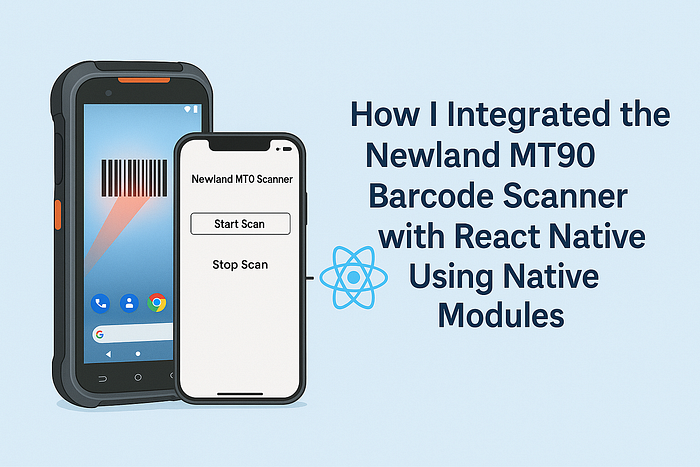
When building a React Native app for Android-based point-of-sale systems, integrating external hardware like barcode scanners can be challenging — especially when working with enterprise devices such as the Newland MT90. Unlike consumer barcode scanners that often use USB or Bluetooth, the MT90 uses a built-in scanner module and expects interaction via Android Intents and BroadcastReceivers.
This article walks through how I created a custom native module to connect the Newland MT90 barcode scanner with a React Native app.
🔧 Goal
Create a seamless integration that:
- Listens for scan results via broadcast receivers.
- Initiates and stops scans from JavaScript.
- Emits scanned data to the React Native app via event emitters.
- Supports hardware key triggers for initiating scans.
🏗️ Native Module Implementation (Android)
The Newland MT90 broadcasts barcode scan results through nlscan.action.SCANNER_RESULT. To hook into this system, I created a native Android module that:
- Registers a broadcast receiver.
- Sends barcode data to JavaScript using
DeviceEventEmitter.
📦 BarcodeScannerModule.kt
package com.pos // your app package name

import android.content.*
import android.util.Log
import com.facebook.react.bridge.*
import com.facebook.react.modules.core.DeviceEventManagerModule

class BarcodeScannerModule(private val reactContext: ReactApplicationContext) :
    ReactContextBaseJavaModule(reactContext) {

    private val receiver = BarcodeReceiver(reactContext)

    override fun getName(): String = "BarcodeScanner"

    override fun initialize() {
        super.initialize()
    }

    @ReactMethod
    fun addListener(eventName: String?) {
    }

    @ReactMethod
    fun removeListeners(count: Int) {
    }

    @ReactMethod
    fun startScan(timeout: Int = 3, scanType: Int = 1) {
        val intent = Intent("nlscan.action.SCANNER_TRIG")
        intent.putExtra("SCAN_TIMEOUT", timeout)
        intent.putExtra("SCAN_TYPE", scanType)
        reactContext.sendBroadcast(intent)
    }

    @ReactMethod
    fun stopScan() {
        reactContext.sendBroadcast(Intent("nlscan.action.STOP_SCAN"))
    }

    @ReactMethod
    fun registerReceiver() {
        val filter = IntentFilter("nlscan.action.SCANNER_RESULT")
        reactContext.registerReceiver(receiver, filter)
    }

    @ReactMethod
    fun unregisterReceiver() {
        try {
            reactContext.unregisterReceiver(receiver)
        } catch (e: IllegalArgumentException) {
            Log.w("BarcodeScanner", "Receiver was not registered or already removed")
        }
    }
}

class BarcodeReceiver(private val reactContext: ReactApplicationContext) : BroadcastReceiver() {
    override fun onReceive(context: Context?, intent: Intent?) {
        if (intent?.action == "nlscan.action.SCANNER_RESULT") {
            val barcode = intent.getStringExtra("SCAN_BARCODE1")
            val state = intent.getStringExtra("SCAN_STATE")

            if (state == "ok" && barcode != null) {
                val params = Arguments.createMap()
                params.putString("data", barcode)

                Log.d("BarcodeScanner", "Emitting event to JS with barcode: $barcode")

                reactContext
                    .getJSModule(DeviceEventManagerModule.RCTDeviceEventEmitter::class.java)
                    .emit("BarcodeScanned", params)
            } else {
                Log.w("BarcodeScanner", "Scan failed or barcode is null")
            }
        }
    }
}
Registering the Native Module
📦 BarcodeScannerPackage.kt
package com.pos // your app package name

import com.facebook.react.ReactPackage
import com.facebook.react.bridge.NativeModule
import com.facebook.react.bridge.ReactApplicationContext
import com.facebook.react.uimanager.ViewManager

class BarcodeScannerPackage : ReactPackage {
    override fun createNativeModules(reactContext: ReactApplicationContext): List<NativeModule> {
        return listOf(BarcodeScannerModule(reactContext))
    }

    override fun createViewManagers(reactContext: ReactApplicationContext): List<ViewManager<*, *>> {
        return emptyList()
    }
}
Add the package in your MainApplication.kt:
override fun getPackages(): List<ReactPackage> =
    PackageList(this).packages.apply {
        add(BarcodeScannerPackage())
    }
📱 React Native Integration
Once the native code is linked, I created a simple App.tsx component to:
- Register the broadcast receiver on mount.
- Listen to scan events.
- Trigger scan via a button or hardware key.
To trigger scans using the physical buttons on the Newland MT90 device (like side-mounted scan keys), we need to listen for hardware key events. For that, we'll use the react-native-keyevent library.
yarn add react-native-keyevent
import React, {useEffect, useState, useCallback} from 'react';
import {NativeModules, NativeEventEmitter, SafeAreaView, Text, Button, View} from 'react-native';
import KeyEvent from 'react-native-keyevent';

const {BarcodeScanner} = NativeModules;
const scannerEmitter = new NativeEventEmitter(BarcodeScanner);

const App = () => {
  const [barcode, setBarcode] = useState<string | null>(null);

  useEffect(() => {
    BarcodeScanner.registerReceiver();

    const subscription = scannerEmitter.addListener('BarcodeScanned', (event: {data: string}) => {
      console.log('Scanned:', event.data);
      setBarcode(event.data);
    });

    KeyEvent.onKeyDownListener(handleKeyDown);

    return () => {
      BarcodeScanner.unregisterReceiver();
      KeyEvent.removeKeyDownListener();
      subscription.remove();
    };
  }, []);

  const handleKeyDown = useCallback((keyEvent: any) => {
    if ([139, 280, 293].includes(keyEvent.keyCode)) {
      BarcodeScanner.startScan(4, 1);
    }
  }, []);

  return (
    <SafeAreaView style={{padding: 20}}>
      <Text style={{fontSize: 20, fontWeight: 'bold'}}>Newland MT90 Scanner</Text>
      <Button title="Start Scan" onPress={() => BarcodeScanner.startScan(4, 1)} />
      <View style={{marginVertical: 10}}>
        <Button title="Stop Scan" color="red" onPress={() => BarcodeScanner.stopScan()} />
      </View>
      <Text>Scanned Barcode: {barcode ?? 'None'}</Text>
    </SafeAreaView>
  );
};

export default App;
✅ Choose the Right Output Mode:
The app will not receive the nlscan.action.SCANNER_RESULT broadcast from the scanner if it is set to keyboard mode. In this mode, the scanner bypasses the app and directly inputs data into text fields as if it were a physical keyboard.
To enable the app to receive broadcast data, we need to change the scanner's output mode from keyboard to broadcast mode.
On the Newland MT-90 device:
- Open the Quick Settings app
- Go to Scan > Output Mode
- Change it to:
✅ "Output Via API"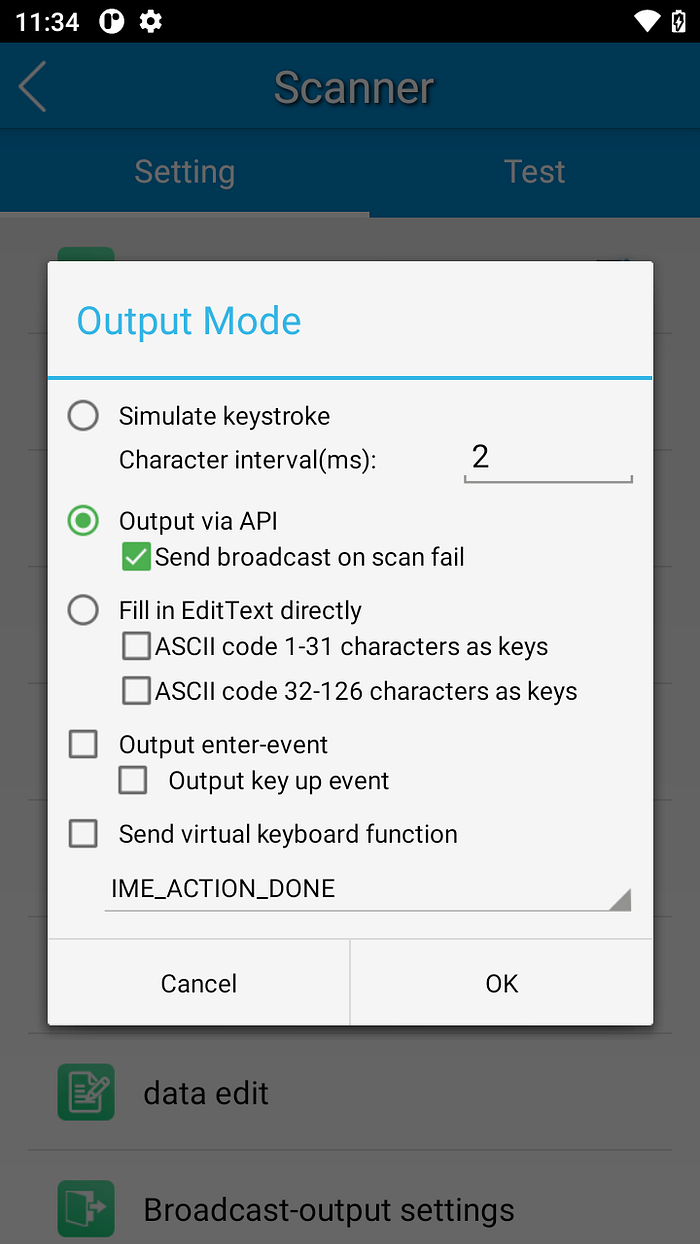
🧪 Testing the Integration
On the MT90 device:
- Press any of the scan trigger buttons (configured in our
handleKeyDown). - Or use the "Start Scan" button in the UI.
- Observe the scanned barcode appearing in the UI.
- Check for proper scan results in logcat or device logs.
adb logcat | grep BarcodeScannerHere's a quick demo to show how it works.
Happy coding! 🚀