
In this guide, I will walk through the setup and usage of Redline, a powerful host-based forensic tool developed by Mandiant for memory and disk analysis. Redline is commonly used by security analysts to investigate potential compromises by collecting and analyzing artifacts such as running processes, network connections, registry data, file metadata, and evidence of malicious activity.
This documentation will provide a step-by-step approach to installing, configuring, and using Redline to perform live response and analyze collected data. The goal is to help analysts effectively detect, investigate, and understand suspicious behavior on Windows systems.
What is Redline?
Redline is a free forensic tool developed by Mandiant for investigating suspicious activity on Windows systems. It enables security analysts to collect and analyze data such as running processes, memory images, registry entries, network connections, and file metadata. Redline is widely used for incident response, malware detection, and digital forensics, helping analysts identify signs of compromise and understand how threats operate on a host.
Installation Procedure
- To download, visit the Redline official website https://fireeye.market/apps/21136
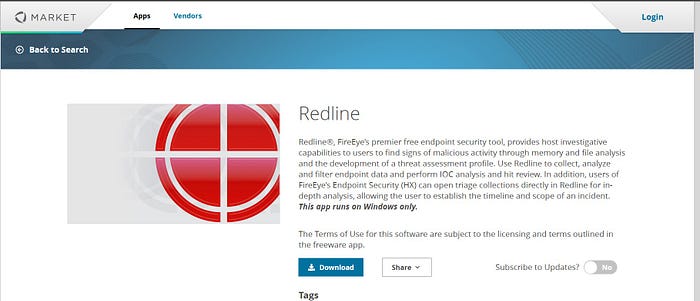
2. Unzip the downloaded file and run the Redline.exe application to launch the setup wizard, begin the installation process and follow the installation prompt.
Redline Configuration
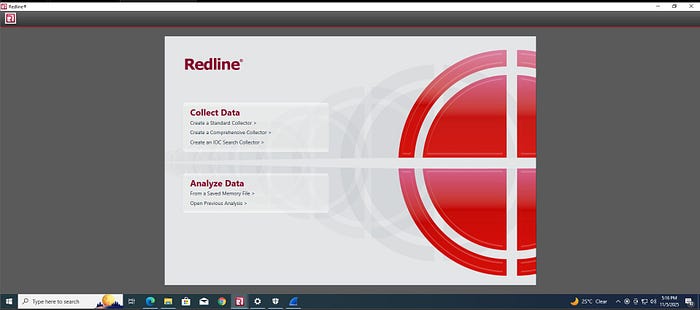
- Launch Redline; you'd be greeted with this interface. Click on 'Create a Standard Collector'. The standard collector is selected to simplify the setup process and configure data collection settings.
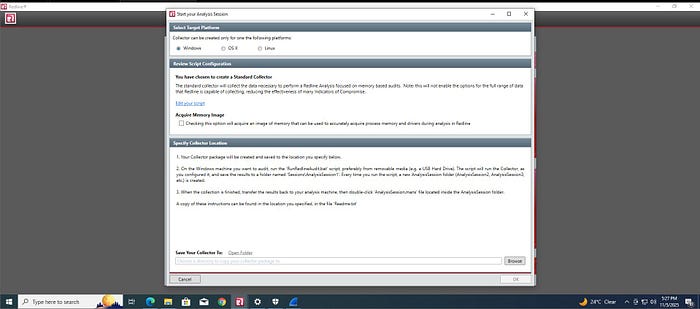
2. Select the OS we are working with, which is windows. In the lower part of the screen that says 'save your collector to', select a folder where all analysis would be saved. You can click on 'Browse' to select a folder.
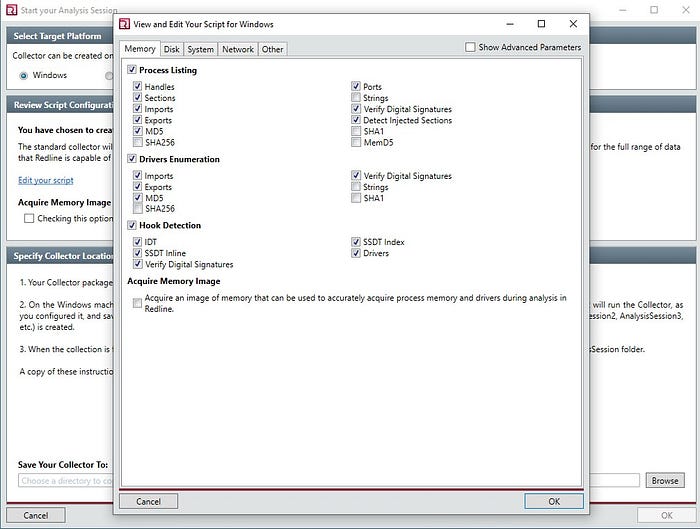
3. Click on 'Edit your script' to specify the type of data you would like to acquire about the system. Afterwards, click Ok.
It automatically loads and your collector must have been saved to the selected location.
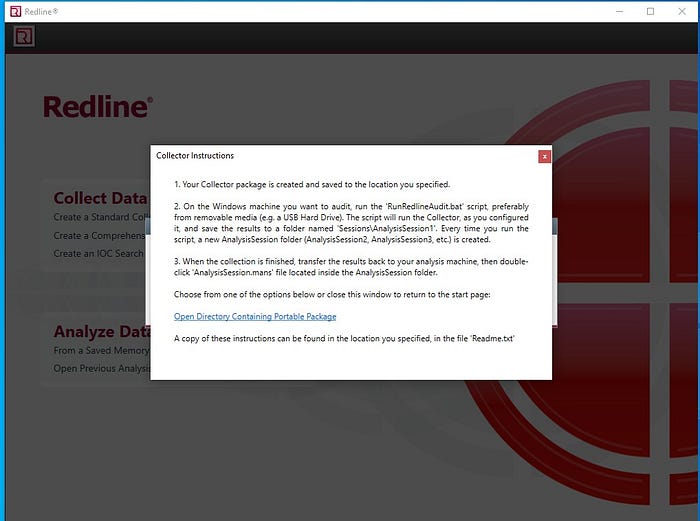
Data Collection
- Navigate to the location you selected to save your analysis, click on the file named 'Analysis'. Double click on RunRedlineAudit.bat to create a session folder in the same location.
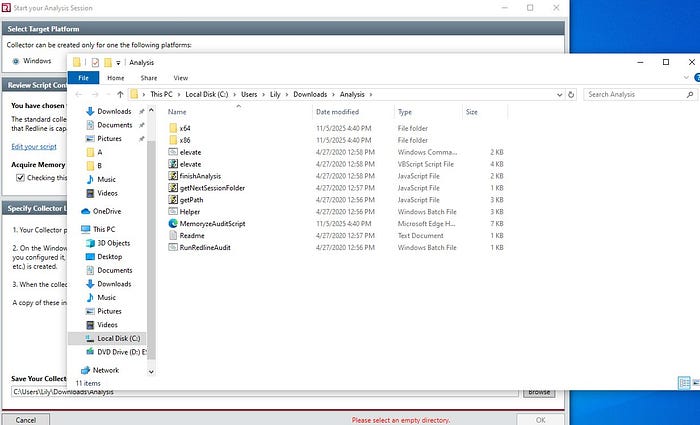
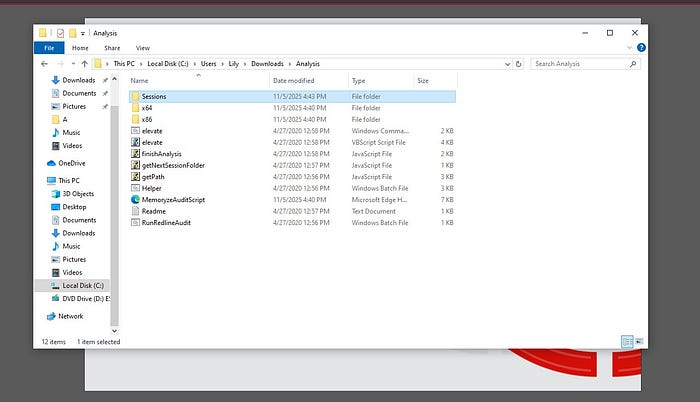
In the 'Session' folder, contains the AnalysisSession1 folder. The session folder will house all other AnalysisSession1 file.
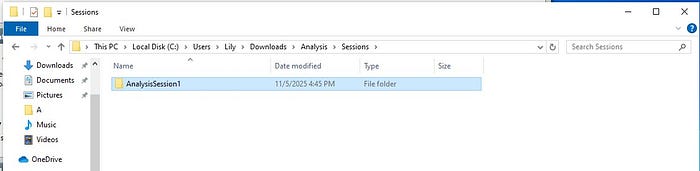
If the RunRedlineAudit.bat is run, it will ceate another analysis file named AnanlysusSession2, and this continues subsequent analysis to be conducted.
Click on AnalysisSession1 to have access to the windows for investigation Select either of these options to proceed with the investigation.
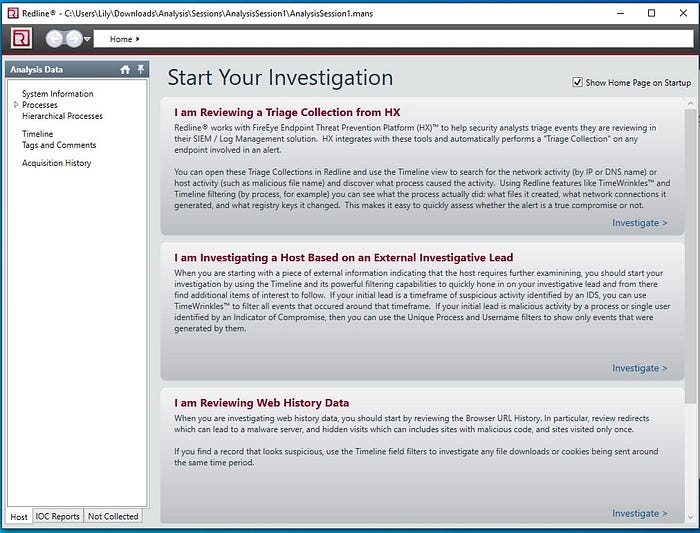
Edit your configuration accordingly, click on ok.
In the sessions folder, click on Analysis, then AnalysisSession. Finally, the analysis is complete, and data has been successfully collected from the memory, system, disk, and network components.
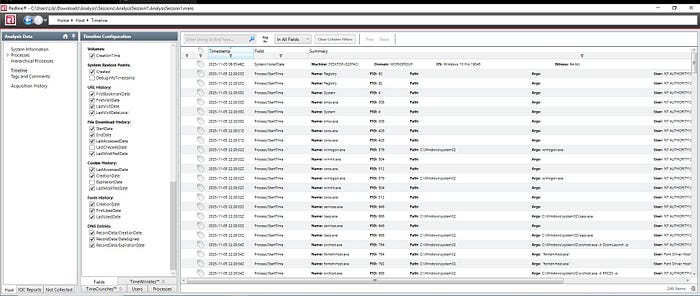
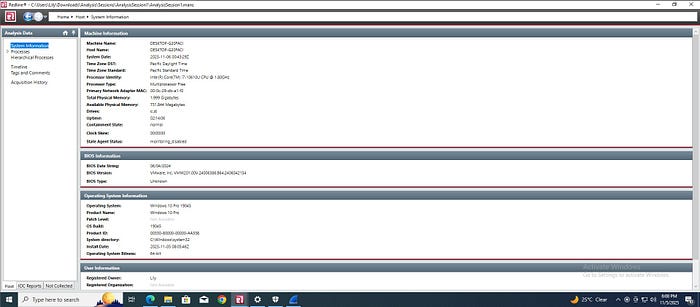
Redline remains one of the most reliable and user-friendly tools for conducting host-based forensic investigations. Its ability to collect and analyze memory and disk artifacts makes it invaluable for identifying malicious activities and understanding system behavior. By properly setting up and using Redline, analysts can enhance their incident response capabilities and gain deeper insights into potential security threats.