
# Deploying Your First Server with Terraform: A Beginner's Guide
Welcome to **Day 3 of the 30-Day Terraform Challenge**!
So far, I've learned what Terraform is and how it works. But today? Today we stop just reading about it. We're going to **actually write code and create real infrastructure**. By the end of this guide, I'll have deployed your first server on AWS using Terraform.
Excited? Let's dive in! 🚀
— -
## What We're Building Today
In this guide, I'll learn how to:
✅ Deploy a single EC2 server on AWS
✅ Create a security group (firewall rules)
✅ Configure a fully functional web server that's instantly ready to serve traffic
✅ Use Terraform to manage all of this with just a few lines of code
### Project Structure
Before we start, here's how we'll organize our code:
```
project/
├── provider.tf # AWS configuration
├── server.tf # EC2 + Security Group
└── webserver.tf # Web server setup with user data
```
Think of this structure as building blocks — each file has a specific purpose, and together they form your complete infrastructure.
— -
## Part 1: Understanding Terraform Fundamentals
### The Language: HCL
Terraform uses **HashiCorp Configuration Language (HCL)** — a declarative language that's human-readable and easy to learn.
Here's the key difference: instead of writing *imperative* code that says "DO this, then DO that", you write *declarative* code that says "**THIS is what I want to exist**" and Terraform figures out the steps to make it happen.
### Creating Your First Files
Terraform code lives in `.tf` files. You can write them in any text editor, but popular choices include:
- VS Code with Terraform extensions
- Sublime Text
- Even plain old Vim
### Setting Up Your Provider
The first thing you need to tell Terraform is: **"Which cloud provider am I using?"**
Create a file called `provider.tf`:
```hcl
provider "aws" {
region = "us-east-1"
}
```
This simple block tells Terraform: "I'm using AWS, and I want to create resources in the us-east-1 region."
### The Resource Syntax
Every resource you create follows this pattern:
```hcl
resource "<PROVIDER>_<TYPE>" "<NAME>" {
[CONFIGURATION OPTIONS]
}
```
Let's break it down:
- **Provider**: aws, azure, gcp, etc.
- **Type**: instance, security_group, database, load_balancer, etc.
- **Name**: A user-defined identifier (like "my_server" or "web_sg")
- **Configuration**: The specific settings for that resource
— -
## Part 2: Deploying Your First Server
### Creating a Security Group
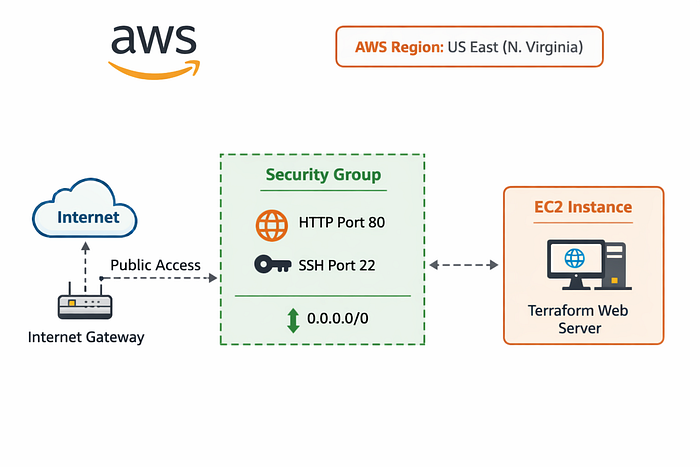
A security group is basically a firewall. It controls what traffic can reach your server. Let's create one that allows:
- **HTTP traffic** (port 80) — for web servers
- **SSH access** (port 22) — so you can log in
- **Outbound traffic** — so the server can reach the internet
Create a file called `server.tf`:
```hcl
resource "aws_security_group" "web_sg" {
name = "web_sg"
# Allow HTTP traffic
ingress {
from_port = 80
to_port = 80
protocol = "tcp"
cidr_blocks = ["0.0.0.0/0"] # Anyone can access
}
# Allow SSH access
ingress {
from_port = 22
to_port = 22
protocol = "tcp"
cidr_blocks = ["0.0.0.0/0"] # Anyone can SSH (risky in production!)
}
# Allow all outbound traffic
egress {
from_port = 0
to_port = 0
protocol = "-1"
cidr_blocks = ["0.0.0.0/0"]
}
}
```
⚠️ **Security Note**: In a production environment, you'd want to restrict SSH access to specific IP addresses instead of `0.0.0.0/0`.
### Launching Your First EC2 Instance
Now let's launch an actual server. Add this to `server.tf`:
```hcl
resource "aws_instance" "server" {
ami = "ami-0c02fb55956c7d316" # Ubuntu 20.04 AMI
instance_type = "t2.micro" # Free tier eligible!
security_groups = [aws_security_group.web_sg.name]
tags = {
Name = "Base-Server"
}
}
```
What's happening here?
- **ami**: This is the Amazon Machine Image — basically a pre-configured template for your server
- **instance_type**: t2.micro is free-tier eligible and perfect for learning
- **security_groups**: We're attaching the security group we just created
- **tags**: A label to identify your server in the AWS console
That's it! You now have a running server. To deploy it:
```bash
terraform init # Initialize Terraform
terraform plan # See what will be created
terraform apply # Deploy it!
```
— -
## Part 3: Deploying a Web Server (The Fun Part)
### Automating Server Setup with User Data
What if we could automatically install software when the server launches? With Terraform's `user_data` feature, we can!
Create a file called `webserver.tf`:
```hcl
resource "aws_instance" "web_server" {
ami = "ami-0c02fb55956c7d316"
instance_type = "t2.micro"
security_groups = [aws_security_group.web_sg.name]
# Automatically install and start a web server
user_data = <<-EOF
#!/bin/bash
yum update -y
yum install -y httpd
systemctl start httpd
systemctl enable httpd
echo "<h1>Web Server Deployed for 30days Challenge!</h1>" > /var/www/html/index.html
EOF
tags = {
Name = "Web-Server"
}
}
```
### What Does the User Data Script Do?
When this server launches, it automatically:
1. **Updates the system** (`yum update -y`)
2. **Installs Apache** (`yum install -y httpd`)
3. **Starts the web server** (`systemctl start httpd`)
4. **Enables auto-start** (so it starts when the server reboots)
5. **Creates a simple web page** with your custom message
After just a couple of minutes, I'll have a fully functional web server ready to serve traffic — all without manually logging in!
— -
## Putting It All Together
Now you have three files:
```
tf-files/
├── provider.tf
├── server.tf
└── webserver.tf
```
To deploy everything:
```bash
# Initialize Terraform (first time only)
terraform init
# Preview what will be created
terraform plan
# Deploy your infrastructure!
terraform apply
```
After about 2–3 minutes, your servers will be running on AWS.
To see your web server in action:
1. Go to the AWS console
2. Find your instance's public IP address
3. Visit `http://<YOUR_PUBLIC_IP>` in your browser
4. You should see: "Web Server Deployed for 30days Challenge!"
### Cleaning Up
When you're done experimenting (and to avoid unexpected AWS charges):
```bash
terraform destroy
```
This will delete all the resources Terraform created.
— -
## Key Takeaways
✅ **Declarative > Imperative**: Terraform lets you declare what you want, not how to build it
✅ **HCL is Simple**: Just a few lines of code can deploy complex infrastructure
✅ **Infrastructure as Code**: Your infrastructure is now version-controlled and reproducible
✅ **Automation Magic**: User data scripts let you initialize servers automatically
— -
## What's Next?
You've now completed the practical portion of Day 3! You've:
- Written your first Terraform configuration
- Deployed real AWS infrastructure
- Created a security group and firewall rules
- Automated server setup with user data
- Learned the fundamentals of Infrastructure as Code
— -
**Happy Terraforming!** 🎯
*Follow along with the 30-Day Terraform Challenge and level up your Infrastructure as Code skills.*