
A little while ago, I created my CV in HTML and published via GitHub Pages. I followed this link and was up and running within couple of hours. Hosting your CV as a website not only enhances your professional image but also can increase the chances of your CV being discovered by potential employers who are searching for specific skills or expertise.
However, there are times when a PDF version of your CV is necessary, so I'll explain how to use a Python script to convert an HTML web page to a PDF.
The python script can be found in my GitHub repository.
Below is the html-pdf-converter-email.py script I created for this task:
import os
import yagmail
from pyhtml2pdf import converter

converter.convert('https://github.io/resume/', 'cv.pdf')

sender_email = os.getenv('EMAIL_ADDRESS')
sender_password = os.getenv('EMAIL_PASSWORD')
receiver_email = os.getenv('RECEIVER_EMAIL')
subject = 'Your updated CV in PDF'
body = 'Please find attached your CV in PDF format.'


yag = yagmail.SMTP(sender_email, sender_password)
yag.send(
    to=receiver_email,
    subject=subject,
    contents=body,
    attachments='cv.pdf'
)

print("Email sent successfully!")
Let's break it down:
Importing Required Libraries
import os
import yagmail
from pyhtml2pdf import converter- os: This module allows the script to interact with the operating system, specifically for retrieving environment variables.
- yagmail: A Python library that simplifies sending emails through Gmail. It handles authentication and email composition.
- pyhtml2pdf.converter: This module is used to convert HTML content into a PDF file.
Converting HTML to PDF
converter.convert('https://github.io/resume/', 'cv.pdf')- This line converts the HTML webpage located at 'https://github.io/resume/' into a PDF file named 'cv.pdf'.
- converter.convert(source, destination): Takes the URL (or path to an HTML file) as the source and converts it into a PDF saved at the specified destination.
Setting Up Email Parameters
sender_email = os.getenv('EMAIL_ADDRESS')
sender_password = os.getenv('EMAIL_PASSWORD')
receiver_email = os.getenv('RECEIVER_EMAIL')
subject = 'Your updated CV in PDF'
body = 'Please find attached your CV in PDF format.'- os.getenv('VAR_NAME') : Retrieves the value of an environment variable. This is used to securely store sensitive information like email credentials.
- sender_email : The email address from which the email will be sent. Retrieved from the EMAIL_ADDRESS environment variable. This will only work with Gmail accounts.
- sender_password : The password for the sender's email account, stored securely in the EMAIL_PASSWORD environment variable. For Gmail accounts with 2-Step Verification enabled, you need to create App Password.
- receiver_email : The recipient's email address, retrieved from the RECEIVER_EMAIL environment variable.
- subject and body : Define the subject line and body text of the email.
Sending the Email with the PDF Attachment
yag = yagmail.SMTP(sender_email, sender_password)
yag.send(
    to=receiver_email,
    subject=subject,
    contents=body,
    attachments='cv.pdf'
)- yagmail.SMTP(sender_email, sender_password) : Initializes the yagmail SMTP client using the sender's email and password for authentication.
- yag.send : Sends the email with the specified parameters.
Confirmation Message
print("Email sent successfully!")- Prints a confirmation message to the console indicating that the email has been sent successfully.
Use GitHub Actions Workflows to execute the script and leverage the secrets feature
For this task, I decided to explore GitHub Actions; I'm more experienced with CircleCI pipelines.
GitHub Actions is a powerful CI/CD tool that automates software development workflows directly within your GitHub repository.
Workflows can be either triggered manually or by an event that caused it to run. Check this link for more details.
I used manual workflow that will only run when I execute it from GitHub UI.
In future, I will automate this process by creating Event-Driven Workflow that will run every time I push changes to repository hosting my CV.
Here are the steps to create a manual workflow in GitHub Actions:
I will assume you have not setup the GitHub Actions in this repository yet
- Navigate to repository(where your python script is) and click Add file, then click Create new file, and name the file .github/workflows/html-pdf-workflow.yml
- Copy the following YAML contents into the html-pdf-workflow.yml file:
# This is a basic workflow that is manually triggered

name: html to pdf workflow

# Controls when the action will run. Workflow runs when manually triggered using the UI
# or API.
on:
  workflow_dispatch:

# A workflow run is made up of one or more jobs that can run sequentially or in parallel
jobs:
  deploy:
    # The type of runner that the job will run on
    runs-on: ubuntu-latest

    # Steps represent a sequence of tasks that will be executed as part of the job
    steps:
    # Action to clone your repository into the GitHub runner. This step replaces the git clone command
    - name: Checkout repository
      uses: actions/checkout@v3

    # Action to set up a Python environment. Specify the Python version you need (e.g., 3.9 or 3.x for the latest version).
    - name: Set up Python
      uses: actions/setup-python@v4
      with:
        python-version: '3.x'

    # Installs the Python dependencies listed in your requirements.txt file using pip
    - name: Install dependencies
      run: |
        cd html-pdf-converter/
        pip install -r requirements.txt

    # Executes a Python script
    - name: Run Python script
      run: |
        cd html-pdf-converter/
        python3 html-pdf-converter-email.py
    # Passes secrets as environment variables to Python script
      env:
        EMAIL_ADDRESS: ${{ secrets.EMAIL_ADDRESS }}
        EMAIL_PASSWORD: ${{ secrets.EMAIL_PASSWORD }}
        RECEIVER_EMAIL: ${{ secrets.RECEIVER_EMAIL }}
I have added comments for each section to explain the workflow steps as I just realized my article is getting very long :)
In my repository, I have placed the 'html-pdf-converter-email.py' script within 'html-pdf-converter' directory hence my steps include: cd html-pdf-converter/. Please adjust this based on your repo structure.
Now, we need to add the Secrets to GitHub
- Go to your repository on GitHub.
- Click on Settings.
- In the left sidebar, click on Secrets and variables > Actions.
- Click New repository secret.
- Add the EMAIL_ADDRESS, EMAIL_PASSWORD and RECEIVER_EMAIL secrets with the appropriate values.
Using the Workflow
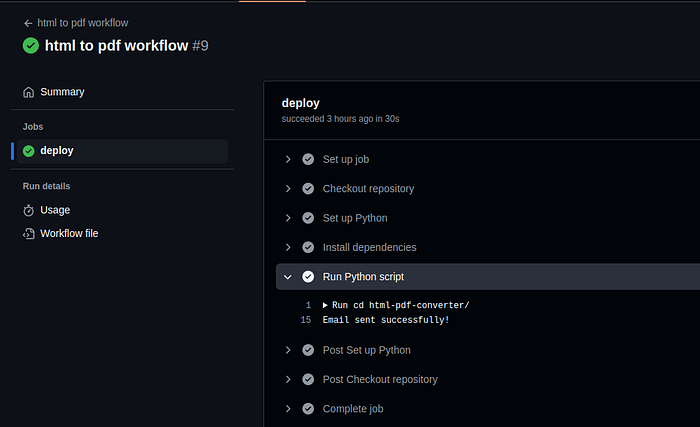
To Run the workflow, go to Actions tab, click the 'html to pdf workflow' and Run the workflow from the master branch.
I hope you find this article useful. Thanks for checking in :)