
This is one of the free six short practical courses from Security Blue Team Junior Analyst. They are very well put together short courses and gives us a basic idea on how to use certain tools. I will not be copying everything from the course. I'll just showcase the practical side of things for people to follow along. I will also not post the answers but I will certainly explain the steps to get to the answer.
Here is the link to sign up for the 6 free courses. https://securityblue.team/
Introduction to Threat Hunting
As the name suggests, this course is about threat hunting. The first chapter gives a brief introduction to what threat hunting is and how much money threat hunters make in the Cybersecurity industry.
Indicators of Compromise (IOCs)
Indicators of Compromise, also referred to as IOCs are a method of information sharing, that follows a certain pattern, so that organizations can determine whether they have come into contact with similar attacks.
The types of IOC's include: IP Addresses, File sizes, File Hashes, Email addresses, and File Strings.
IOC Practical using Mandiant IOC Editor:
Download the Mandiant's IOC Editor on to your Windows Machine; This software only works on a windows platform.
Download link : Here
Installation: Extract the downloaded folder and install using the .msi file. Follow the prompts and complete the installation.

Configuration: Go ahead and create a new folder named IOC anywhere on your device. In my case I have created a new one on the my Desktop
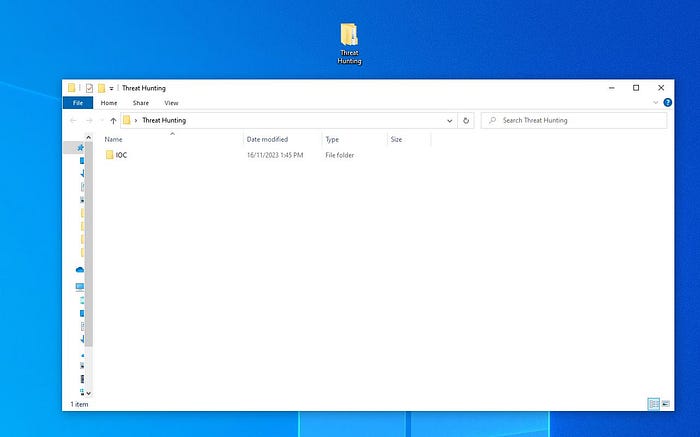
Open the Mandiant IOC editor from the start menu and select the IOC folder that we just created.
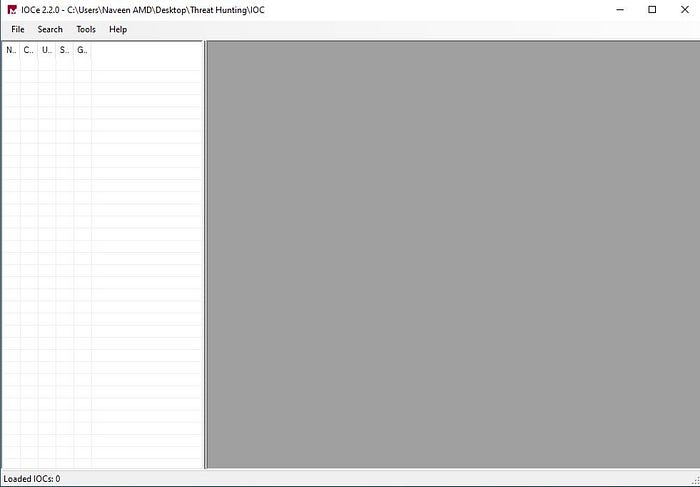
To create a new IOC file, go to File>New>Indicator
Fill out the following details like below.
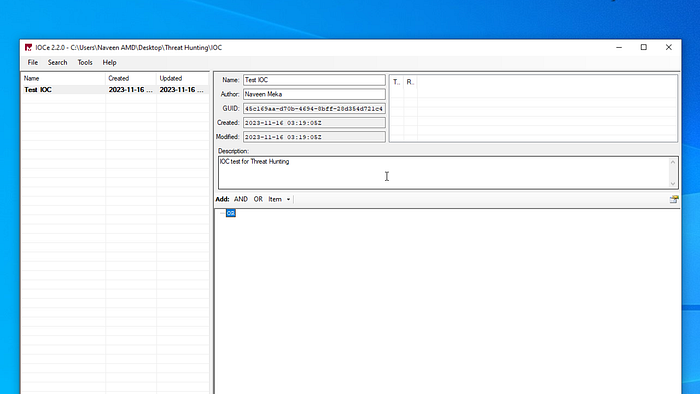
We need to create new indicators from a file which is already been given in the course.
Link to the file : Here
Once you download the file, get the file hashes using the powershell.
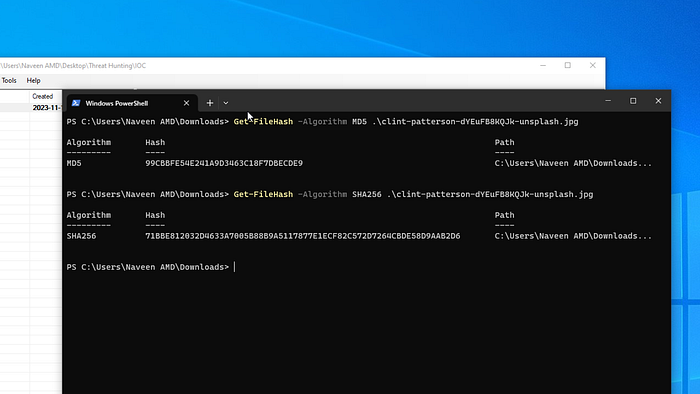
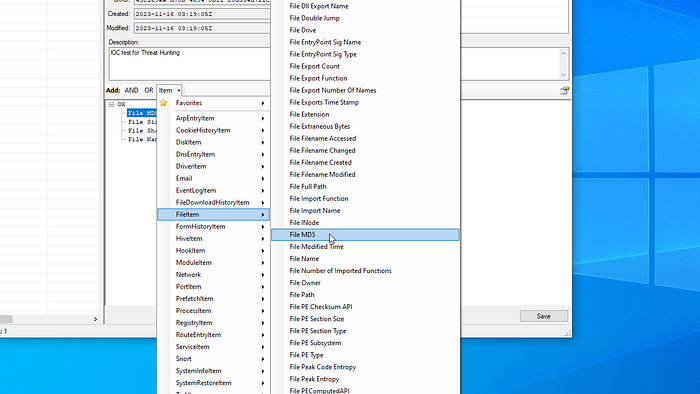
Now add the file properties in the bottom pane of the IOC editor.
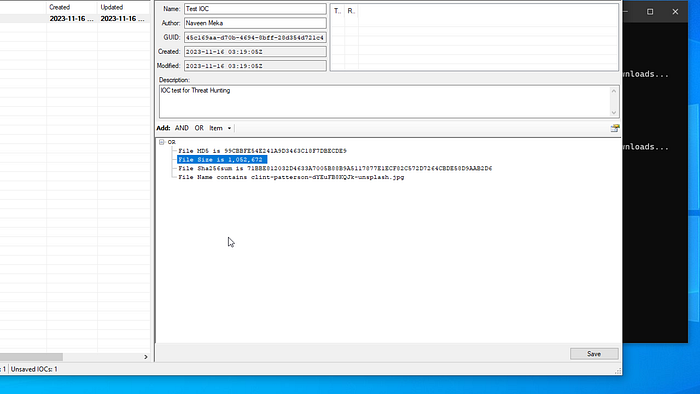
Double click on each property to add the values in the fields. Click on Save and it should look like below.
Activity Questions for chapter 2
This chapter has an activity where we need to download a zipped file containing 4 different files inside. There are 4 questions for each file- SHA1, MD5, File Size and File names.
If you are using a Windows machine you can get the file properties from the GUI Properties screen.
To get the SHA1 and MD5 using powershell use the following commands:
Get-FileHash -Algorithm SHA1 <Path_to_File>
Get-FileHash -Algorithm MD5 <Path_to_File>
In Linux you can obtain the file name and sizes using the GUI options. To get the Hash values use the following commands.
sha1sum <Path_to_File>
md5sum <Path_to_File>
Malware hunting using Redline
In this section we will focus on how to use the IOCs we created earlier to search to Malware using Mandiant's Redline tool. This is a free software from Mandiant and can be downloaded from the following link.
Download link: Here
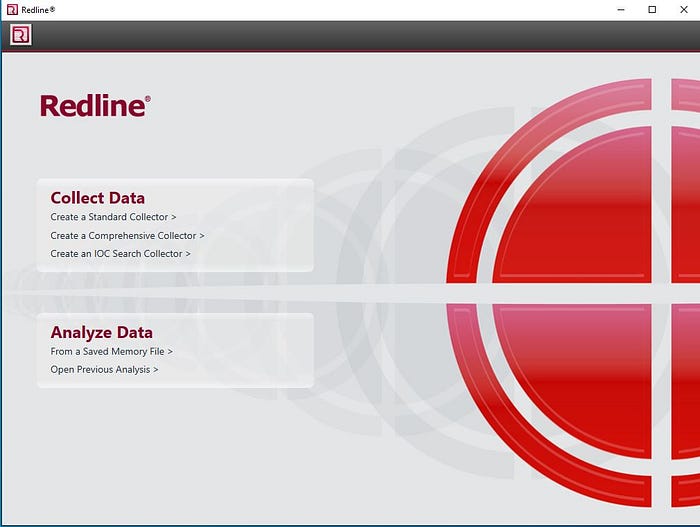
Extract and Install the software like the previous step above. Once Installed open Redline and we should be greeted with the following screen.
We wont be dealing with any malware samples, but we will use the IOC's we created in the earlier task. This task is to give a general idea on how to use the IOC's to search for Malware in the system or network.
Click on Create an IOC Search Collector and point the configuration folder to the one we created in the earlier task. It should look like this
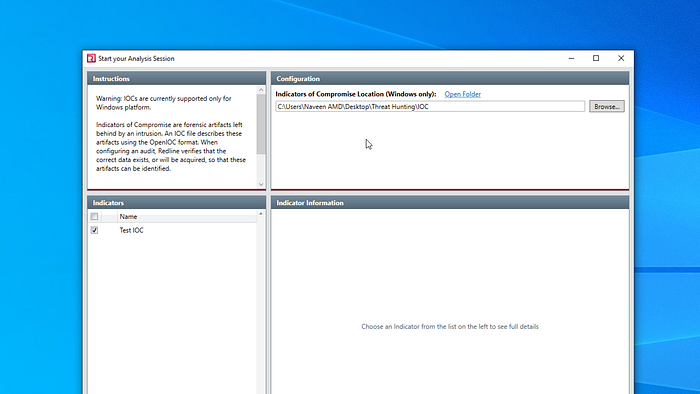
Select the Test IOC on the bottom left pane and click next.
Now, we need a folder for all the results from the hunt. We will just create a new folder named Redline next to the IOC folder.
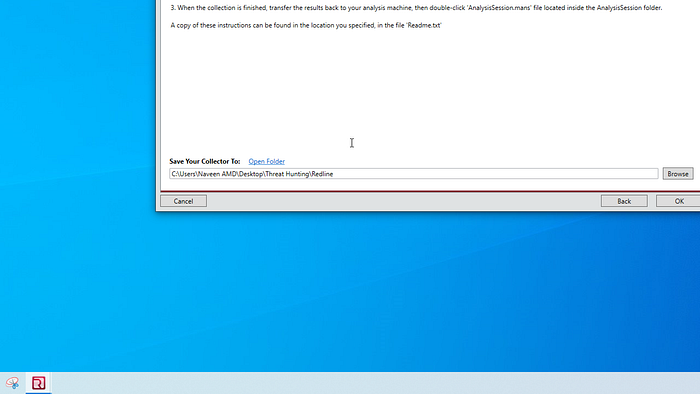
Click on Edit script to enumerate the file properties. Select the following from the list.
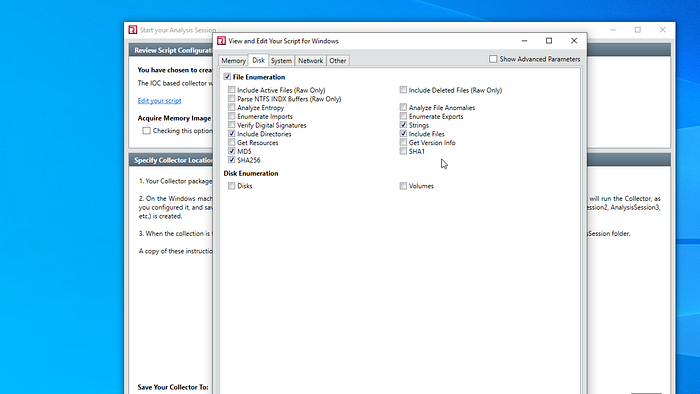
Click Ok and the results are dumped into the folder we created earlier.

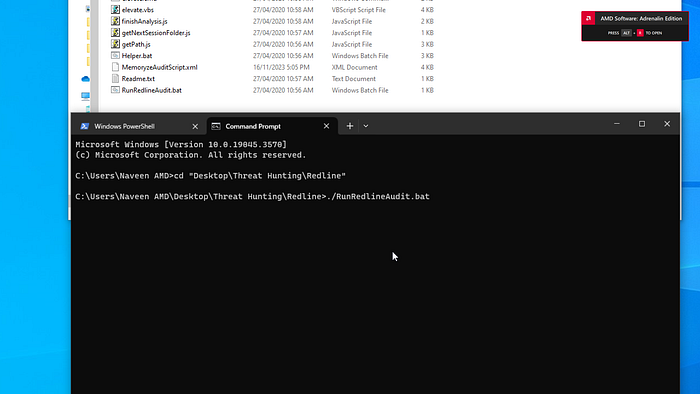
Once the results are dumped, we need to open the Command prompt and navigate to the results directory. Once there, run the .bat file for the analysis to begin. This might take a while. Once the scan is finished, a new folder is automatically generated in the results folder, and .mans analysis file will be generated. We can use it to analyze the results from the scan.
A folder is named Sessions is automatically created with multiple subfolders and IOC hits. Open Redline and open the analysis file that is just created. Click on the IOC reports on the bottom left corner.
Capstone Project
The capstone project for this course follows the same pattern as above. We were given two Malware samples and a Target Directory. We need to extract our own IOCs from the two samples and using the methods explained above. We were also given 2 Strings data to use as IOCs.
Disclaimer: Do Not Run in the samples in your own Machine. Use a Virtual machine to perform this exercise.
Create the IOC file using IOC editor and include all the details like file names, sizes, hashes and strings data. Run the Redline IOC search collector.
Wish you good luck.