

In this article, we will be focusing on getting file data from a url, save the file data to internal local storage and preview it using Kotlin/Jetpack Compose!
Specifically, here is what we will do
- Get file data using Http Request
- Convert data to byteStream
- Save File to Jetpack Compose Internal Storage
- Preview File using WebView
You might be wondering why don't we just enter the URL directly to webView. I mean, depending on the URL (for example, the one we will be using in this article for demo purpose) , you could. But there are also cases where you might not want to. For example, your HTTP Request is not of GET method, you need to add customized headers such as Authorization, you need to eventually save to file for sharing and etc.
This article assumes that you have some basic understanding in using suspend and Kotlin coroutines for networking, if not, you can check out the official document.
Also, if you want the iOS/Swift version of what we are doing in this article, feel free to check out my article here.
Set Up
First of all, in order to be able to make network request, we need to ask for Internet permission by adding the following to AndroidManifest.xml directly under the <manifest>
<manifest xmlns:android="http://schemas.android.com/apk/res/android"
    xmlns:tools="http://schemas.android.com/tools">

    <uses-permission android:name="android.permission.INTERNET" />

....
</manifest>
We will be using OKHttp in this article for making Http request. Let's add the following implementation under dependencies in our build.gradle.kts(Module:app).
dependencies {
  implementation("com.squareup.okhttp3:okhttp:4.10.0")
  ...
}
And add the following import to where you will be making your requests.
import android.content.Context
import android.util.Log
import android.webkit.WebView
import android.webkit.WebViewClient
import androidx.compose.foundation.layout.Box
import androidx.compose.foundation.layout.fillMaxWidth
import androidx.compose.runtime.Composable
import androidx.compose.runtime.LaunchedEffect
import androidx.compose.runtime.getValue
import androidx.compose.runtime.mutableStateOf
import androidx.compose.runtime.saveable.rememberSaveable
import androidx.compose.runtime.setValue
import androidx.compose.ui.Modifier
import androidx.compose.ui.platform.LocalContext
import androidx.compose.ui.tooling.preview.Preview
import androidx.compose.ui.viewinterop.AndroidView
import androidx.lifecycle.ViewModel
import kotlinx.coroutines.Dispatchers
import kotlinx.coroutines.withContext
import okhttp3.OkHttpClient
import okhttp3.Request
import okhttp3.Response
import java.io.File
import java.io.FileOutputStream
import java.io.IOException
Let's also create a FilePreviewDemoViewModel that will hold all of our logics and composables.
class FilePreviewDemoViewModel(): ViewModel() {
    private var url = ""
    private var fileName = ""
    private var imageFilePath = ""
    private var script = """
            var meta = document.createElement('meta');
               meta.name = 'viewport';
                meta.content = 'width=device-width, initial-scale=0.5, maximum-scale=0.5, user-scalable=no';
                document.head.appendChild(meta)
         """


    constructor(url: String, fileName: String) : this() {
        this.url = url
        this.fileName = fileName
    }

    @Composable
    fun previewFile() {}

    private suspend fun saveFileData(context: Context) {}
}
All we have right now is some private variables, a constructor and some placeholders for the function we will be creating.
We will be adding more to it as we move on.
Make HTTP Request
As most of you might have already known by now (or not), I love Pikachu!
So! Here is the url we will be using.
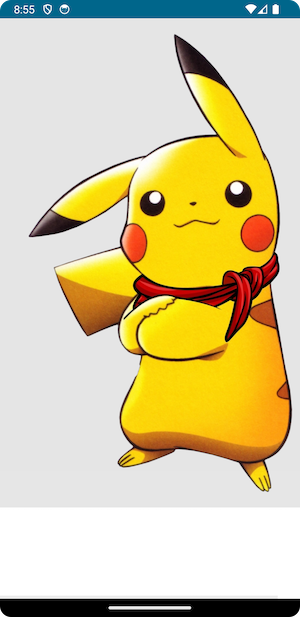
const val url = "https://www.pngall.com/wp-content/uploads/5/Pokemon-Pikachu-PNG-Free-Download.png"and here is the image that we will be expecting as our final output to our WebView.

Let's get started by making a simple GET Request.
private suspend fun saveFileData(context: Context) {
        val okHttpClient = OkHttpClient()

        val request = Request.Builder()
            .url(url)
            .build()
        Log.d("saving", request.toString())

        return withContext(Dispatchers.IO) {
            try {
                val response: Response = okHttpClient.newCall(request).execute()
                Log.d("response", response.toString())

            } catch (e: IOException) {
                e.printStackTrace()
            }
        }
    }
I have used withContext to switch to background thread for networking, you can also use suspendCoroutine so that you can translate a callback-based API into coroutines and use Asynchronous Get (the callback version) of the request.
You should see something like following print out to Logcat Response{protocol=h2, code=200, message=, url=…} indicating the success of our Http Request.
You can also check out the response body by Log.d("response", response.body?.toString()), but it is probably going to be some encoded unknown characters…
If you are running into java.net.UnknownHostException: Unable to resolve host (I did), try to reboot your simulator and it should solve the problem (at least for me).
Save Data as File to Local Storage
Get Response Body ByteArray
In order to write to FileOutputStream, we will need our response body to be in the form of ByteArray.
To do so, we will first need to get the InputStream of the response body by calling val inputStream = response.body?.byteStream() and get the bytes data using inputStream?.readBytes().
One SUPER!!! important note here!
Do NOT use response.body?.string()?.toByteArray() to get the ByteArray of the response data. It will NOT work! I spent hours fuddling around with it…
Save to Local Storage
Since we are only saving the data so that we can preview it, we can use simply use the internal storage. You can find out more about other kinds of Data and Storage of Android Device here and choose the one that you need. Note that some of those may require user permissions.
We will first get the path to the storage and create an empty File object to write our bytes data to. We will also save the imageFilePath to the FilePreviewDemoViewModel variables so that we refer to it later while previewing.
val path = File(context.filesDir.toString() + "/Folder")
if (!path.exists())
    path.mkdirs()

val imageFile = File(path, fileName)
if (imageFile.exists()) {
    imageFile.delete()
}

imageFilePath = imageFile.toURI().toString()
We can than write to it like following.
val fos = FileOutputStream(imageFile)
fos.write(inputStream?.readBytes())
fos.flush()
fos.close()
Putting everything together, here is how our saveFileData function looks like.
private suspend fun saveFileData(context: Context) {
    val okHttpClient = OkHttpClient()

    val request = Request.Builder()
        .url(url)
        .build()
    Log.d("saving", request.toString())

    return withContext(Dispatchers.IO) {
        try {
            val response: Response = okHttpClient.newCall(request).execute()
            Log.d("response", response.toString())
            val inputStream = response.body?.byteStream()

            val path = File(context.filesDir.toString() + "/Folder")
            if (!path.exists())
                path.mkdirs()

            val imageFile = File(path, fileName)
            if (imageFile.exists()) {
                imageFile.delete()
            }

            imageFilePath = imageFile.toURI().toString()
            Log.d("path", imageFilePath)

            val fos = FileOutputStream(imageFile)
            fos.write(inputStream?.readBytes())
            fos.flush()
            fos.close()

        } catch (e: IOException) {
            e.printStackTrace()
        }
    }
}
One important thing to keep in mind here!
The extension of the fileName should match with the MIME Type of the data. If you don't have your fileName as an input to the ViewModel, you can also get the content-type from the response header.
Preview File in WebView
Now that we have our file saved to the internal storage, we can simply use the imageFilePath as the URL to load our WebView like following.
AndroidView(
    factory = ::WebView,
    update = { webView ->
        webView.webViewClient = object : WebViewClient() {
            override fun onPageFinished(view: WebView?, url: String?) {
                super.onPageFinished(view, url)
                view?.evaluateJavascript(script, null)
            }
        }
        webView.settings.allowContentAccess = true
        webView.settings.allowFileAccess = true
        webView.settings.useWideViewPort = true
        webView.settings.domStorageEnabled = true
        webView.settings.javaScriptEnabled = true

        webView.loadUrl(imageFilePath)

    },
)
Note that if you are getting ERR_ACCESS_DENIED while trying to preview your local file data, here are a list of things you could try out.
<application android:usesCleartextTraffic="true"toAndroidManifest.xmland reboot your device.- Add
webView.settings.allowContentAccess = trueandwebView.settings.allowFileAccess = truelike what we have above
I have also injected some javascript to adjust the content size, but it is not required.
And in our previewFile composable, we will first fetch and save the file data from the url and show the WebView upon finish.
@Composable
fun previewFile() {
    var isLoading by rememberSaveable { mutableStateOf(true) }
    val context = LocalContext.current
    LaunchedEffect(null) {
        saveFileData(context = context)
        isLoading = false
    }

    if (isLoading) {
        return
    }

    Box(
        modifier = Modifier
            .fillMaxWidth()
    ) {
        AndroidView(
            factory = ::WebView,
            update = { webView ->
                webView.webViewClient = object : WebViewClient() {
                    override fun onPageFinished(view: WebView?, url: String?) {
                        super.onPageFinished(view, url)
                        view?.evaluateJavascript(script, null)
                    }
                }
                webView.settings.allowContentAccess = true
                webView.settings.allowFileAccess = true
                webView.settings.useWideViewPort = true
                webView.settings.domStorageEnabled = true
                webView.settings.javaScriptEnabled = true

                webView.loadUrl(imageFilePath)

            },
        )
    }
}
Final FilePreviewDemoViewModel
Putting everything we have above together, here is how the FilePreviewDemoViewModel should look like.
class FilePreviewDemoViewModel(): ViewModel() {
    private var url = ""
    private var fileName = ""
    private var imageFilePath = ""
    private var script = """
            var meta = document.createElement('meta');
               meta.name = 'viewport';
                meta.content = 'width=device-width, initial-scale=0.5, maximum-scale=0.5, user-scalable=no';
                document.head.appendChild(meta)
         """


    constructor(url: String, fileName: String) : this() {
        this.url = url
        this.fileName = fileName
    }

    @Composable
    fun previewFile() {
        var isLoading by rememberSaveable { mutableStateOf(true) }
        val context = LocalContext.current
        LaunchedEffect(null) {
            saveFileData(context = context)
            isLoading = false
        }

        if (isLoading) {
            return
        }

        Box(
            modifier = Modifier
                .fillMaxWidth()
        ) {
            AndroidView(
                factory = ::WebView,
                update = { webView ->
                    webView.webViewClient = object : WebViewClient() {
                        override fun onPageFinished(view: WebView?, url: String?) {
                            super.onPageFinished(view, url)
                            view?.evaluateJavascript(script, null)
                        }
                    }
                    webView.settings.allowContentAccess = true
                    webView.settings.allowFileAccess = true
                    webView.settings.useWideViewPort = true
                    webView.settings.domStorageEnabled = true
                    webView.settings.javaScriptEnabled = true

                    webView.loadUrl(imageFilePath)

                },
            )
        }
    }

    private suspend fun saveFileData(context: Context) {
        val okHttpClient = OkHttpClient()

        val request = Request.Builder()
            .url(url)
            .build()
        Log.d("saving", request.toString())

        return withContext(Dispatchers.IO) {
            try {
                val response: Response = okHttpClient.newCall(request).execute()
                Log.d("response", response.toString())
                val inputStream = response.body?.byteStream()

                val path = File(context.filesDir.toString() + "/Folder")
                if (!path.exists())
                    path.mkdirs()

                val imageFile = File(path, fileName)
                if (imageFile.exists()) {
                    imageFile.delete()
                }

                imageFilePath = imageFile.toURI().toString()
                Log.d("path", imageFilePath)

                val fos = FileOutputStream(imageFile)
                fos.write(inputStream?.readBytes())
                fos.flush()
                fos.close()

            } catch (e: IOException) {
                e.printStackTrace()
            }
        }
    }
}
And to use the ViewModel to preview a file from a url, for example, the one I had above for Pikachu, you can simply do
val url = "https://www.pngall.com/wp-content/uploads/5/Pokemon-Pikachu-PNG-Free-Download.png"
val fileName = "pikachu.jpg"

var fileViewModel = FilePreviewDemoViewModel(url = url, fileName = fileName)
fileViewModel.previewFile()
And you will see the super cute Pikachu showing up in couple seconds!
One thing you might want to consider while using the ViewModel is that you might want to delete the file from the internal storage after preview finish, but I will leave that out to you!
That's all I have for today!
Thank you for reading and have a nice day!