
For the longest time, .NET teams have leaned on tools like Hangfire or Quartz.NET to schedule recurring jobs, out-of-band tasks, and admin dashboards. But time and again, we've dealt with:
- Reflection‑based job discovery leaking performance
- Heavy shared storage slowing everything down
- Suboptimal retry logic and inconsistent scheduling
- Tedious dashboards bolted on as third-party dependencies
When the lead developer at Arcenox shared version 2.4.0 on GitHub — "fast, reflection‑free background task scheduler for .NET … and a real‑time dashboard" with SignalR + Tailwind — something clicked. Arcenox had built a scheduler designed for current .NET developers, not legacy constraints.
Let me walk you through TickerQ — how it fixes background processing for modern services, and why it just might change how you tackle scheduled jobs from here on out.
🎯 The struggle we all know
Here's a simplified version of countless dev stories I've seen and heard: 1. We add Hangfire or Quartz for cron tasks. 2. Reflection-heavy job scanning slows startup and complicates versioning. 3. More jobs → heavier thread pools. Scaling-out feels brittle. 4. Dashboards feel like afterthoughts — slow, out-of-sync, hard to secure. 5. Monitoring failed jobs? Forget it. Good luck debugging.
Sound familiar? Welcome to 2025. Today we need zero reflection, compile-time safety, built-in dashboard, advanced retry logic, and ability to run across multiple nodes seamlessly.
⚙️ What TickerQ brings out of the box
- Minimal Core, Maximum Performance
- Zero reflection. Instead, TickerQ uses Roslyn-based source‑generators to statically discover and wire up [TickerFunction] jobs. That means errors like missing handlers are caught at compile time — not on production servers.
- The core library depends on nothing — it doesn't even require EF Core or a database. Execution is processed on a lightweight, deterministic single‐thread scheduler loop.
In‑Memory vs. EF‑Core modes
You get two choices:
- In-memory mode (TickerQ)
- Great for cron-based or short-lived console apps.
- No persistence, but scheduler logic is intact with built-in retry/cooldown throttles.
2. Persistent mode (TickerQ.EntityFrameworkCore)
- Persistence for TimeTicker and CronTicker jobs.
- History, retries, distributed locking, and resume-after-restart safety.
- Integrates cleanly with your existing DbContext using Optional UseModelCustomizerForMigrations() to avoid schema pollution.
When to use which mode?
Use in-memory in dev or CI workflows. Switch to EF Core mode in production, or when you need durable persistent jobs or cron workflows spanning multiple nodes.
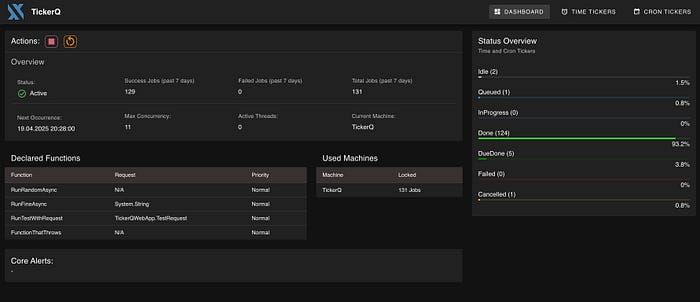
Real‑Time, Operator‑Friendly Dashboard
Install TickerQ.Dashboard and get:
- A real-time UI built with Vue.js + Tailwind, live data via SignalR
- Quick overviews: status, throughput, job outcomes (Done / Failed / Pending)
- Live job control: edit, retry, cancel, or trigger a job manually
- Role-based basic authentication built-in to restrict access.
Dashboard 🚀 was designed first-party — not tacked on after installation.
🧭 Who should use TickerQ?
Choose this library if your app:
- Runs on .NET 6, 7, or later.
- Uses cron or delayed job scheduling.
- Wants compile-time safety, not runtime surprises.
- Relies on EF Core and wants to own the full job lifecycle.
- Needs real-time observability and simple dashboard UI.
- Scales out to multiple nodes (e.g. Kubernetes, container farms).
It's especially great for APIs, internal tools, or microservices where lightweight and maintainable scheduling matters.
Step-by-step implementation a DEMO app
Make sure you had installed:
- .NET Core
- Docker
Let's create a simple and empty .net project with Minimal Api support with any name you want. In this demo, we'd use postgres database.
Step 1:
Run this command to start a postgres using docker:
docker run --name postgres -e POSTGRES_USER=postgres -e POSTGRES_PASSWORD=postgres -p 5432:5432 -d postgresStep 2:
Run these commands to add nuget packages:
dotnet add package TickerQ
dotnet add package TickerQ.EntityFrameworkCore
dotnet add package TickerQ.Dashboard
dotnet add package Microsoft.EntityFrameworkCore.Design
dotnet add package Npgsql.EntityFrameworkCore.PostgreSQL
Step 3:
Create a new class: MyDbContext
public class MyDbContext(DbContextOptions<MyDbContext> options) : DbContext(options)
{
    protected override void OnModelCreating(ModelBuilder modelBuilder)
    {
        base.OnModelCreating(modelBuilder);

        modelBuilder.ApplyConfiguration(new TimeTickerConfigurations());
        modelBuilder.ApplyConfiguration(new CronTickerConfigurations());
        modelBuilder.ApplyConfiguration(new CronTickerOccurrenceConfigurations());
        modelBuilder.ApplyConfigurationsFromAssembly(typeof(TimeTickerConfigurations).Assembly);
    }
}
Step 4:
Create a new class TickerExceptionHandler:
public class TickerExceptionHandler(ILogger<TickerExceptionHandler> logger) : ITickerExceptionHandler
{
    public Task HandleExceptionAsync(Exception exception, Guid tickerId, TickerType tickerType)
    {
        logger.LogError(exception, "Unhandled exception");
        return Task.CompletedTask;
    }
    public Task HandleCanceledExceptionAsync(Exception exception, Guid tickerId, TickerType tickerType)
    {
        logger.LogWarning(exception, "Ticker canceled");
        return Task.CompletedTask;
    }
}
In the Program.cs file:
Register DbContext:
builder.Services.AddDbContext<MyDbContext>(options =>
    options.UseNpgsql(builder.Configuration.GetConnectionString("DefaultConnection")));
using AddTickerQ service:
builder.Services.AddTickerQ(options =>
{
    options.SetExceptionHandler<TickerExceptionHandler>(); // Set a custom exception handler
    options.SetMaxConcurrency(4); // Set the maximum concurrency for job execution
    options.AddOperationalStore<MyDbContext>(opt =>
    {
        opt.UseModelCustomizerForMigrations(); // Use custom model for migrations
        opt.CancelMissedTickersOnApplicationRestart(); // Cancel missed tickers on application restart
    });
    options.AddDashboard(basePath: "/tickerq"); // Set the base path for the dashboard
    options.AddDashboardBasicAuth(); // Enable basic authentication for the dashboard
});

var app = builder.Build();

app.UseTickerQ();
Step 5:
Copy these into appsettings.Development.json file
{
  "ConnectionStrings": {
    "DefaultConnection": "Host=localhost;Port=5432;Database=scheduling;Username=postgres;Password=postgres"
  },
  "TickerQBasicAuth": {
    "Username": "admin",
    "Password": "admin"
  },
  "Logging": {
    "LogLevel": {
      "Default": "Information",
      "Microsoft.AspNetCore": "Warning"
    }
  }
}
Step 6:
Run these commands to apply default migrations (replace {…} with yours):
dotnet ef migrations add InitialCreate -c MyDbContext -p {YOUR_PATH}/.{PROJECT_NAME}csproj
dotnet ef database update -p -p {YOUR_PATH}/.{PROJECT_NAME}csproj
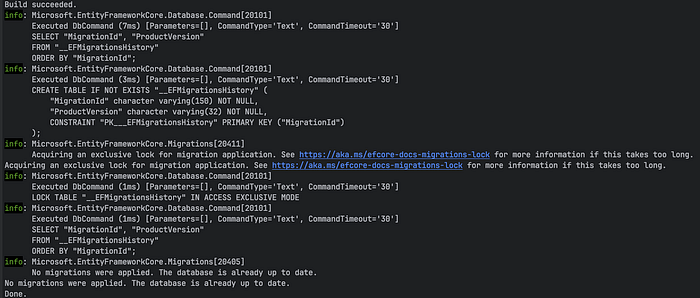
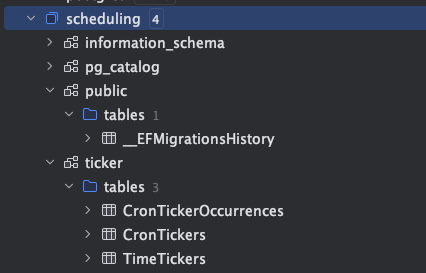
Start your application, access to {YOUR_APP_PORT}/tickerq, a dashboard will show like this:
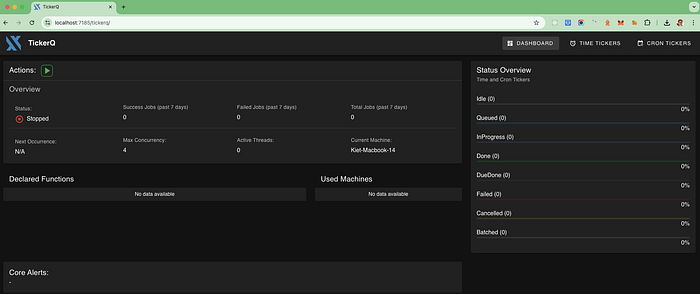
Well done, you've created a simple scheduling dashboard app with just a few lines of code.
Let's define a simple function to CleanUpReports job using TickerFunction.
Create a new class ReportJobs:
public class ReportJobs(ILogger<ReportJobs> logger)
{
    [TickerFunction("CleanUpReports", "*/1 * * * *")]
    public void CleanUpReports()
    {
        logger.LogInformation("Cleaning up report...");
    }
}
[TickerFunction("CleanUpReports", "*/1 * * * *")]
- This attribute marks the method below as a Ticker Function, meaning it will be executed by TickerQ.
- "*/1 * * * *" is a cron expression: it means run every 1 minute.
Restart your application, every minute, this function will be executed automatically
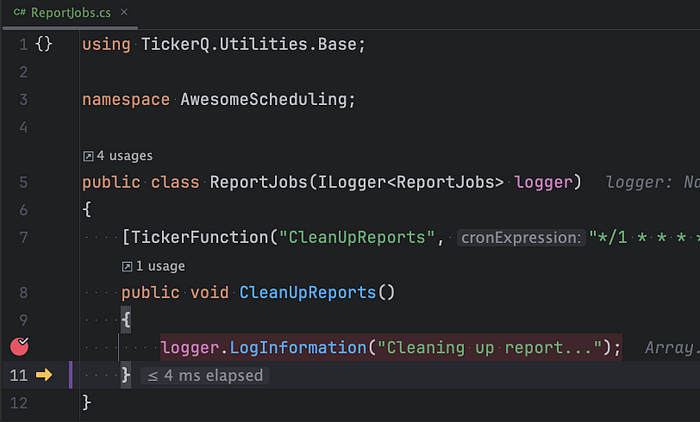
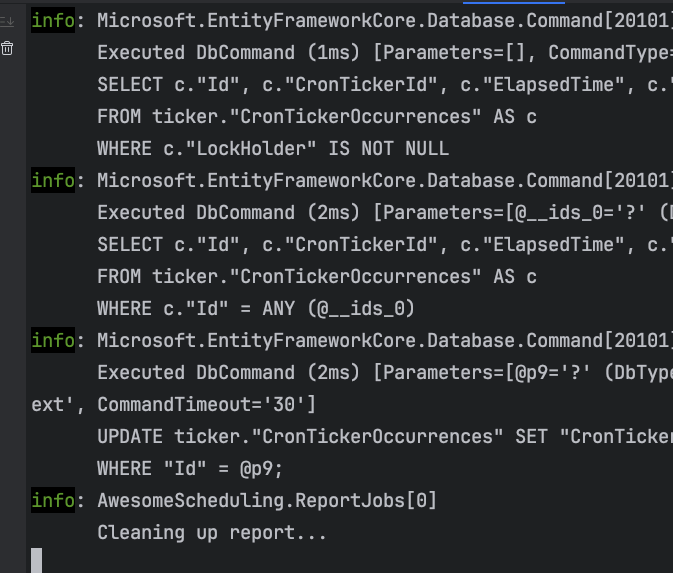
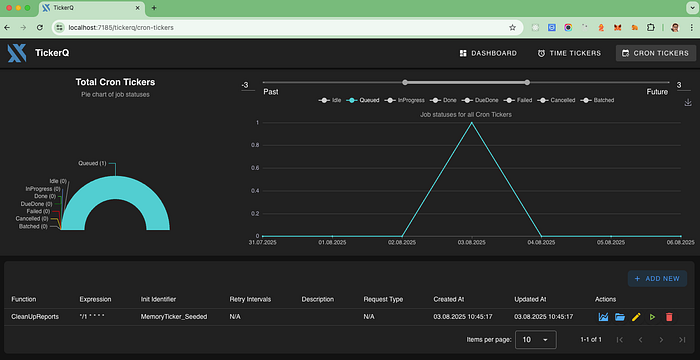
New rows will be added to the CronTickerOccurrences table every minute. You can verify this by checking the Terminal for the message "Cleaning up report…", which is triggered every minute, or by viewing TickerQ Dashboard => CRON TICKERS.
You can create an async tack to generate reports on daily, monthly, or other scheduled basis using the provided request.
This method is triggered by a [TickerFunction] and can be scheduled to run at specific intervals. The request contains details such as report type, date range, format, and optional email or phone number for sending the report.
Let's define a record ReportRequest:
public record ReportRequest
{
    public string? ReportType { get; init; } // e.g., SalesReport, InventoryReport
    public string? ReportName { get; init; } // Name of the report
    public DateTime? StartDate { get; init; } // Start date for the report
    public DateTime? EndDate { get; init; } // End date for the report
    public DateTime ExecutionTime { get; init; } // When the report should be generated
    public string? Format { get; init; } // e.g., PDF, Excel
    public string? Email { get; init; } // Email to send the report to
    public string? PhoneNumber { get; init; } // Phone number for SMS notifications
    public string? AdditionalNotes { get; init; } // Any additional notes or instructions
}
In the ReportJobs.cs file, add a new async method:
/// <summary>
/// Generate a report based on the provided request.
/// This method is triggered by a TickerFunction and can be scheduled to run at specific intervals.
/// The request contains details such as report type, date range, format, and optional
/// email or phone number for sending the report.
/// </summary>
/// <param name="functionContext"></param>
/// <param name="cancellationToken"></param>
[TickerFunction("GenerateReport")]
public async Task GenerateReport(TickerFunctionContext<ReportRequest> functionContext, CancellationToken cancellationToken = default)
{
    var request = functionContext.Request;
    logger.LogInformation("Generating report of type {ReportType} from {StartDate} to {EndDate} in {Format} format",
        request.ReportType, request.StartDate, request.EndDate, request.Format);

    // Add logic to generate the report based on the request,
    // For example, you could fetch data from a database and create a PDF or Excel file.
    // If the request contains an email or phone number, you can send the report via email or SMS.
    logger.LogInformation("Report generated successfully: {ReportName} ({ReportType}) from {StartDate} to {EndDate} in {Format} format",
        request.ReportName,
        request.ReportType, request.StartDate, request.EndDate, request.Format);
    if (!string.IsNullOrEmpty(request.Email))
    {
        logger.LogInformation("Sending report to email: {Email}", request.Email);
        // Add logic to send the report via email
    }
    if (!string.IsNullOrEmpty(request.PhoneNumber))
    {
        logger.LogInformation("Sending report to phone number: {PhoneNumber}", request.PhoneNumber);
        // Add logic to send the report via SMS
    }
    // Simulate report generation delay
    await Task.Delay(2000, cancellationToken);
}
You could potentiall define a Cron expression to schedule recurring tasks. A Cron expression structure like this:
┌───────────── Minute (0 - 59)
│ ┌───────────── Hour (0 - 23)
│ │ ┌───────────── Day of month (1 - 31)
│ │ │ ┌───────────── Month (1 - 12)
│ │ │ │ ┌───────────── Day of week (0 - 6) (Sunday = 0 or 7)
│ │ │ │ │
│ │ │ │ │
* * * * *
But if you define it this way, it will be limited to a single report and lack flexibility. So how can we define a report that runs automatically on a daily, monthly, or quarterly basis?
Let's create a simple endpoint using Minimal API to handle this.
Open Program.cs file, and add these:
app.MapPost("/scheduleReport", async (ReportRequest request, ITimeTickerManager<TimeTicker> timeTickerManager) =>
{
    await timeTickerManager.AddAsync(new TimeTicker
    {
        Request = TickerHelper.CreateTickerRequest(request),
        ExecutionTime = request.ExecutionTime,
        Function =  nameof(ReportJobs.GenerateReport),
        Description = request.ReportName ?? "Report Generation",
        Retries = 3,
        RetryIntervals = [1, 2, 3],
    });
    return Results.Ok();
});
Starting your application and hit enpoint: /scheduleReport using Postman
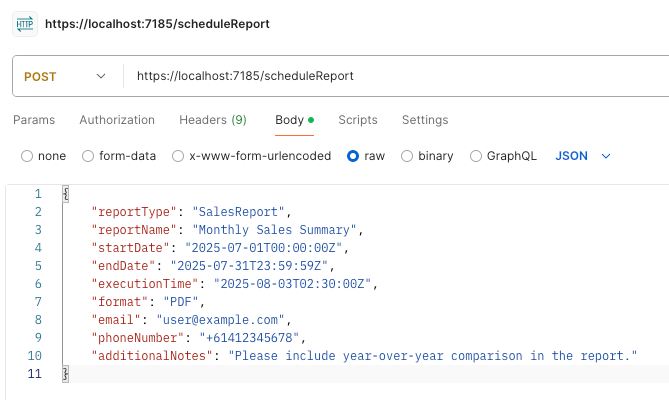
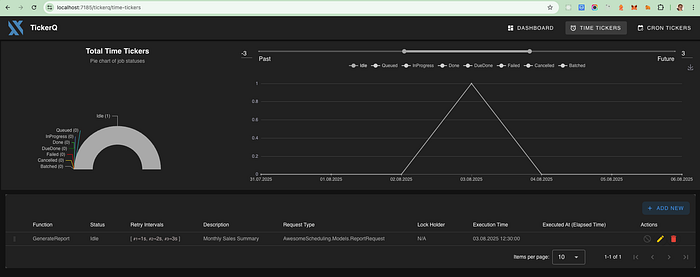
Double check table ticker."TimeTickers", a new row would be added. In TickerQ dashboard => TIME TICKERS, you should see like this:
🚧R Wat's missing (for now)
- No Redis or distributed cache persistence — everything routes through EF Core storage.
- No tag-based routing or per-node job targeting yet.
- Batch chaining, rate limiting, and job chaining features are listed as in progress.
That said, TickerQ's architecture is modular. When you're ready to move your background processing into 2025, give TickerQ a spin. You — and your ops team — might be pleasantly surprised.
Full Repo here: https://github.com/rickykiet83/tickerQ-demo