


1. Prerequisites
- Hardware Requirement * RAM — Min. 8GB, if you have SSD in your system then 4GB RAM would also work. * CPU — Min. Quad core, with at least 1.80GHz
- JRE 1.8 — Offline installer for JRE
- Java Development Kit — 1.8
- A Software for Un-Zipping like 7Zip or Win Rar * I will be using a 64-bit windows for the process, please check and download the version supported by your system x86 or x64 for all the software.
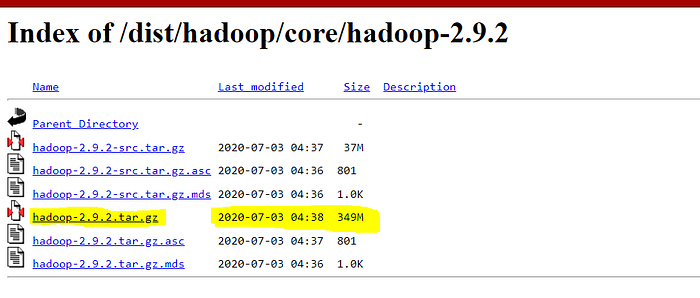
- Download Hadoop zip * I am using Hadoop-2.9.2, you can use any other STABLE version for hadoop.
Once we have Downloaded all the above software, we can proceed with next steps in installing the Hadoop.
2. Unzip and Install Hadoop
After Downloading the Hadoop, we need to Unzip the hadoop-2.9.2.tar.gz file.
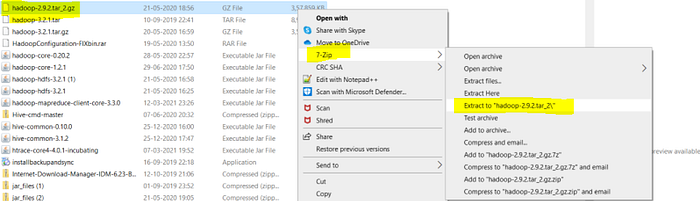
Once extracted, we would get a new file hadoop-2.9.2.tar. Now, once again we need to extract this tar file.

- Now we can organize our Hadoop installation, we can create a folder and move the final extracted file in it. For Eg. :-
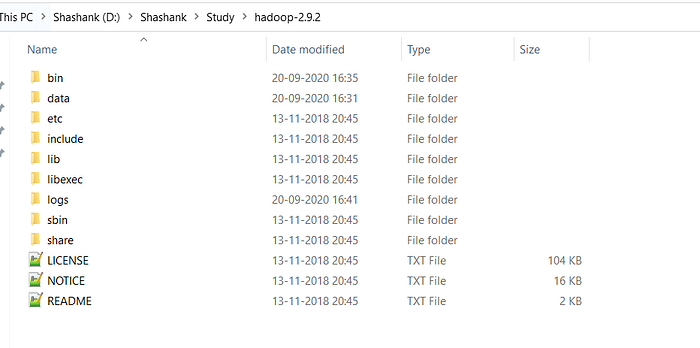
- Please note while creating folders, DO NOT ADD SPACES IN BETWEEN THE FOLDER NAME.(it can cause issues later)
- I have placed my Hadoop in D: drive you can use C: or any other drive also.
3. Setting Up Environment Variables
Another important step in setting up a work environment is to set your Systems environment variable.
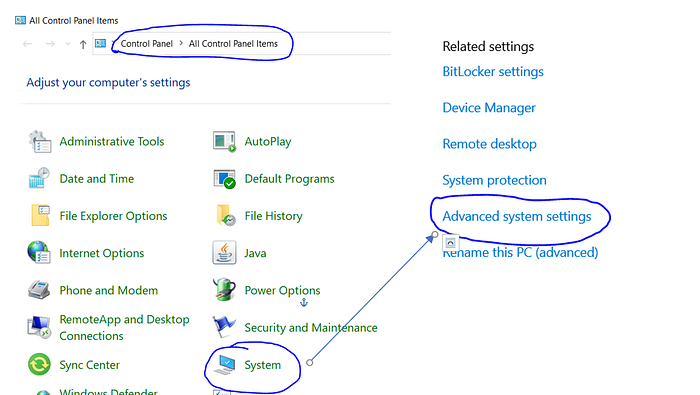
To edit environment variables, go to Control Panel > System > click on the "Advanced system settings" link Alternatively, We can Right click on This PC icon and click on Properties and click on the "Advanced system settings" link Or, easiest way is to search for Environment Variable in search bar and there you GO…😉
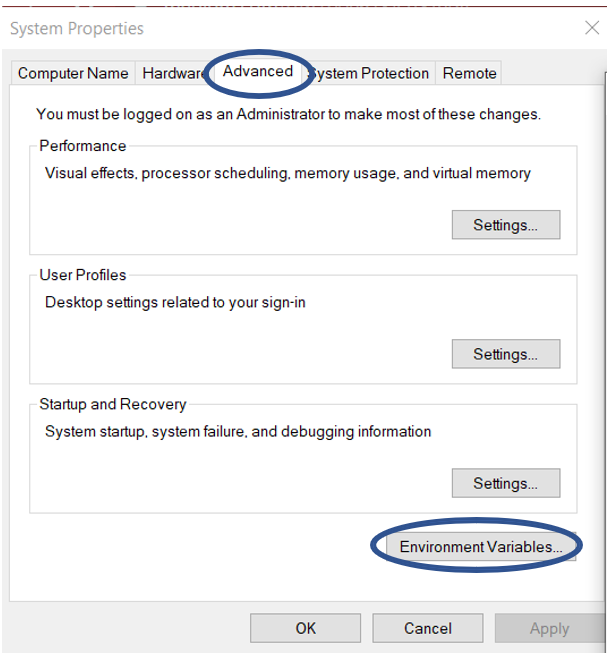
3.1 Setting JAVA_HOME
- Open environment Variable and click on "New" in "User Variable"
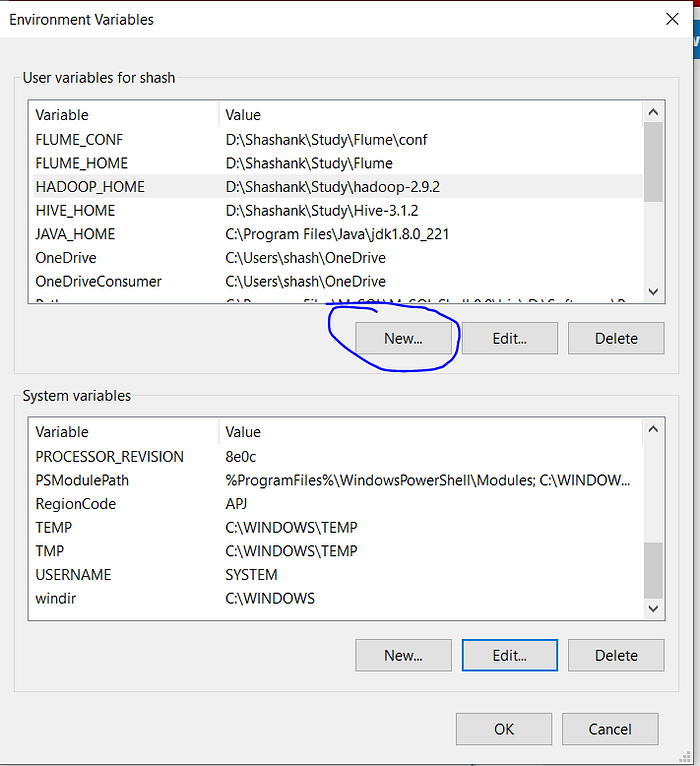
- On clicking "New", we get below screen.
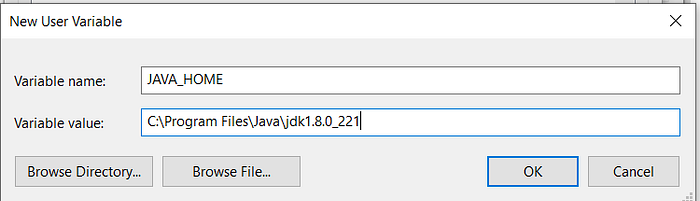
- Now as shown, add JAVA_HOME in variable name and path of Java(jdk) in Variable Value.
- Click OK and we are half done with setting JAVA_HOME.
3.2 Setting HADOOP_HOME
- Open environment Variable and click on "New" in "User Variable"
- On clicking "New", we get below screen.
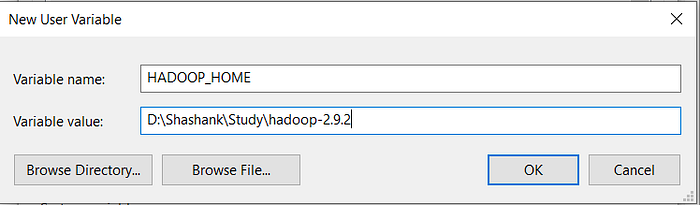
- Now as shown, add HADOOP_HOME in variable name and path of Hadoop folder in Variable Value.
- Click OK and we are half done with setting HADOOP_HOME.
Note:- If you want the path to be set for all users you need to select "New" from System Variables.
3.3 Setting Path Variable
- Last step in setting Environment variable is setting Path in System Variable.
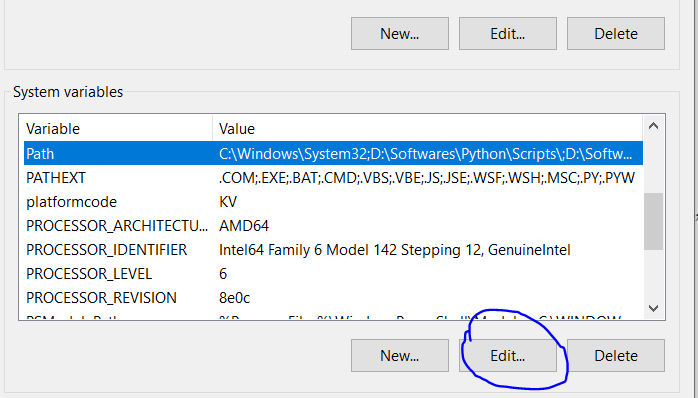
- Select Path variable in the system variables and click on "Edit".
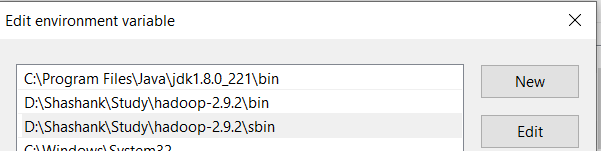
- Now we need to add these paths to Path Variable one by one:- * %JAVA_HOME%\bin * %HADOOP_HOME%\bin * %HADOOP_HOME%\sbin
- Click OK and OK. & we are done with Setting Environment Variables.
3.4 Verify the Paths
- Now we need to verify that what we have done is correct and reflecting.
- Open a NEW Command Window
- Run following commands
echo %JAVA_HOME%
echo %HADOOP_HOME%
echo %PATH%
4. Editing Hadoop files
Once we have configured the environment variables next step is to configure Hadoop. It has 3 parts:-
4.1 Creating Folders
We need to create a folder data in the hadoop directory, and 2 sub folders namenode and datanode
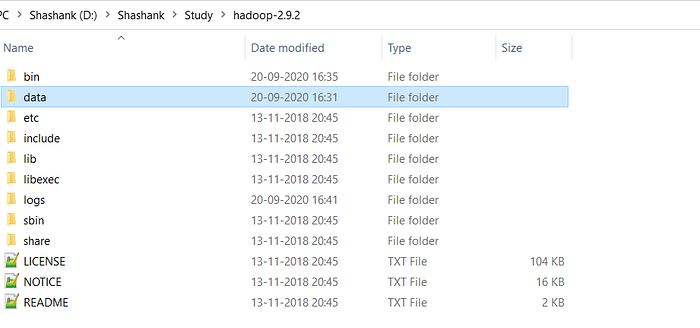
- Create DATA folder in the Hadoop directory
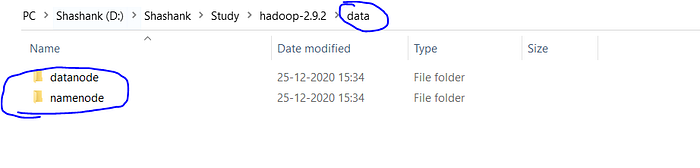
- Once DATA folder is created, we need to create 2 new folders namely, namenode and datanode inside the data folder
- These folders are important because files on HDFS resides inside the datanode.
4.2 Editing Configuration Files
Now we need to edit the following config files in hadoop for configuring it :- (We can find these files in Hadoop -> etc -> hadoop)
* core-site.xml
* hdfs-site.xml
* mapred-site.xml
* yarn-site.xml
* hadoop-env.cmd
4.2.1 Editing core-site.xml Right click on the file, select edit and paste the following content within <configuration> </configuration> tags. Note:- Below part already has the configuration tag, we need to copy only the part inside it.
<configuration>
<property>
  <name>fs.defaultFS</name>
  <value>hdfs://localhost:9000</value>
 </property>
</configuration>
4.2.2 Editing hdfs-site.xml Right click on the file, select edit and paste the following content within <configuration></configuration>tags. Note:- Below part already has the configuration tag, we need to copy only the part inside it. Also replace PATH~1 and PATH~2 with the path of namenode and datanode folder that we created recently(step 4.1).
<configuration>
 <property>
  <name>dfs.replication</name>
  <value>1</value>
 </property>
 <property>
  <name>dfs.namenode.name.dir</name>
  <value>PATH~1\namenode</value>
  <final>true</final>
 </property>
 <property>
  <name>dfs.datanode.data.dir</name>
  <value>PATH~2\datanode</value>
  <final>true</final>
 </property>
</configuration>
4.2.3 Editing mapred-site.xml Right click on the file, select edit and paste the following content within <configuration> </configuration> tags. Note:- Below part already has the configuration tag, we need to copy only the part inside it.
<configuration>
 <property>
  <name>mapreduce.framework.name</name>
  <value>yarn</value>
 </property>
</configuration>
4.2.4 Editing yarn-site.xml Right click on the file, select edit and paste the following content within <configuration> </configuration> tags. Note:- Below part already has the configuration tag, we need to copy only the part inside it.
<configuration>
 <property>
  <name>yarn.nodemanager.aux-services</name>
  <value>mapreduce_shuffle</value>
 </property>
 <property>
  <name>yarn.nodemanager.auxservices.mapreduce.shuffle.class</name>
  <value>org.apache.hadoop.mapred.ShuffleHandler</value>
 </property>
<!-- Site specific YARN configuration properties -->
</configuration>
4.2.5 Verifying hadoop-env.cmd Right click on the file, select edit and check if the JAVA_HOME is set correctly or not. We can replace the JAVA_HOME variable in the file with your actual JAVA_HOME that we configured in the System Variable.
set JAVA_HOME=%JAVA_HOME%
           OR
set JAVA_HOME="C:\Program Files\Java\jdk1.8.0_221"
4.3 Replacing bin
Last step in configuring the hadoop is to download and replace the bin folder. * Go to this GitHub Repo and download the bin folder as a zip. * Extract the zip and copy all the files present under bin folder to %HADOOP_HOME%\bin
Note:- If you are using different version of Hadoop then please search for its respective bin folder and download it.
5. Testing Setup
Congratulation..!!!!! We are done with the setting up the Hadoop in our System.
Now we need to check if everything works smoothly…
5.1 Formatting Namenode
Before starting hadoop we need to format the namenode for this we need to start a NEW Command Prompt and run below command
hadoop namenode -format
Note:- This command formats all the data in namenode. So, its advisable to use only at the start and do not use it every time while starting hadoop cluster to avoid data loss.
5.2 Launching Hadoop
Now we need to start a new Command Prompt remember to run it as administrator to avoid permission issues and execute below commands
start-all.cmd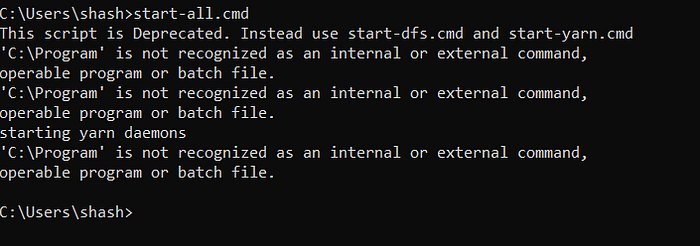
This will open 4 new cmd windows running 4 different Daemons of hadoop:- * Namenode * Datanode * Resourcemanager * Nodemanager
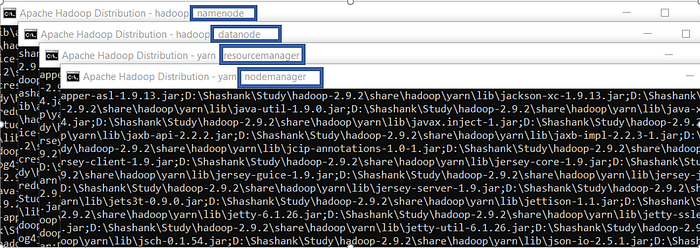
Note:- We can verify if all the daemons are up and running using
jpscommand in new cmd window.
6. Running Hadoop (Verifying Web UIs)
6.1 Namenode Open localhost:50070 in a browser tab to verify namenode health.
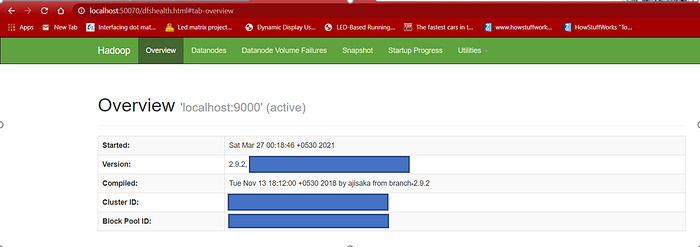
6.2 Resourcemanger Open localhost:8088 in a browser tab to check resourcemanager details.

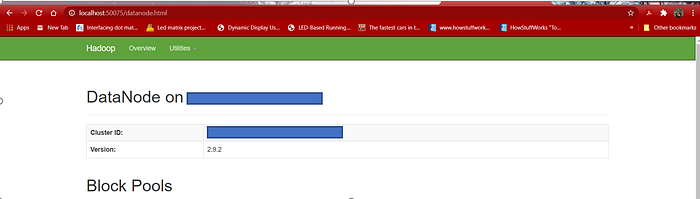
6.3 Datanode Open localhost:50075 in a browser tab to checkout datanode.
7. Congratulations..!!!!🎉
Congratulation! We have successfully installed Hadoop. There are chances that some of us might have faced some issues… Don't worry its most likely due to some small miss or incompatible software. If you face any such issue please visit all the steps once again carefully and verify for the right software versions. If you still can't get Hadoop up and running, Don't hesitate describe your problem below in the comment section.
8. Special Note 🙏
Don't forget to Like and share it with your friends and colleagues. Also, don't miss the opportunity to share your views and suggestions for this or new articles.
You can know more About Me HERE..
Happy Learning… !!! 🙂