


Pandas Makes Getting Website Table Data Easy
I've read lengthy tutorials where the authors have used libraries like urllib and BeautifulSoup and many, many steps to scrape and parse sports statistics from web pages. There's a much easier way to do it. Use the Python Pandas library.
This tutorial covers how to pull table data from Wikipedia, but the same steps can be applied to any web data that's in table form. I'll put a couple of links at the bottom for you try out.
Side Note
The output below is from my work in a Jupyter Notebook environment. If you're planning to do web scraping or exploratory data analysis with Python, I highly recommend installing the Jupyter Notebook app. If you don't want to run it locally, you can try it out in your browser here.
Let's Get Started!
The Pandas library in Python includes a web scraper that pulls HTML table data into a dataframe in a single step. Simply insert the URL into the read_html() method and assign the resulting object to a variable so you can work with it.
The catch is that this works only for text that has been put into table format in the underlying HTML. You can inspect the HTML to see if the data is in table form or you can just eyeball it. If it appears to be formatted in rows and columns, it's likely to be table data.
Wikipedia can be a great place to use the Pandas read_html()tool. If you're looking for something like sports statistics, you'll generally find at least one table on a page. For this tutorial, I'll scrape the Super Bowl LIV page.
import pandas as pd
data = pd.read_html("https://en.wikipedia.org/wiki/Super_Bowl_LIV")
Done! Ok, technically this is two lines, but I don't count the import statement as code.
Accessing the Data
We saved the scraped data into the variable data, and now we can work with the object. First, let's find out how many tables it contains.
print(len(data))
24
That's a lot of tables. Most of the time you'll only encounter one or two tables on a web page, but Wikipedia is an exception.
We have two options for looking through these 24 tables: One is to go look at the Wikipedia page and try to count tables to find the one we're looking for. The second, easier, option is to index data for a quick look.
I like to type data[0] in Jupyter Notebook, run the cell to see what it contains, and then move on to the next table. If you're running a script outside of a notebook, you can use print(data) — but that can get really messy with these Wikipedia tables.
The table at data[6]provides an example of how Pandas can do a perfect one-step pull of table data. It contains the game statistics by type and team. If we want, we can export this dataframe to a .csv or assign it to its own variable and continue working with it.
data[6]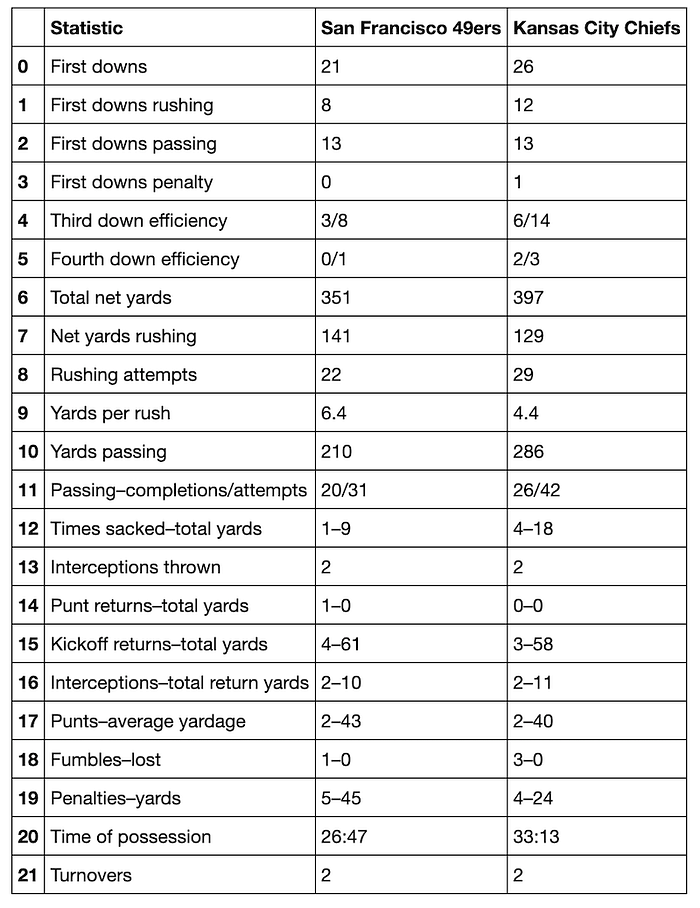
Sometimes the table isn't as nice-looking. Let's say I want to pull the scoring summary. That turns out to be the table at data[4].
This is Kind of a Mess…
data[4]
This table has some NaN values, the wrong header, and a weird bottom row. The HTML table from which Pandas scraped the data has a nested structure, and Pandas doesn't interpret that structure for us. We'll need to do a little cleanup ourselves to make it look nice.
First we'll first assign the table we're working with to a variable. df is the standard variable for a Python dataframe.
df = data[4]Normally we'd need to use pd.DataFrame(), but we can skip that here because Pandas already made each table into a dataframe object when we used the pd.read_html() method.
De-Cluttering
The first two rows and the last row of this dataframe contain the nested table structure that we don't need. To get rid of them, we can pass a list of row numbers into the drop() method. We want to drop rows 0, 1, and 12. axis=0 means to drop a row, not a column. It's the default parameter, but it doesn't hurt to be explicit.
df = df.drop([0, 1, 12], axis=0)
df
It's Already Looking Better!
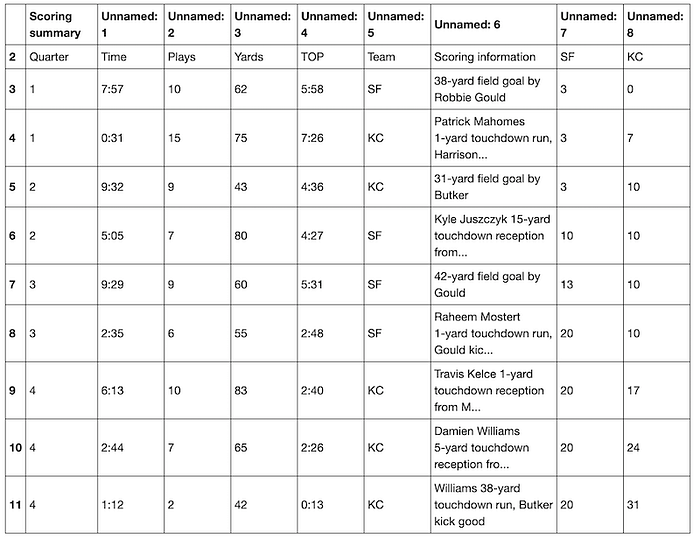
Dropping just three rows makes this a lot cleaner. Now we need to fix the column names. It looks like the first row would be a good candidate for names. Let's inspect it using iloc.
An important thing to know about the iloc method is that it works by accessing the underlying index position rather than the index number or identifier that we see. If you look above, you'll see that the top row has the index label 2. Using iloc to check what row we're calling will show that we actually need to grab what's at index 0. It's always a good idea to check what you've selected before doing anything with that selection.
df.iloc[0]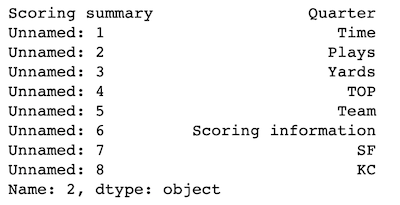
On the left, ilocoutputs the column names. On the right it outputs the cell entries that correspond to those columns and that are in the selected row of the dataframe.
As expected, the first row (df.iloc[0]) contains the names we'd like to use for the columns.
Now we can rename the columns using the cell names in that row. To capture them cleanly, we'll need to turn the iloc object into a list.
df.columns = list(df.iloc[0])
df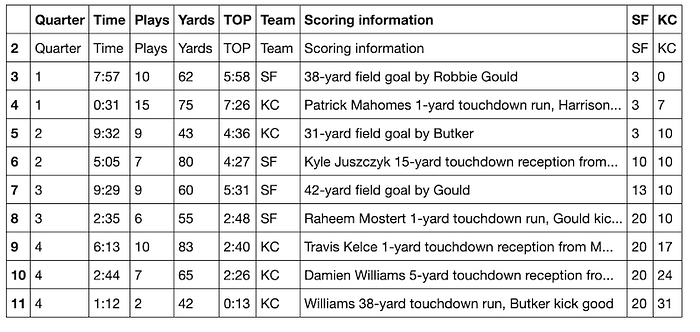
Looking good!
Next we need to drop the first row, since it's a duplicate of the column names. The drop() method, unlike iloc, does not operate on the underlying index. It identifies what to drop by the name of the item. Since the first row has the index name of 2, that's what row we'll tell the function to drop. It's not a requirement to add axis=0, since it's the default parameter— but it's helpful to list the axis so that it's clear what you're dropping.
df = df.drop(2, axis=0)
df
The last thing to clean up is the index number. This isn't strictly necessary, but it is kind of annoying to look at in its present state. We'll use the reset_index() method and add the parameter drop=True. If we don't add the drop=True parameter, the current (annoying) index will become a new column.
df = df.reset_index(drop=True)
df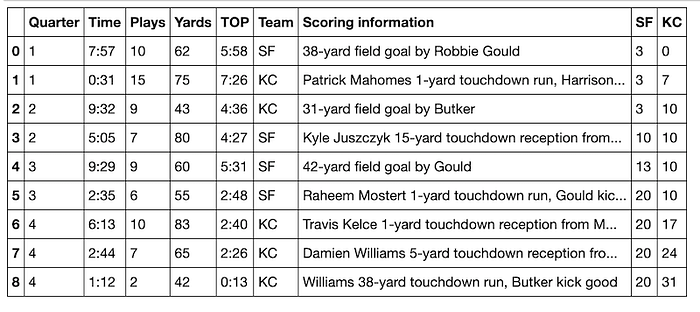
Beautiful!
Automation
If you know you'll be pulling several tables that are in the same format, it's a good idea to make the cleanup steps into a function. Here I'll re-create the steps above, but I'll make dropping the last row its own step. By doing this, I can make sure that the variation in the length of scoring summaries from different football games won't matter. The function will always drop the last row.
def score_table(table):
 """
 Returns a pretty-printed dataframe of scoring summary.
 """
 table = table.drop(len(table)-1) # Drop last row
 table = table.drop([0, 1]) # Drop first two rows
 table.columns = list(table.iloc[0])
 table = table.drop(2)
 table = table.reset_index(drop=True)
 return table
Let's try score_table() with the Wikipedia page for Super Bowl LIII:
data = pd.read_html("https://en.wikipedia.org/wiki/Super_Bowl_LIII")
score_table(data[4])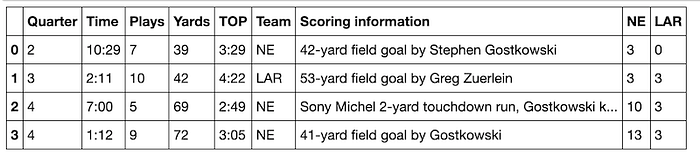
It works!
You can use this function yourself to get nice-looking Super Bowl scoring summaries from Wikipedia. For best results, be sure to double-check which table contains the scoring summary. For Super Bowl LII, it's the table at index 5. I encourage you to try it out on your own.
An Important Note about Data Cleaning
This tutorial only covers the first steps of data cleaning. Doing data analysis requires additional cleaning steps such as converting data into the correct data types, deciding how to handle NaN values, splitting strings, and more. In a later tutorial, I'll discuss a few of these basics.
One more thing:
If you're interested in scraping Wikipedia pages, Pandas is an excellent complement to Python's wikipedia library. With wikipedia you can get page text, links, and references in one easy step. What you can't get is the table data. Using both tools together will allow you to scrape anything you want from a Wikipedia page.
Other Websites to Experiment With
These websites will give you a clean-looking dataframe using the pattern:
 url = "http://www.thisisawebsite.com"
 data = pd.read_html(url)
 data[0]
Demographics of Countries around the World
Working as of April 6, 2020: Johns Hopkins coronavirus worldwide mortality
These are messy but readable:
Current Weather around the World
Fútbol/Football (lots of fun tables!)
If you find some websites that Pandas scrapes well and that you want to share, please put them in the comments. You can also check out my GitHub repo of this tutorial and download the corresponding Jupyter Notebook.