

This guide will help you configure Bitbucket Pipelines to automatically deploy updates to a containerized application in GKE.We will basically setup a simple node app, deploy it on GKE and push update commits.
This guide assumes you have prior understanding of Kubernetes and your GKE cluster already setup.
Creating The Initial Deployment
For the Pipeline to be able to update GKE deployment, the deployment must exist.So will go ahead and create the initial deployment.Run below command.
kubectl create -f k8s-create-deployment-cm.yamlSee content of k8s-create-deployment-cm.yaml below
apiVersion: extensions/v1beta1
kind: Deployment
metadata:
  name: node-express-app
  labels:
    app: node-express-app
    role: backend
    stage: test
spec:
  replicas: 2
  selector:
    matchLabels:
      app: node-express-app
      version: v0.0.1
  template:
    metadata:
      labels:
        app: node-express-app
        version: v0.0.1
    spec:
      containers:
        - name: node-app
          image: eu.gcr.io/quickfoodies/node-app:8bb8d5c456426b20ca49515331fe0efab9ba10f0
          imagePullPolicy: Always
          ports:
            - containerPort: 3000
Create GCP Service Account and Secret Key
To push docker images to GCR we need to be authorized and authenticated to access the api.Follow below to do this.
- Click on IAM & Admin on the navigation bar.
- On the IAM & Admin Console click on Service Accounts.
- Click on CREATE SERVICE ACCOUNT
- Enter account details see below and click CREATE
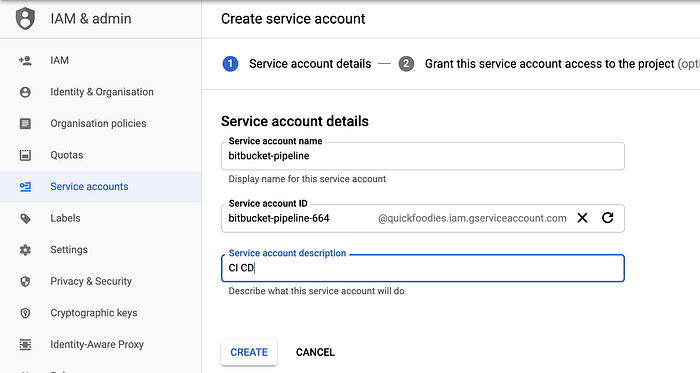
- Select Storage Admin as role.
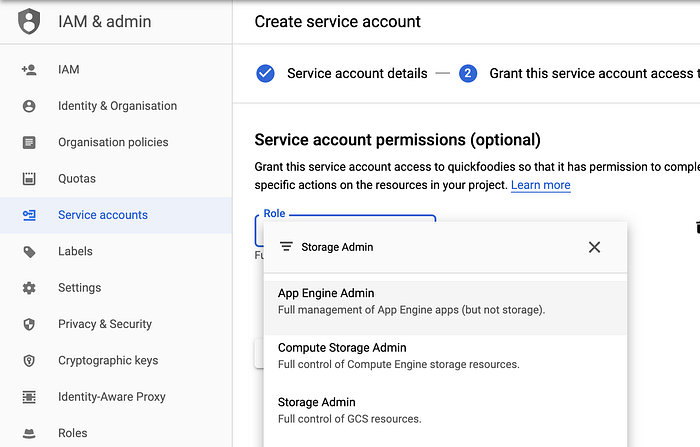
- Next click on Create Key as below
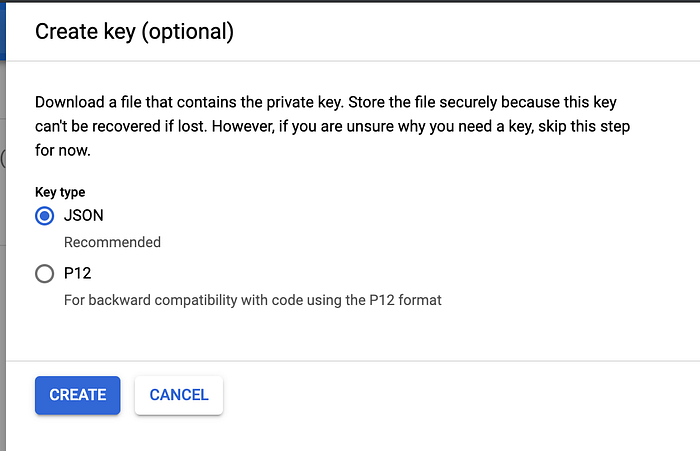
- This will automatically down a json secret key onto your machine.(keep this file secured)
Bitbucket Pipeline Variables
We will also need to create the following variables in Bitbucket as below.
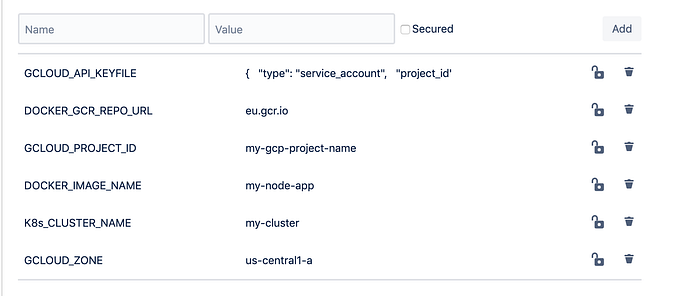
Note GCLOUD_API_KEYFILE is the content of your json secret key which was downloaded in previous step.
The Bitbucket Pipeline File
image: node:10.15.0
pipelines:
  default:
    - step:
        name: Run NPM Install
        caches:
          - node
        script:
          - npm install
    - step:
        name: Run Node Tests
        caches:
          - node
        script:
          - npm test

    - step:
        name: Build and Push Docker Image
        image: google/cloud-sdk:latest
        script:
        - echo $GCLOUD_API_KEYFILE > ~/.gcloud-api-key.json
        - gcloud auth activate-service-account --key-file ~/.gcloud-api-key.json
        - docker login -u _json_key --password-stdin https://$DOCKER_GCR_REPO_URL < ~/.gcloud-api-key.json
        - docker build -t $DOCKER_IMAGE_NAME:${BITBUCKET_COMMIT} .
        - docker tag $DOCKER_IMAGE_NAME:${BITBUCKET_COMMIT} $DOCKER_GCR_REPO_URL/$GCLOUD_PROJECT_ID/$DOCKER_IMAGE_NAME:${BITBUCKET_COMMIT}
        - docker push $DOCKER_GCR_REPO_URL/$GCLOUD_PROJECT_ID/$DOCKER_IMAGE_NAME:${BITBUCKET_COMMIT}
        - gcloud container clusters get-credentials $K8s_CLUSTER_NAME --zone=$GCLOUD_ZONE --project $GCLOUD_PROJECT_ID
# DEPLOYMENT
        - kubectl set image deployment $K8s_DEPLOYMENT_NAME $K8s_DEPLOYMENT_NAME=$DOCKER_GCR_REPO_URL/$GCLOUD_PROJECT_ID/$DOCKER_IMAGE_NAME:${BITBUCKET_COMMIT} --record --namespace=$K8s_NAMESPACE
And that's it.The source for this tutorial is hosted on github.