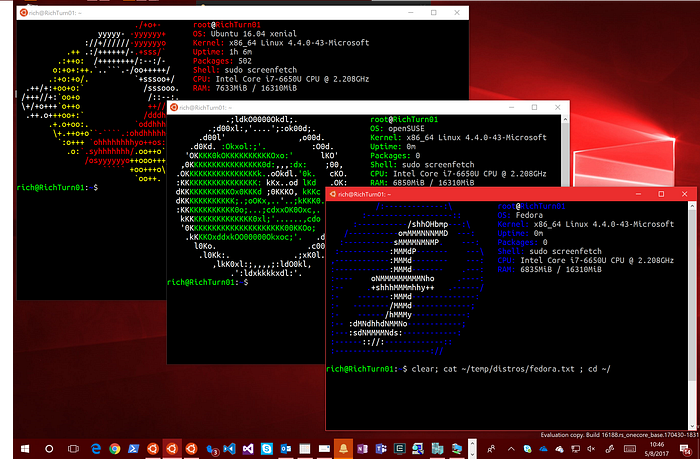

This article will cover how to set up a WSL 2 Distro using Docker. So let's begin. The docker container that we will be creating is to be able to run Podman on a windows machine. We will then convert this Distro into a usable WSL on the window.
Step 1. Creating the Docker Container. We will first build the docker container by scripting a Dockerfile.
Create a new directory
mkdir centos-server-podman
cd centos-server-podman
touch Dockerfile
Step 2. Open the "Dockerfile" and script the following:
FROM centos:8
RUN yum update -y
RUN yum install -y nano dnf-plugins-core
RUN dnf config-manager --set-enabled PowerTools -y
RUN dnf -y update
RUN dnf module list | grep container-tools
RUN dnf install -y @container-tools --skip-broken
RUN podman version
RUN yum install -y pinentry wget
RUN curl -LO https://storage.googleapis.com/kubernetes-release/release/`curl -s https://storage.googleapis.com/kubernetes-release/release/stable.txt`/bin/linux/amd64/kubectl
RUN chmod +x ./kubectl
RUN mv ./kubectl /usr/local/bin/kubectl
RUN kubectl version --client
We will be using a Centos image that our container will be based on.
Make sure to add the following to the bottom of the script to make a rootless docker container.
RUN useradd --shell /usr/sbin/nologin -m <username>
RUN usermod --password <password> <username>
USER <username>
Step 3. Now build the docker image using:
docker build . -t basic-centos-wsl:v1This should build the image. To verify run the command:
docker imagesStep 4: We want to run the docker image to execute the WSL tool to build a tar file. Run the following to start the container detached from the terminal.
docker run -d --name wlsdistro basic-centos-wsl:v1 /bin/bashTo verify that a container created run the following:
docker ps -aStep 5. Now we want to export out the container image into a tar file. We can do this by using Dockers export method.
docker export --output=centos_kubernetes_podman.tar wlsdistroStep. 6 Now we need to set up another directory and place the tar file into it. If we set up the distro within the current directory it will add everything inside of it as part of the distro and we do not want this.
cd ..
mkdir distro
cd distro
cp ..\centos-server-podman\centos_kubernetes_podman.tar .
Step 7. Create the distro. We can create the distro by using the WSL CLI and the import argument. Put whatever you like in the image name.
wsl --import <imageName>. centos_kubernetes_podman.tarYou can find out if the distro created successfully by using the following command:
wsl -lYou can execute the distro by using:
wsl -d centos