
Have you ever experienced that feeling of frustration when you have to install a database on two different machines? On one, it works fine; on the other, there are bugs you can't explain? Even though they are both the same version?
Have you ever felt the burden of having to redo the same commands and the same configurations over and over again when changing workstations?
Well, Docker was invented to solve this type of problem, but also to facilitate the portability of systems and applications.
In this tutorial, I will show you how to set up a Postgres database under Docker.
Install Docker
In order to use docker, first you will need to install it. As I'm mac user, I installed docker on Mac. But It's also available for Windows or Linux users. Once the installation is complete, start your docker application and let's jump in the tutorial.
Create a Dockerfile
First to start a Postgres database in a docker container, we have to create a Dockerfile.
FROM postgres:15.1-alpine

LABEL author="Your Name"
LABEL description="Postgres Image for demo"
LABEL version="1.0"

COPY *.sql /docker-entrypoint-initdb.d/
Note that the line COPY below will copy all the sql files in our source folder, where we have our Dockerfile, and add them in the /docker-entrypoint-initdb.d/
COPY *.sql /docker-entrypoint-initdb.d/This folder in your postgres container is where you can add additional initialization scripts (creating the directory if necessary).
You can add one or more *.sql, *.sql.gz, or *.sh . After the entrypoint calls initdb to create the default postgres user and database, it will run any *.sql files, run any executable *.sh scripts, and source any non-executable *.sh scripts found in that directory to do further initialization before starting the service.
Create a docker-compose file
Once you have create your docker file, now to run the postgres container in a clean way, you can create a docker-compose.yml file.
services:
  postgres:
    build:
      context: .
      dockerfile: postgres.dockerfile
    image: "postgres-tutorials"
    container_name: ${PG_CONTAINER_NAME}
    environment:
      POSTGRES_DB: ${POSTGRES_DB}
      POSTGRES_USER: ${POSTGRES_USER}
      POSTGRES_PASSWORD: ${POSTGRES_PASSWORD}
      PGDATA: ${PGDATA}
    volumes:
       - dbtuto:/data/postgres-tuto
    ports:
      - "5432:5432"
    restart: unless-stopped
volumes:
    dbtuto:
      external: true
The values which are in this form ${PG_CONTAINER_NAME} have been setted in an env file; in order to be managed easily. To do so, create a .env file in your source folder and add all the environnement variables like below.
PG_CONTAINER_NAME='postgres_tuto'
POSTGRES_USER='tuto'
POSTGRES_PASSWORD='admingres'
POSTGRES_DB='tutos'
PGDATA='/data/postgres-tuto'
Create SQL scripts files
Now that our compose file is ready, we can create our SQL scripts file that must be copied in /docker-entrypoint-initdb.d/
-- CREATE TYPE
DROP TYPE IF EXISTS genre;
CREATE TYPE genre AS ENUM (
    'ADVENTURE',
    'HORROR',
    'COMEDY',
    'ACTION',
    'SPORTS'
);

-- CREATE TABLE >> 01-init-db.sql
DROP TABLE IF EXISTS movies;
CREATE TABLE movies (
     id SERIAL PRIMARY KEY,
     title VARCHAR NOT NULL,
     release_year SMALLINT,
     genre genre,
     price NUMERIC(4, 2)
);
-- LOAD DATAS >> 02-load-data.sql
INSERT INTO movies(id, title, release_year, genre, price)
VALUES
  (1, 'The Shaw shank Redemption', 1994, 'HORROR', 15.99),
  (2, 'Ant Man', 2019, 'ADVENTURE', 15.00),
  (3, 'Fallen', 1996, 'HORROR', 23.99),
  (4, 'The barbershop', 2006, 'COMEDY', 6.50),
  (5, 'The last dance', 2021, 'SPORTS', 55.99),
  (6, 'Peter Pan', 2004, 'ADVENTURE', 15.99),
  (7, 'Fast & Furious 7', 2018, 'ACTION', 36.00),
  (8, 'Harry Potter', 2000, 'ACTION', 26.50),
  (9, 'Jungle book', 2004, 'ADVENTURE', 25.00);
We start the names of those 2 files with 01-* and 02-* because these initialization files will be executed in sorted name. So we want the database to be create first, then load the datas.
Run our Postgres container
Before running our Postgres container, we have specified in our docker-compose file that we will use an external volume.
# Here ↓
volumes:
    dbtuto:
      external: true
So in other to have and external volume we have to create it:
docker volume create dbtutoNow we can launch our Postgres database with docker compose:
docker-compose up -dPostgreSQL in action
Once our service is up we can now open our favorite SQL Management software, personally I use DataGrip from Jetbrains. So this is what it's look once the container is fully started. In the password field, enter the one which is in the .env file
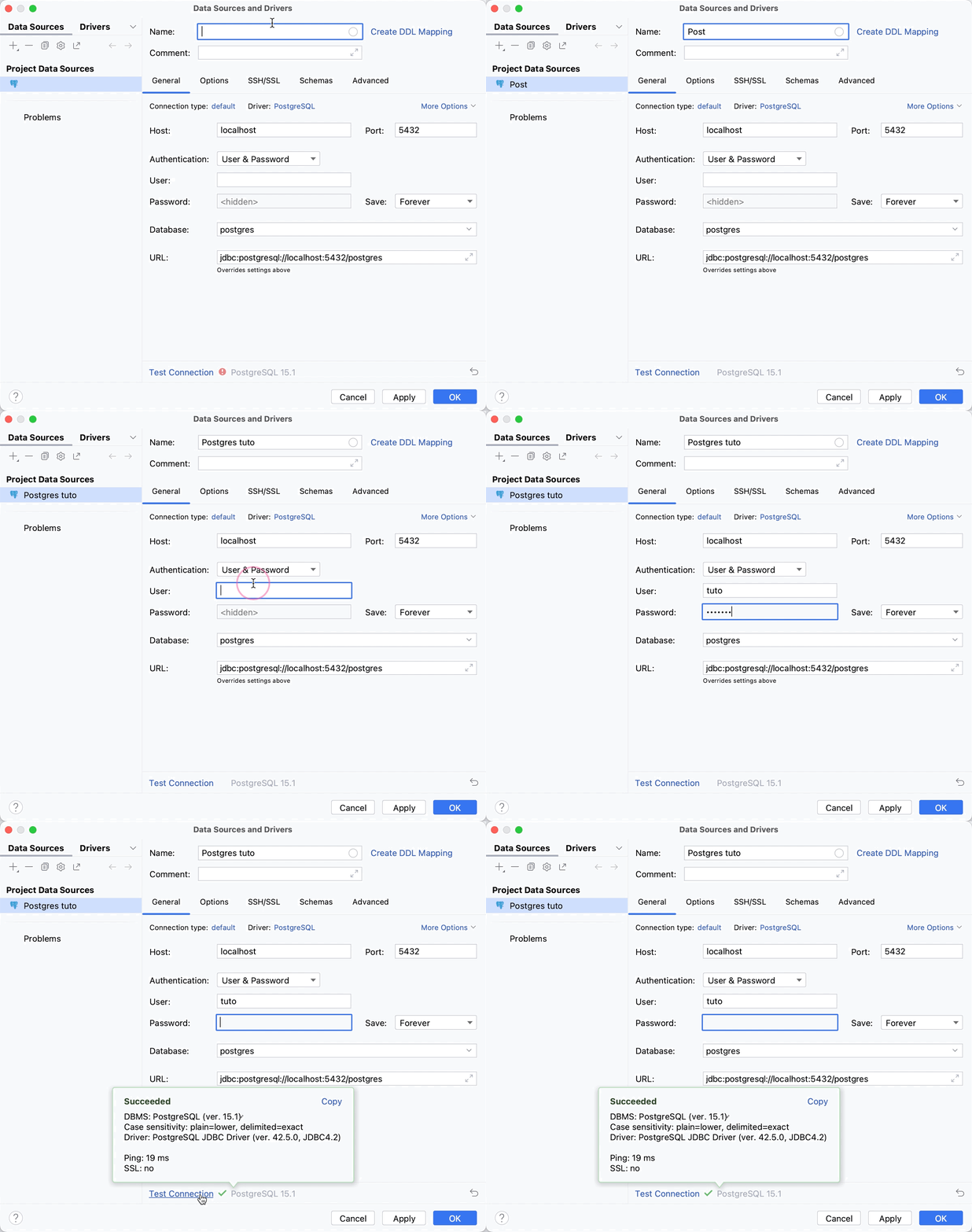
Once the credentials have validated and the login is ok, now we can run our SELECT command to test that all the data in the SQL scripts have been played.

Wrap up
In this tutorial we have covered:
- How to create a Postgres database with Docker
- How to configure a docker file and docker compose file
- How to run SQL scripts when starting a Postgres container with a docker-compose file.
You can found all the code snippets of this article on my GitHub.
I hope you enjoyed reading this, and I'm curious to hear if this tutorial helped you. Please let me know your thoughts below in the comments.
To avoid missing my upcoming blog posts, don't forget to subscribe to my newsletter down below 👇🏾