In the world of Artificial Intelligence, Retrieval-Augmented Generation (RAG) is a powerful technique that enhances the responses of Large Language Models (LLMs). But what happens when you need to work with more than just text? This is where Multimodal RAG comes in, a system that can understand and integrate various data types like images, audio, video, and text. This blog post will walk you through the process of creating a Multimodal RAG system, from understanding the core concepts to implementing a solution based on a real-world iPython notebook.
What is RAG?
At its core, RAG optimizes the output of an LLM by referencing a knowledge base outside of its training data before generating a response. This process has three main components:
- Ingestion: Processing and storing the external knowledge base.
- Retrieval: Finding the most relevant information from the knowledge base in response to a query.
- Generation: Using the retrieved information to generate a comprehensive and accurate response.
The Next Level: Multimodal RAG
Multimodal RAG takes this a step further by enabling AI systems to process and integrate data from various modalities. Imagine a system that can not only read a document but also understand the images and tables within it. This opens up a world of possibilities for more sophisticated and accurate AI applications.
There are three primary approaches to building a Multimodal RAG system:
- Option 1: Use multimodal embedding to embed images, retrieve all using similarity search, and then pass raw images and text chunks to a multimodal LLM for an answer generation.
- Option 2: Use a multimodal LLM to produce text summaries from images. Then, embed all (summaries of images, tables and text) and retrieve text. Finally, pass text chunk to an LLM for answer generation.
- Option 3: Use a multimodal LLM to create text summaries from images. Embed and retrieve these image summaries along with a reference to the original image. Then, pass the raw image and text chunk to a multimodal LLM for answer generation.
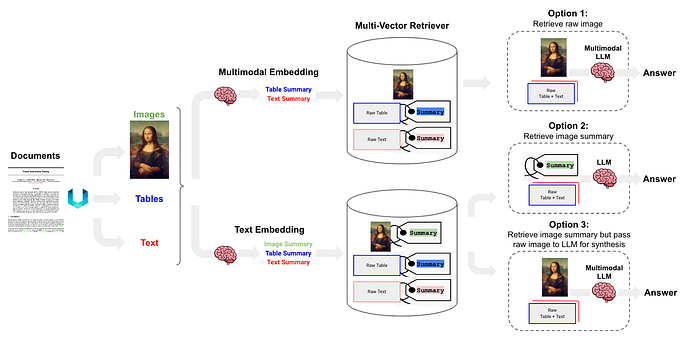
In this guide, we'll be focusing on Option 3, a robust approach that leverages the strengths of both text-based and image-based data.
Let's Get Building: Extracting Data from a PDF
Our first step is to extract the different elements — text, images, and tables — from a PDF document. We'll use the unstructured library in Python to partition the PDF into manageable chunks.
Unstructured is a powerful tool for processing unstructured data, particularly adept at extracting and structuring information from diverse document types. It is invaluable for extracting visual information and generating detailed image descriptions that can then be integrated into RAG workflows to enhance contextual depth
Before we start, a foundational step is setting up a well-configured Python environment and required dependencies. Follow the GitHub link for setup.
from unstructured.partition.pdf import partition_pdf

output_path = './content/'
file_path = output_path + 'attention.pdf'

def partition_and_chunk_pdf(file_path):
    """Partitions and chunks a PDF file into manageable pieces."""
    chunks = partition_pdf(
        filename=file_path,
        infer_tables_structure=True,          # Extract tables with structure
        strategy='hi_res',                     # Mandatory to infer tables
        extract_image_block_types=["Image"],   # Extract images
        extract_image_block_to_payload=True,   # Extract base64 object of the image
        chunking_strategy="by_title",          # Chunking strategy
        max_characters=2000,                   # Max characters per chunk
        combine_text_under_n_chars=500,        # Combine small text blocks
        new_after_n_chars=6000,                # New chunk after this many characters
    )
    return chunks

chunks = partition_and_chunk_pdf(file_path)
A Closer Look at partition_pdf Arguments
infer_tables_structure: Enables the function to understand the structure of tables within the PDF.strategy: We use'hi_res'(high resolution) which is necessary for accurately inferring table structures.extract_image_block_types: Tells the function to specifically look for and extract image blocks.extract_image_block_to_payload: Instructs the function to include the base64 encoded image data in the output.chunking_strategy: We've chosen'by_title', which means the document will be split into chunks based on its titles.max_characters: Sets the maximum number of characters for each chunk to 2000.combine_text_under_n_chars: Combines text blocks that are smaller than 500 characters.new_after_n_chars: Creates a new chunk after a chunk has reached 6000 characters.
Processing the Extracted Elements
Once we have our partitioned data, we need to separate the different types of elements for further processing. We'll extract the text, tables, and images.
Tables
The unstructured library creates a separate element for tables, but it only provides the text content. It doesn't generate an HTML or markup representation that could be directly used for summarization. Therefore, we'll treat the table data as text for now.
Though we can extract the table with an image element image_base64 when included in extract_image_block_types.
def get_table(chunks):
    tables = []
    for chunk in chunks:
        for el in chunk.metadata.orig_elements:
            if 'Table' in str(type(el)):
                print(el.to_dict())
                tables.append(el)
    return tables

tables = get_table(chunks)
Text and Images
We can now save the text chunks and extract the images from the CompositeElement objects.
def save_texts(chunks):
    """Extracts texts from the list of chunks."""
    texts = [chunk for chunk in chunks if 'CompositeElement' in str(type(chunk))]
    return texts

texts = save_texts(chunks)

def get_image_base64(chunks):
    """Gets the base64 encoded images from the chunks."""
    image_b64 = []
    for chunk in chunks:
        chunk_el = chunk.metadata.orig_elements
        for el in chunk_el:
            if 'Image' in str(type(el)):
                image_b64.append(el.metadata.image_base64)
    return image_b64

images = get_image_base64(chunks)
Image and Text Summarization
With our data extracted and separated, the next step is to generate summaries. This is crucial for creating a concise and searchable knowledge base.
Text and Table Summarization
We'll use a LLM to generate summaries for the text and table data. We will create a summarization chain by combining the prompt template, with the LLM model and an output parser into a single chain. This approach is excellent for ensuring consistent and structured summaries.
from langchain_openai import ChatOpenAI
from langchain.prompts import ChatPromptTemplate
from langchain_core.output_parsers import StrOutputParser

## Summarizing Text
## Create an open model
model = ChatOpenAI(temperature=0.5, model='gpt-4o-mini')

## Create a prompt template for summarization
prompt = '''
You are an assistant tasked with summarizing tables and text.
Give a concise summary of the table or text.

Respond only with the summary, no additional comment.
Do not start your message by saying "Here is a summary" or anything similar.
just give the summary as it is.

Table or text chunk: {element}
'''

prompt_template = ChatPromptTemplate.from_template(prompt)

## chain the prompt with the openai model and output parser
chain_text = prompt_template | model | StrOutputParser()

text_summaries = chain.batch(texts,{"max_concurrency":3})
Image Summarization
We'll use a multimodal LLM to generate summaries for each image. For this example, we'll use the gpt-4o-mini model for its multimodal capabilities. You can use any other LLM model with multimodal capabilities.
## Summarizing images
prompt_template_image = """
Describe the image in detail.
Be specific about the architecture, graphs, plots such as bar plot"""

messages = [
    ("user",
        [
            ## a text message containing our prompt instructions
            {"type":"text","text":prompt_template_image},
            ## an image message, passing the image as a base64-encoded URL
            {
                "type":"image_url",
                "image_url":{"url":"data:image/jpeg;base64,{image}"},
            },
        ],
    )
]
## Create a ChatPromptTemplate object from our structured messages
prompt_image = ChatPromptTemplate.from_messages(messages)

## chain the prompt with the openai model and output parser
chain_image = prompt_image | model | StrOutputParser()

image_summaries = chain_image.batch(images)
Storing the Summaries
Now that we have our summaries, we need to store them in a way that allows for efficient retrieval. For this, we'll use a vector store and a document store.
Vector Store
The vector store will hold the embeddings of our text and image summaries. This enables us to perform similarity searches to find the most relevant information for a given query. For this example we are using AstraDB but any other vector DB would work the same.
Document Store and InMemoryStore
The document store will hold the original text chunks and images. This is important because while we retrieve based on summary similarity, we want to provide the original, detailed information to the LLM for a more accurate response.
InMemoryStore is a simple document store that, as the name suggests, stores the documents in memory. This is useful for development and for smaller-scale applications where you don't need a persistent, dedicated database
import uuid
import os
from langchain_astradb import AstraDBVectorStore
from langchain.storage import InMemoryStore
from langchain.embeddings import OpenAIEmbeddings

## Embedding model
embedding = OpenAIEmbeddings(model="text-embedding-3-large")

## The vector store to index the summary chunks
vector_store = AstraDBVectorStore(
    ## The embedding object used to convert text into vector representations
    embedding=embedding,
    ## The name of the collection within Astra DB where the vectors will be stored
    collection_name="RAG",
    ## check setup explained in github repo
    api_endpoint=endpoint,
    token=token,
    namespace=namespace,
)

## The storage layer for the parent documents
store = InMemoryStore()
id_key = "doc_id"
MultiVectorRetriever
The heart of our RAG chain is the MultiVectorRetriever. This retriever is designed to work with both the vector store (for summaries) and the document store (for original content). It allows you to fetch documents from the vector store based on the similarity of their embeddings to a query, and then use the IDs of those documents to retrieve the original, full documents from the document store.
from langchain.retrievers.multi_vector import MultiVectorRetriever

# Initialize the retriever
retriever = MultiVectorRetriever(
    vectorstore=vector_store,
    docstore=store,
    id_key=id_key
)
As we have setup our vector store and document store, we will load our text and image summaries.
from langchain_core.documents import Document

## adding image and text summries
def loading_summaries_to_vector_store(retriever, chunks, chunk_summary):
    """
        Generate ids for each chunk, create langchain document object for each summary chunk.
        Indexing the summary in vector store and document in docsotre.
    """
    ## generate unique id for each chunk
    doc_ids = [str(uuid.uuid4()) for _ in texts]
    ## Creating Langchain Document objects for each text_summary chunk
    summary_texts = [Document(page_content=summary,metadata={id_key:doc_ids[i]}) for i,summary in enumerate(chunk_summary)]

    ## indexing the documents in vector store and document store
    retriever.vectorstore.add_documents(summary_texts)
    retriever.docstore.mset(list(zip(doc_ids,chunks)))

## adding text summaries to vector store and document store
loading_summaries_to_vector_store(retriever,texts,text_summaries)
## adding image summaries to vector store and document store
loading_summaries_to_vector_store(retriever,images,image_summaries)
## Now the retriever is ready to use
Creating the RAG Chain
With our data stored, we can now build the RAG chain. This chain will orchestrate the entire process, from receiving a query to generating a response.
Helper Functions
First, we need two helper functions: one to parse the retrieved documents into text and images, and another to build the prompt for our model.
from langchain_core.runnables import RunnablePassthrough, RunnableLambda
from langchain_core.messages import SystemMessage, HumanMessage
from langchain_openai import ChatOpenAI
from base64 import b64decode

def parse_docs(docs):
    """Parses the retrieved documents to return a dictionary with text and images."""
    image_doc = []
    text_doc = []
    for doc in docs:
        try:
            ## Attempt to decode the document as an image
            b64decode(doc)
            ## If successful, append to image_doc
            image_doc.append(doc)
        ## Raises binascii.Error if not a base64
        except Exception as e:
            ## If decoding fails, treat it as text
            text_doc.append(doc)
    return {"images":image_doc,"text":text_doc}

def built_prompt(kwargs):
    """ Builds the prompt for the model using the context and question."""

    ## extracting the context dictionary
    docs_by_type = kwargs['context']
    ## extracting the question
    user_question = kwargs['question']

    ## If length of text documents is greater than 0, concatenate the text
    context_text = ""
    if len(docs_by_type['text']) > 0:
        for text_element in docs_by_type["text"]:
            context_text +=text_element.text

    ## Create a prompt with context including the images
    prompt_template = f"""
    Answer the question based only on the following context, which can include text and images.
    Context: {context_text}
    Question: {user_question}"""


    prompt_content = [{"type":"text","text":prompt_template}]

    ## If there are images, add them to the prompt
    if len(docs_by_type["images"]) > 0:
        for image in docs_by_type["images"]:
            prompt_content.append(
                {"type":"image_url","image_url":{"url":f"data:image/jpeg;base64,{image}"},                 }
            )

    ## Return the prompt content
    return ChatPromptTemplate.from_messages(
        [HumanMessage(content=prompt_content)]
    )
The RAG Chains
Now, we'll assemble two different RAG chains.
output_chain: This will give us the direct answer from the model.chain_with_source: This will give us the answer, plus the source documents (text and images) that the model used to generate the response.
from langchain_core.output_parsers import StrOutputParser

# The first chain gives a direct output
output_chain = (
    {
        ## Retriver will retrieve returns the retrieve document which we saw above when we invoked the retriever
        ## Then that will be passed to the parse_docs which will go over each document and parse it into text and images
        "context": retriever | RunnableLambda(parse_docs),
        "question": RunnablePassthrough(),
    }
    ## build_prompt will get the context which is a dictionary with text and images, and the question
    | RunnableLambda(built_prompt)
    | model
    | StrOutputParser()
)

## building the chain with the source reference
# This will return a dictionary with the context, question, and the response from the model
chain_with_source = {
    "context": retriever | RunnableLambda(parse_docs),
    "question": RunnablePassthrough(),
} | RunnablePassthrough().assign(
    response = (
        RunnableLambda(built_prompt)
        | ChatOpenAI(model="gpt-4o-mini")
        | StrOutputParser()
    )
)
Generating a Response and Verifying the Source
Finally, we can test our Multimodel RAG system. We'll use chain_with_source so we can inspect the documents the model is using.
import base64
from IPython.display import Image, display

def display_base64_image(base64_code):
    ## decode the base64 string to binary
    image_data = base64.b64decode(base64_code)
    # display the image
    display(Image(data=image_data))

# Assuming 'response' is the output of chain_with_source.invoke("Your question here")
response  = chain_with_source.invoke("Your question here")

## Print the response and source documents
print("Response:", response['response'],"\n")
print("-"*80,"\n\nSource Documents:")

## Print the source text
for text in response['context']['text']:
    print("Page Number:", text.metadata.page_number)
    print(text.text)
    print("\n","-"*80,"\n")

## Source Images
for image in response['context']['images']:
    display_base64_image(image) # You would need a helper function to display base64 images
The system will retrieve the relevant text and images, and the multimodal LLM will use this context to generate a comprehensive and accurate answer. By inspecting the source documents, you can verify that the model's response is grounded in the provided context.
Conclusion
By following these steps, you've successfully built a powerful and transparent Multimodel RAG system. This system can understand and integrate various data types, leading to more intelligent and context-aware AI applications. As AI continues to evolve, the ability to work with multiple data modalities will become increasingly important. By mastering Multimodel RAG, you're at the forefront of this exciting field.
GitHub Repository: https://github.com/theserenecoder/MultiModel_RAG/tree/main