
Introduction
When I first opened Ansys Workbench, I spent more time clicking around than actually simulating anything. If that sounds familiar — you're not alone. Simulation platforms can be overwhelming in the beginning, especially when the interface feels like a maze and tutorials throw jargon at you from minute one.
This guide is meant to walk you through the first steps of using Ansys Workbench with realistic expectations, a human voice, and some clarity from someone who's been in your shoes.
What Is Ansys Workbench (And Why Should You Care)?
Ansys Workbench is a unified simulation environment where you can link your CAD model, apply loads and boundary conditions, mesh the geometry, solve the analysis, and review results — all in one place.
It's most commonly used for:
- Structural simulations (Static, Modal, Thermal, etc.)
- Fluid and thermal simulations (via Fluent or CFX)
- Electromagnetic and multi physics problems
Workbench isn't a tool you "master" in a day — but once you understand how the building blocks connect, things get easier.
Interface Basics: What You'll See First
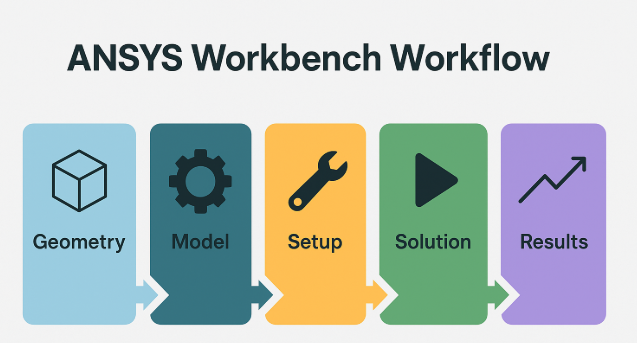
When you launch Ansys Workbench, you're greeted with the Project Schematic. This is where you assemble your simulation workflow.
Typical block flow:
- Geometry: Import or create geometry (via SpaceClaim or DesignModeler)
- Model: Open Mechanical to define materials, contacts, and setup
- Setup: Apply boundary conditions, loads, and constraints
- Solution: Solve the simulation
- Results: Visualize deformation, stress, etc.
"I didn't know what a 'cell' meant at first — now I treat them like checkpoints."
Your First Static Structural Simulation (Walkthrough)
Let's walk through the most basic simulation in Workbench: a cantilever beam under force.
- Drag and drop "Static Structural" onto the schematic
- Import your geometry (or create a block in SpaceClaim)
- Assign material (Steel is default, or pick from the library)
- Apply fixed support to one face
- Apply a force to the opposite face
- Generate mesh (start with default)
- Hit Solve
- Go to Results, select total deformation and equivalent stress
Tip: Mesh doesn't have to be perfect in your first run. Learn the flow first — refine later.
Common Beginner Mistakes (That I Made Too)
- Using wrong units (mm vs m)
- Forgetting fixed supports (solver will scream)
- Applying forces in wrong direction
- Over-refining mesh and crashing RAM
Simulation isn't about just clicking right — it's about thinking like the part you're simulating.
How to Get Better Fast
- Do one simulation per day
- Watch CAE Associates, SimuTech, SimScale YouTube content
- Rebuild tutorials by hand — not just watch
- Join r/FEA or Ansys Learning Forum
"Don't treat Workbench as a click-fest. Understand the why behind each step."
Final Words
Everyone fumbles through their first simulation. The interface feels cold, errors pop up, and the solver doesn't always tell you what went wrong.
But the moment you solve your first model — and it shows something real — it clicks.
From there, you can build confidence and start exploring contact modeling, modal analysis, and multi-physics setups.
Keep going — Workbench rewards the ones who stick around.