This is the helpful way which is used for both android as well as iOS supported applications to make one React native Library and used it on both individual Platform as a stand alone using one code only.
When your application have common functionality or do some common work like API calling or anything which is common for both platform at that time you must used this way to help your self as well as reduced your work. I have covered how to create React native library and how it's used/implemented in Android Native app.
- Create new react native project and open android directory in android studio.
- Navigate to app level build.gradle.
to create react native library you need to change below thing in your build.gradle file.
- Change com.android.application with apply plugin like com.android.library.
- Remove applicationId from defaultConfig block.
- Remove applicationVariants block and replace with libraryVariants.
- Navigate to AndroidManifest.xml
Remove Application class and also remove it's intent filter which launch those application because we are using it as a module.
- Do your code in react native or native code in iOS or android after do all the thing you need to go for creation of bundle.
- How create Bundle file into Assets folder.
- (in your project directory) mkdir android/app/src/main/assets
- react-native bundle — platform android — dev false — entry-file index.js — bundle-output android/app/src/main/assets/index.android.bundle — assets-dest android/app/src/main/res
Note:Highlighted is a bundle name which developer can set anything but remember one thing you cann't set two react native project which we convert into bundle and used into Android Framework to use into Native App set as a same name.
- Create Android Native Framework Project in which we include Bundle File and upload(.aar) to local repository.
- Install Plugins (maven-publish) which we used for upload our Framework into local repository.
- Make assets folder/packageinto (You Application /android/app/src/main/). For that use command : mkdir android/app/src/main/assets.
- Put All your bundle file which you have created of your React native module as a library put those into assets folder.
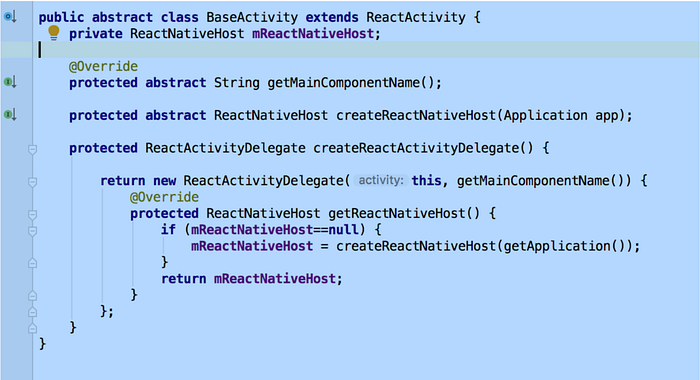
- Create Abstract base activity which we used into child Activity like below.
5. Create child class which used your Abstract activity class as a parent. Using this class we have shown our React native module which we convert into bundle shown into Activity.

Note : Here I have used ReactNativeWebView as name those are react native module name which I have converted into index.android.bundle file and used into this framework project. You have to create Same thing for your second and other number of bundle file but remember one thing to return module name same as your react native module bundle and also set bundleAssetname same as it's bundle file.
6. In your Application level build.gradle put node_module path which we used into react native applications like below.
maven {
// All of React Native (JS, Obj-C sources, Android binaries) is installed from npm
url "$rootDir/../node_modules/react-native/android" }
}
7. In your project level build.gradle put below code to create library(.aar) file and publish code to local directory.
apply plugin: 'com.android.library' apply plugin: 'maven-publish'


8. Used below command to clean build, release aar file and pulish into local directory. (Open android studio's Terminal or open terminal and redirect to android project's structute level redirection.)
./gradlew clean ./gradlew assembleRelease // which create .aar located into build/output/aar/app-release.aar ./gradlew publishToMavenLocal ./gradlew build publish // which create folder structure and make some files into local path which you have provided into publishing{}.
9. Install maven into System which helps to redirect .aar file and to our locale folder structure which we have created to used those into Native Android Application used those .aar file and other dependency into native project.
a) Open Terminal and set maven path into it.( used link for reference:
https://www.baeldung.com/install-maven-on-windows-linux-mac) b) Move to bin folder which is located into maven folder/bin.
10. Used below command to send .aar file into local directory which we have set into project level build.gradle file.
mvn install:install-file — Dfile=~/ReactPOC/AndroidFrameWork/app/build/output s/aar/app-release.aar \ -D groupId=com.my.poc \ -D artifactId=my-poc-id \ — D version=1.0 \ -D packaging=aar \ — D localRepositoryPath=/Users/jyubin.patel/Desktop/MavenLib(LocalDirectory Repo which is same as mention in build.gradle file)
com.my.poc Used same name which we have used into build.gradle file groupId.
my-poc-id Used same name which we have used into build.gradle file artifactId.
11. Copy your react-native folder and paste into
(/Users/jyubin.patel/Desktop/MavenLib/com/my/poc/) which is located into Your react native application node path like below. Copy from (/Users/jyubin.patel/Desktop/React\ SDK/node_modules/react-native/android/com/facebook/react/)
12.Changes related to located path like below.(used current path to when we have put this folder structure)

13. Same changes in .pom file which is located into version's folder.

14. This step is mandatory if you are using any of 3rd party library/dependency into your react native module project which you want to used into Native Android Application. Than Follow same thing which we send our file to local folder which we used into Android Native App.
mvn install:install-file — D file=/Users/jyubin.patel/Desktop/ReactNativeWebView/app/build/outputs/aar/(used app-release.aar if not than used app-debug.aar) \ -D groupId=com.my.poc \ — D artifactId=React3rdPartyWebview \ -D version=1.0 \ -D packaging=aar \ — D localRepositoryPath=/Users/jyubin.patel/Desktop/MavenLib(LocalDirectory Repo which is same as mention in build.gradle file)
Also check 3rd party library which you have used into React Module check it's build.gradle file, if any new dependency added into those 3rd party copy those dependency and Paste into your New Android Application's build.gradle on which you have used it's Framework library.)
Create Native Android Application on which we used this Framework library from maven.
- Open application level build.gradle file and change like below path of local repository when we have put our aar and some other library.

2. Open project level build.gradle file and put dependency which we have used like below.

3. Sync your project which make build(Compile) all dependency into your applications.
4. Used your React-module library like below code.
TabHost tabHost = findViewById(R.id.tabhost); // initiate TabHost
TabHost.TabSpec tabSpec = tabHost.newTabSpec("dashboardTab"); Intent intent; // Reusable Intent for each tab intent = new Intent().setClass(this, DashBoardActivity.class); tabSpec.setContent(intent);
tabSpec.setIndicator("Dashboard"); tabHost.setup(this.getLocalActivityManager()); tabHost.addTab(tabSpec);
intent = new Intent().setClass(this, ReactNativeWebViewActivity.class); tabSpec = tabHost.newTabSpec("webViewTab"); tabSpec.setContent(intent); tabSpec.setIndicator("Webview"); tabHost.setup(this.getLocalActivityManager()); tabHost.addTab(tabSpec);
intent = new Intent().setClass(this, NavigationActivity.class); tabSpec = tabHost.newTabSpec("navigationTab"); tabSpec.setContent(intent); tabSpec.setIndicator("Navigation"); tabHost.setup(this.getLocalActivityManager()); tabHost.addTab(tabSpec);
tabHost.setCurrentTab(0);
I have covered all with small steps.
Please feel free to post your questions/ opinions/ suggestions. :)