

Background
We're here because I tried using the Class Diagram generator that comes with Visual Studio, and while it was pretty and it was fast enough to generate the diagram, I didn't feel like I had a whole lot of control, and digging through the docs, I felt like I kept getting pushed to use Visio, which is not free, not even the usual Community Version that often comes with Visual Studio, and also it's looks pretty complicated and feature rich, which is by no means a bad thing, but I want to maybe start a little slower at first and be a little more basic here, I'm not trying to do anything more fancy than a simple uml diagram generated from c++ classes. I don't even care if its on the command line and I gotta pump the files in one by one.
You can see how that went in Visual Studio if you want to in this article:
Let's Get Started
I always take screencaps and copy install logs and such things any time I install anything because this kind of info makes it easier for me later to reproduce random stuff on different machines and watnat, but you can skip the install section if you don't care and just scroll down to the usage section to see my take on the program, using it etc.
Install
Here's the webpage.
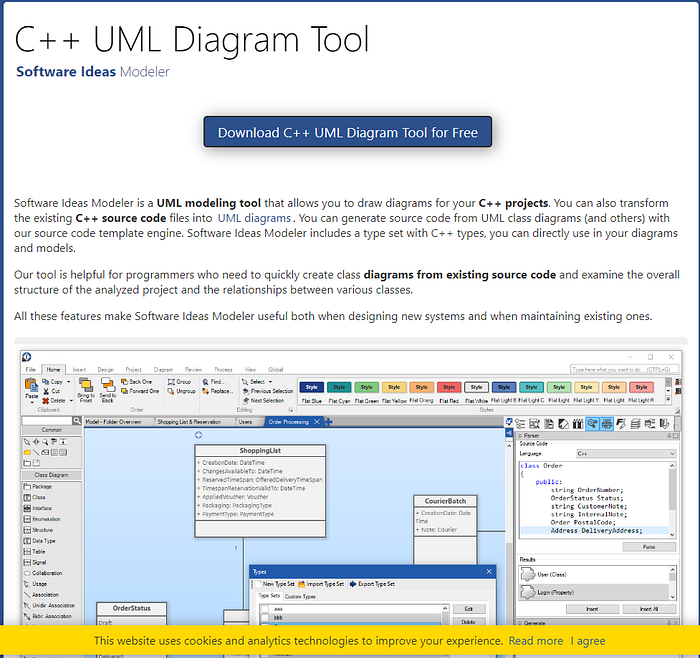
I click the big blue download button at the top.
That takes me to this page, and I decide to get the 64 bit version of the latest version, which appears to be version 13.
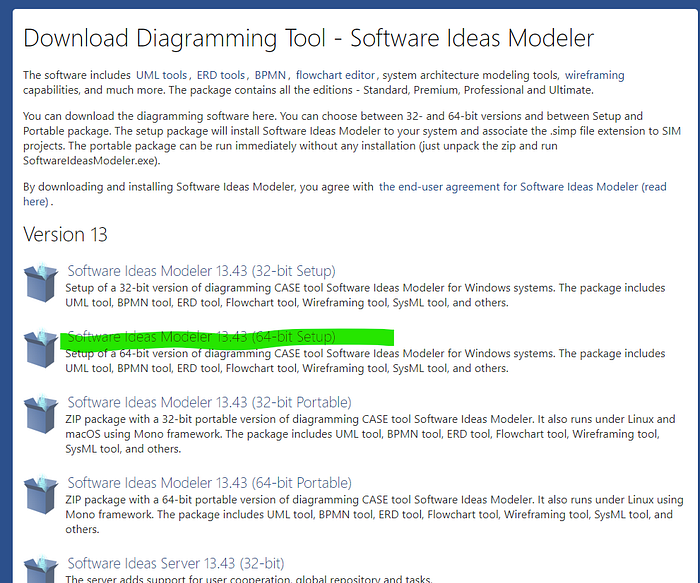
That takes me to another page with another download button, I click that one too,
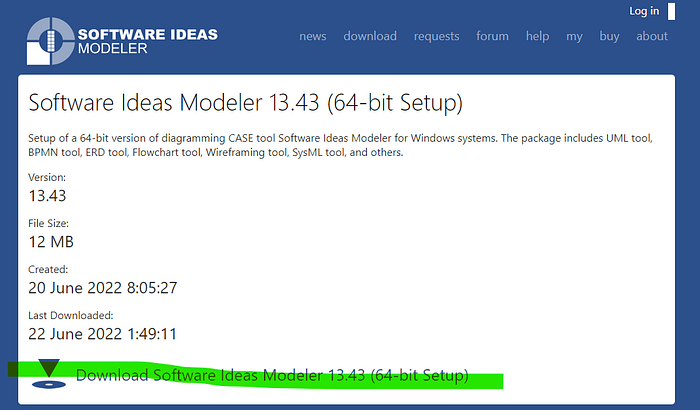
My installer looks like this:

I double click to run it, it requests Administrator Access,
I accept the agreement,
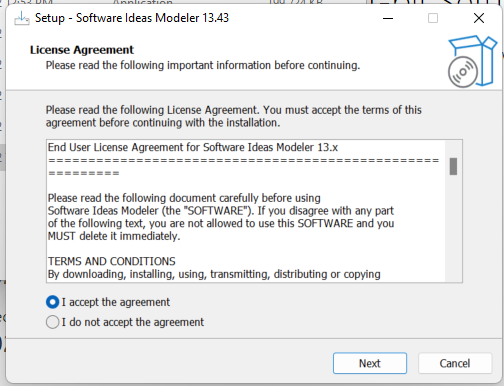
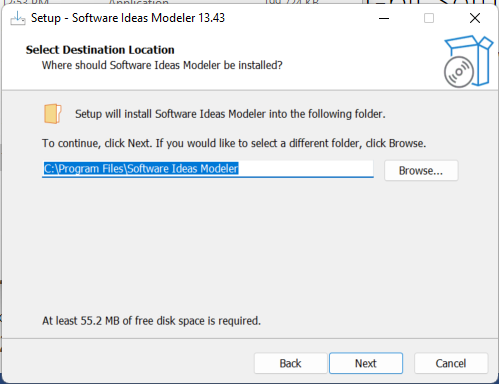
I go ahead and leave the default install path:
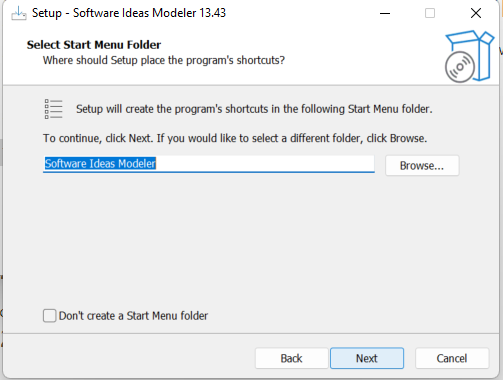
I leave the defaults for the Start Menu Folder as well:
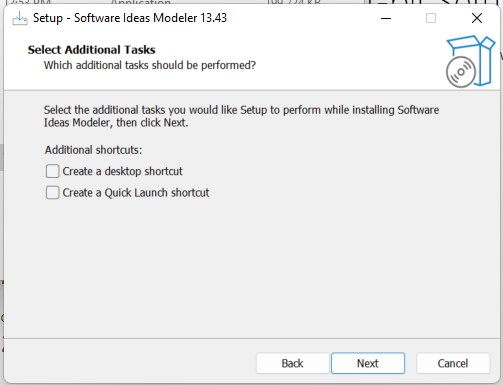
I uncheck the boxes for shortcuts, I'm not too into those.
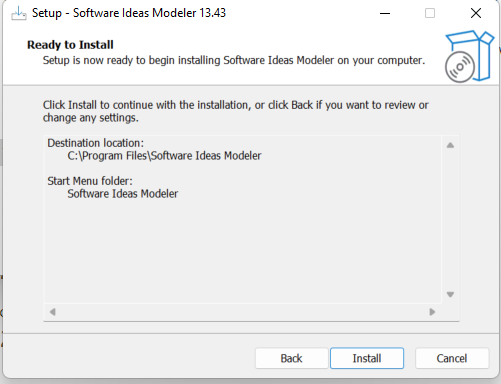
Everything looks good, I click Install
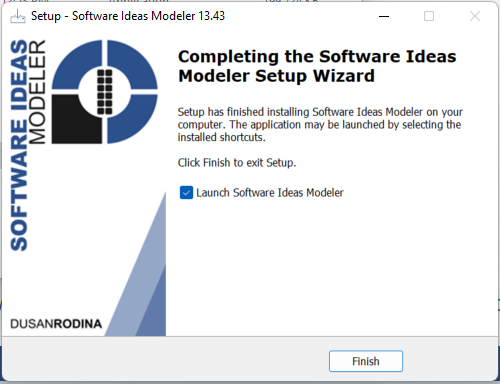
Finish page, I leave the box checked to launch the software and click the Finish Button.
Usage
Splash Screen:

I notice it says ONLY FOR NON COMMERCIAL USE, that's fine for my purposes, I am just writing some documentation for some school projects.
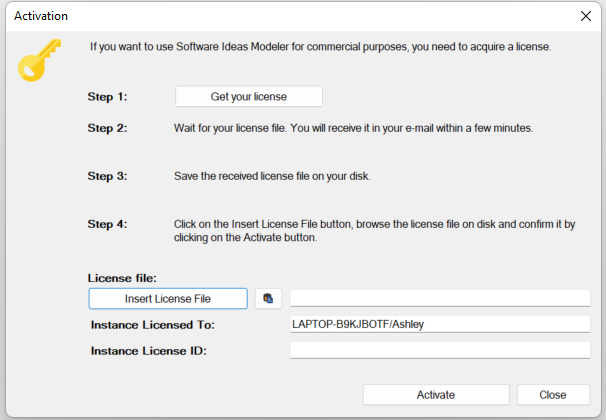
I go ahead and click the Activate License button just to take a look,
It looks like this:
All very good so far. I close the window and start looking around.
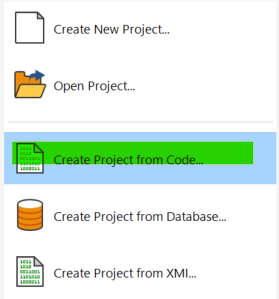
I choose "Create Project from Code"
I want to just feed it a Visual Studio project, and I don't mind if it doesn't come out perfect just like that, but I want to be able to easily clean it up or at least move things around so the classes I care about can be front and center.
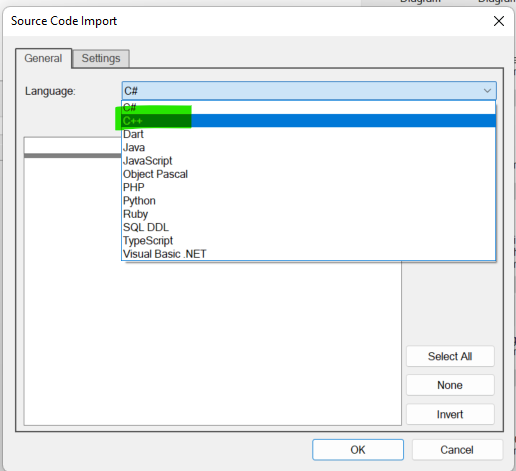
A window named Source Code Import pops up and I use the drop down menu to select C++.
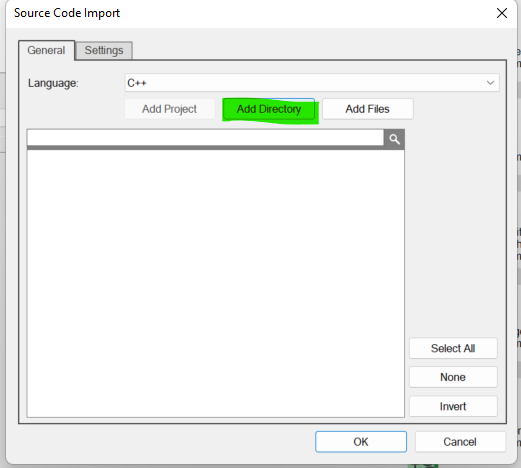
I click the Add Directory button.
I select the folder with the Visual Studio project and I love this already, check this out,

the next window has a sleek tree viewer for me to poke around in and select and deselect what I want to put in the diagram.
THIS IS WHAT I WANT.
I select what I want and the import seems to work flawlessly, and here's my stuff,
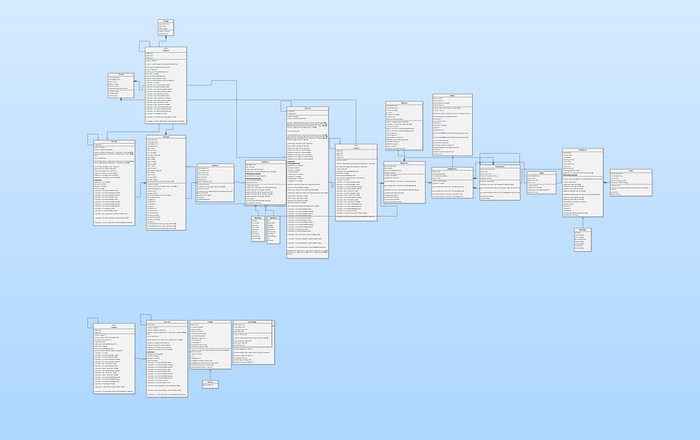
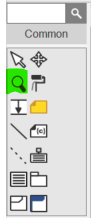
Awesome, great, now I need to figure out how to zoom and find what I care about, nice looking tools panel over on the left side and I find a zoom tool pretty quickly
Everything looks quite nice and very professional, I am pleased.
Thanks for reading my review!
References
[1] C++ UML Diagram Tool Software Ideas Modeler. https://www.softwareideas.net/en/cpp-uml-diagram-tool