

I miss the era when screensavers were actually fun. Remember those hypnotic flying toasters? The mind-bending 3D maze? The mystical starfield?
Most developers spend hours staring at terminal windows. We're running builds, watching logs stream by, waiting for tests to complete. And when we step away? That terminal just sits there. Black. Blank. Boring.
What if those few minutes while you grab coffee could become a tiny celebration of the craft we love?

The Project That Shouldn't Work (But Does)
The bash-screensavers repository is one of those projects that makes you pause and think: "Wait, someone did what with Bash?"
It's a curated collection of terminal screensavers written entirely in pure Bash script. Some genuinely clever scripting to create animated ASCII art right in your terminal.
The current gallery (version 0.0.27 "Mystic Shine") includes 12 screensavers:
- alpha — random colorful pixels creating an ever-changing mosaic
- bouncing — chaotic bouncing 'O' madness
- cutesaver — an infinite loop of cuteness (yes, really)
- fireworks — ASCII fireworks that actually look impressive
- life — Conway's Game of Life in your terminal
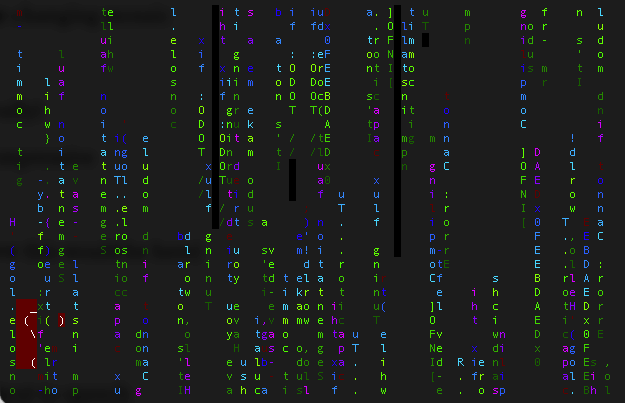
- matrix — the classic falling code effect (you knew this would be here)
- pipes — an endless maze of colorful pipes
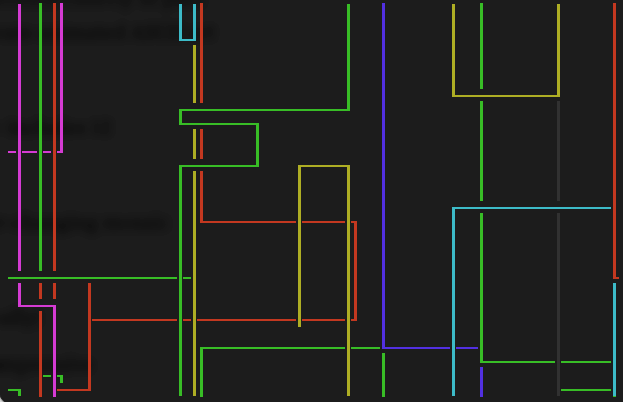
- rain — soothing digital rainfall
- speaky — a dramatic talking screensaver using text-to-speech
- stars — a peaceful twinkling starfield
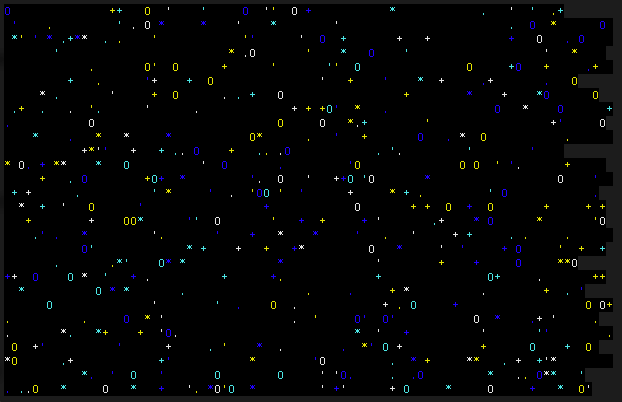
- tunnel — fly through a digital hyperspace tunnel
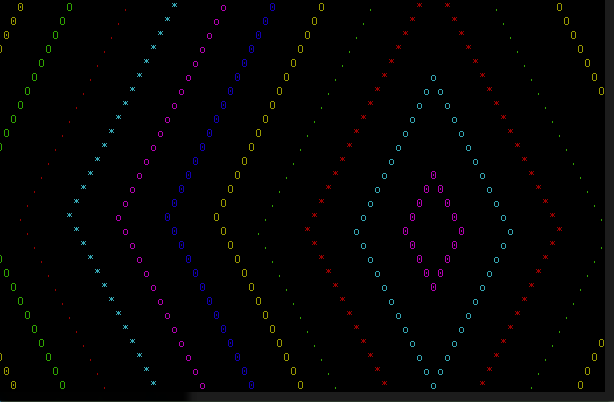
- vibe — vibe coding animations
A Tiny Reminder That Programming Isn't Just About Shipping Features and Fixing Bugs
Modern displays don't need protection from burn-in. Your Mac isn't going to be damaged by displaying a static shell prompt.
When I walk back to my desk and see the Matrix code cascading down my terminal, it makes me smile.
Plus, there's something impressive about what these scripts accomplish. The fact that someone recreated these classic effects using nothing but Bash scripting is just so cool.
Getting Started in 60 Seconds
Installation couldn't be simpler:
git clone https://github.com/attogram/bash-screensavers.git
cd bash-screensavers
./screensaver.sh
You'll see a menu listing all available screensavers. Pick one by number, or run a specific screensaver directly:
./screensaver.sh matrix    # Run by name
./screensaver.sh 6         # Run by number
./screensaver.sh -r        # Run a random screensaver
For more control, you can run screensavers directly from the gallery:
./gallery/pipes/pipes.sh
./gallery/fireworks/fireworks.sh
The scripts work with any standard terminal emulator that supports ANSI escape codes — basically all of them. I've tested on iTerm2, Terminal.app, and even in tmux sessions. Everything just works.
My Favorite Discoveries
After trying all twelve screensavers, a few stood out:
The "pipes" screensaver is mesmerizing. Colorful pipes grow and weave across your screen in random directions, creating intricate mazes. I've found myself just watching it for longer than I'd care to admit. It's the digital equivalent of a lava lamp — pointless but somehow captivating.
The "speaky" screensaver is brilliantly weird. It uses text-to-speech to deliver random dramatic, humorous, and existential phrases at random positions on your screen with different voices. "Why just watch when you can listen?" is right. The first time it proclaimed "THE SIMULATION IS LEAKING" in a robotic voice, I nearly jumped.
The "life" implementation of Conway's Game of Life is surprisingly sophisticated. Watching cellular automata evolve in your terminal is oddly peaceful, and it runs smoothly even on large terminal windows.
The "rain" screensaver has become my go-to for longer breaks. The gentle falling droplets and splash effects are genuinely calming. I've left it running during lunch breaks just for the ambient effect.
Making It Part of Your Workflow
While the screensavers don't automatically trigger on idle (they're manual-run scripts), that's actually a feature. You have complete control over when they run.
I've created a few simple aliases in my .zshrc:
alias pipes='~/bash-screensavers/gallery/pipes/pipes.sh'
alias matrix='~/bash-screensavers/gallery/matrix/matrix.sh'
alias rain='~/bash-screensavers/gallery/rain/rain.sh'
Now when I'm waiting for a long build or starting a lunch break, I just type pipes or rain and let the terminal do its thing. It's become a small ritual that marks transitions in my workday.
Some developers might find it useful to integrate these into longer-running processes:
npm run build && ./bash-screensavers/gallery/fireworks/fireworks.shCelebrate successful builds with fireworks. Why not?
We spend hours every day in terminals. Why shouldn't they be interesting? Why shouldn't they spark a little joy?
This project reminds me why I fell in love with programming in the first place.
Try It Today
If you're even slightly curious, clone the repository and try it. It takes less than a minute to set up, and you might find yourself smiling at your terminal in a way you haven't in years.
And if you're feeling adventurous, browse through the source code. You'll learn something, I guarantee it.
Resources:
Gallery README — Full descriptions of each screensaver
Have you discovered any fun terminal customizations that bring joy to your development workflow? I'd love to hear about them in the comments!
If you found this article helpful, please give it a clap 👏 (you can give up to 50!) to help others discover it.
Follow me for more articles about developer tools, productivity hacks, and the intersection of AI and coding.
🚀 Stay Ahead with The Context Layer
Your MCP Resource Hub — Get the latest Model Context Protocol news, tutorials, and practical advice delivered straight to your feed.
What You'll Get:
- Breaking MCP News — First to know about updates and developments
- Step-by-Step Tutorials — From beginner tips to advanced strategies
- Real-World Applications — See how MCP boosts productivity and automates workflows
- Community Insights — Learn from fellow developers and AI enthusiasts
Whether you're just discovering MCP or building advanced solutions, we've got you covered.
👉 Follow The Context Layer on Medium 👈
Join other developers staying current with MCP innovations.