

Not a member yet? Read it for free here.
I want to share with you a Python Command Line Interface — CLI to speed up your project setup, especially when you have a basic project layout that you replicate every time you start a new one.
I've used most previous articles to create an open-source Python CLI — catface.
So by the end of this writing, you should be able to:
- Understand Python CLI with cookiecutter
- How to use catface to speed up your project setup
Command Line Interface — CLI using cookiecutter
A CLI is a means to interact with your computer using your terminal. It can be done using a program that can execute specific tasks.
It's possible to create your own Python CLI using cookiecutter easily and straightforwardly.
Cookiecutter allows you to create templates that you use to speed up your project setup avoiding repeating yourself every time you start a new one, especially when you/your team have certain patterns that you follow or reinforce.
# install cookiecutter
pip install cookiecutter
One can create a Python project using a repository template on GitHub like this:
cookiecutter gh:audreyfeldroy/cookiecutter-pypackageThis will create a new Python project with pre-set configurations to help you speed up your projects.
Catface CLI
Catface is a Command Line Interface (CLI) tool that helps you create Python projects with best practices built-in. It uses cookiecutter under the hood to provide project templates that you can customize based on your needs.
With catface I meant to create a CLI that uses cookiecutter to define project templates and it's based on best practices I've been sharing here.
It can be installed using pip:
pip install catfaceFor now, it comes with the following features:
— Documentation out of the box
Ready-to-use documentation setup based on mkdocs. This feature is based on this article where I expand more on how you can set up and use mkdocs to create automated documentation using docstrings.
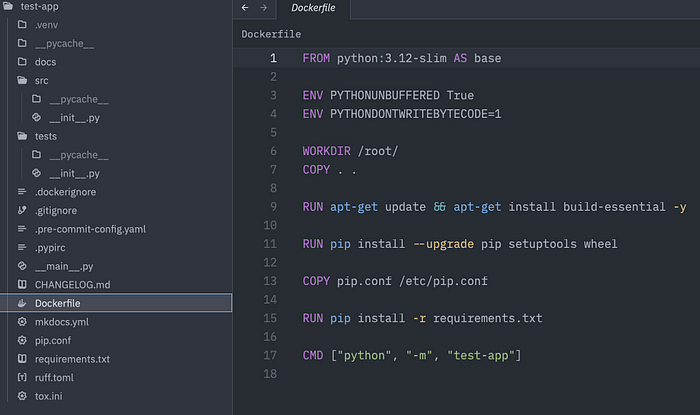
— Basic Dockerfile that you can expand accordingly
A pre-configured Dockerfile will be created.
— Python Version Management
Easily select your preferred Python version and a new virtualenv will be created based on it and the Dockerfile (if the feature is selected) will be configured accordingly.
3 Ways To Install and Manage Multiple Python Versions
Works For any Operating System
plainenglish.io
— Code Quality Tools
- Basic Pre-commit to prevent bad commits
- Tox.ini file for testing with different Python versions
- Ruff for testing, lining, and formatting
To create a new project we run the CLI specifying the project name:
catface test-appYou'll be prompted with an easy-to-interact form in your terminal where you can specify the features you need for your project:
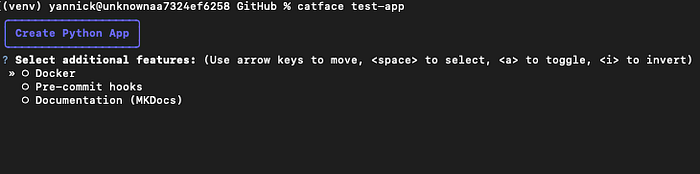
After choosing your features, you will be asked to choose which Python version to use:
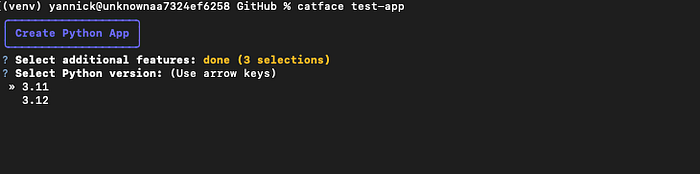
Your project will then be created based on the features selected and a virtual environment will be created based on your Python version.
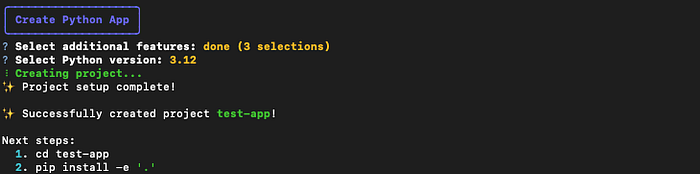
There you have it! A Python project that you can scale using some of Python's best practices.
How to collaborate?
Collaborations are more than welcome. For now, Catface only focuses on basic project setup, but the goal is to scale it to fit small to large projects with more features such as Databases, CI/CD, Microservices, etc.
The project repository can be found here.
I will share interesting things about Python, programming, and other cool stuff that can help you in your daily life. Join me :)
In Plain English 🚀
Thank you for being a part of the In Plain English community! Before you go:
- Be sure to clap and follow the writer ️👏️️
- Follow us: X | LinkedIn | YouTube | Discord | Newsletter | Podcast
- Create a free AI-powered blog on Differ.
- More content at PlainEnglish.io