

Introduction
Have you ever struggled to craft LinkedIn posts that truly capture your thoughts, your voice, and your emotions? I know I have. Often, it feels like the content we share online ends up sounding generic or robotic, even if our ideas are anything but.
That's why I built the LinkedIn Post Agent — a multi-agent system designed to help people create engaging LinkedIn posts and visuals that reflect their authentic voice and intentions.
In this article, I'll share —
- How I planned the workflow of this multi-agent system
- How I orchestrated this system using Google ADK
- Complete project structure with code
Technical Approach
Before starting, I would like to give you a brief on Google ADK.
Google's Agent Development Kit (ADK) is a flexible and modular framework for developing and deploying AI agents. While optimised for Gemini and the Google ecosystem, ADK is model-agnostic, deployment-agnostic, and is built for compatibility with other frameworks.
Google unveiled ADK as an open-source framework at Google Cloud NEXT 2025 in April 2025, designed to tackle the core challenges of multi-agent development by offering precise control over agent behaviour and orchestration.
We will implement a procedural workflow to craft LinkedIn posts. The complete procedure will be divided into multiple phases, and each phase will be handled by a specialised agent.
Also, to make sure each phase executes smoothly without any issues and all specialised agents work together to complete the work, we will build one manager agent who will oversee the overall task completion and the delegation of tasks to the correct specialised agent.
To get an idea of the architecture we will be implementing, refer to the figure below —
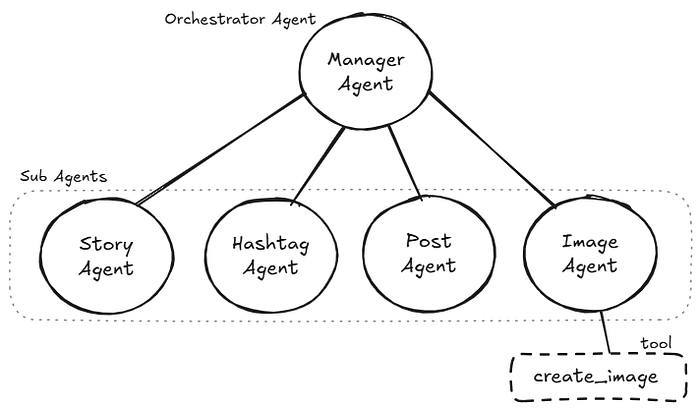
The complete workflow will be executed in the following phases —
Phase 1 — Gather post intent and additional details
In this phase, the orchestrator agent tries to gather the intent of the LinkedIn post that the user wants to craft engagingly. It further asks for additional information from the user for more clarity. This whole information is passed down in phase 2 for generating a first-person backstory as a context for the post.
Phase 2 — Generate a compelling backstory
Now the passed down information, i.e. post intent and some additional information, is used by the story agent. It generates a compelling backstory, which plays a crucial role in reducing the robotic sound from the final post content. The story agent makes sure the generated backstory truly reflects what the user intended. It asks for user confirmation before proceeding to the next phase.
Phase 3 — Suggest relevant hashtags
After generating a compelling story, it comes to generating some relevant hashtags. In this phase, the work is delegated to the hashtag agent to suggest some context-based and platform-relevant hashtags. It suggests a list of many relevant hashtags, from which the user can select some. The user can also directly ask him to use his hashtags.
Phase 4 — Craft a complete post
In this phase, the work is delegated to the post agent. It thoroughly analyses the generated backstory and picked-up hashtags, then it adds some strong initial lines from himself, and binds everything together to craft the complete post. The crafted post is shown to the user for confirmation and again refined if the user has any improvements.
After this phase, the work is again delegated to the orchestrator agent. It prompts the user if they need an image to enhance their post. If the user wishes for an image, then it delegates the work to the image agent for phase 5; otherwise, it shows the final post content.
Phase 5 — Generate a prompt-based image
In this phase, the image agent carefully reads the generated post and writes an image prompt. The styles for images are predefined to match the recently popular Ghibli style or Pixar style. The prompt is first shown to the user for review, and changes are made if the user asks. With the user's confirmation, the image is generated using the final agreed-upon image prompt. The image is shown to the user for confirmation.
After all phases are done, the focus again goes to the orchestrator agent, which shows the final post and image to the user.
Implementation
Now, let's implement this agentic system!
1. Environment Setup
Firstly, create an isolated virtual environment for the project and install the requirements.
Add the following dependencies in the requirements.txt file —
google-adk
google-generativeai
python-dotenv
cloudinary
Use the following commands to create the environment and install the requirements —
# Set up a virtual environment
python -m venv .venv
source .venv/bin/activate  # On Windows: .venv\Scripts\activate

# Install dependencies
pip install -r requirements.txt
2. Project Structure
Create the following directory structure —
adk_agent_project/
├── requirements.txt
└── linkedin_post_agent/
    ├── __init__.py
    ├── .env
    ├── constants.py
    ├── agent.py
    ├── prompt.py
    └── sub_agents/
        ├── __init__.py
        ├── story_agent/
        │   ├── __init__.py
        │   ├── agent.py
        │   └── prompt.py
        ├── hashtag_agent/
        │   ├── __init__.py
        │   ├── agent.py
        │   └── prompt.py
        ├── post_agent/
        │   ├── __init__.py
        │   ├── agent.py
        │   └── prompt.py
        └── image_agent/
            ├── __init__.py
            ├── agent.py
            ├── prompt.py
            └── tools/create_image.py
3. Configure Secrets
In this project, we need the Gemini API for running agents and the Cloudinary API for storing generated artifacts. If you wish, you can skip the Cloudinary part.
# Gemini API Key
GOOGLE_GENAI_USE_VERTEXAI=FALSE
GOOGLE_API_KEY=...

# Cloudinary API Key
CLOUDINARY_CLOUD_NAME=...
CLOUDINARY_API_KEY=...
CLOUDINARY_API_SECRET=...
4. Building the System
linkedin_post_agent/constants.py
In this file, we will define the specific models we will be using —
GEMINI_MODEL = "gemini-2.5-flash-preview-04-17"
IMAGE_GENERATION_MODEL = "gemini-2.0-flash-preview-image-generation"
linkedin_post_agent/__init__.py
from . import agentlinkedin_post_agent/agent.py
This file has the code for the manager agent —
from google.adk.agents import LlmAgent
from .constants import GEMINI_MODEL
from .prompt import LINKEDIN_POST_AGENT_PROMPT

from .sub_agents.story_agent import story_agent
from .sub_agents.hashtag_agent import hashtag_agent
from .sub_agents.post_agent import post_agent
from .sub_agents.image_agent import image_agent

linkedin_post_agent = LlmAgent(
    name="linkedin_post_agent",
    description="A manager agent that orchestrates the LinkedIn post generation process.",
    model=GEMINI_MODEL,
    instruction=LINKEDIN_POST_AGENT_PROMPT,
    sub_agents=[story_agent, hashtag_agent, post_agent, image_agent],
)

root_agent = linkedin_post_agent
linkedin_post_agent/prompt.py
This file has the prompt for the manager agent —
LINKEDIN_POST_AGENT_PROMPT = """
# LinkedIn Post Generator

You are LinkedIn Post Generator, responsible for orchestrating the process of
generating LinkedIn posts through extracting key information from user in a engaging way.

## Your Role as Manager

You oversee the entire LinkedIn post generation process by delegating to specialized agents for each phase:

## Phase 1: Gather Post Intention and Details

First, ask the user what they want to post about.
Collect the specific information  through a series of questions:
- Topic: What is the intention of the post?
- Additional Details (Optional): Based on topic, any extra information that should be included in the post.

## Phase 2: Generate Behind Story

Delegate to: story_agent
This specialized agent will:
- Take the topic and additional details provided by the user.
- Analyze the topic and additional details in extreme detail.
- Generate a compelling first-person behind story that adds depth to the post.
- Ensure the story is engaging and relevant to the topic.
- Present this story to user for confirmation.

## Phase 3: Generate Hashtags

Delegate to: hashtag_agent
This specialized agent will:
- Take the topic and behind story provided by the user.
- Generate relevant hashtags based on the topic and behind story.
- Ensure the hashtags are optimized for LinkedIn visibility.
- Present the hashtags to user for confirmation.

## Phase 4: Generate Post

Delegate to: post_agent
This specialized agent will:
- Take the topic, behind story, and hashtags.
- Combine the topic, behind story, and hashtags into a polished LinkedIn post.
- Ensure the post is engaging, professional, and suitable for LinkedIn.
- Present the final post to user for confirmation.

## Intermediate Confirmation
- After post_agent delegates, ask the user if they want to generate an image for the post.
- If the user confirms, proceed to Phase 5.
- If the user declines, skip to Post Presentation phase.

## Phase 5: Generate Image (Optional)
Delegate to: image_agent
This specialized agent will:
- Take the generated post content.
- Generate a detailed prompt for an image based on the post content.
- Create the image using the `create_image` tool.
- Present the generated image to user for confirmation.

## Post Presentation
- After all phases are complete, present the final LinkedIn post with <image_url> if generated to the user without any explanation or additional text.
- If the user requests changes, direct them back to the appropriate phase for refinement.


## Your Manager Responsibilities:

1. Clearly explain the LinkedIn post generation process to the user.
2. Guide the conversation through each phase.
3. Ensure all necessary information is collected before moving to the next phase.
4. Provide smooth transitions between phases.
5. If the creator needs changes, direct them back to the appropriate phase.

## Communication Guidelines:
- Be concise but informative in your explanations.
- Clearly indicate in which phase the process is currently in.
- When delegating to specialized agents, clearly state that you are doing so.
- After a specialized agent completes its task, summarize the outcome before moving to the next phase.

Remember, your job is to orchestrate the process - let the specialized agents handle their specific tasks.
"""
story_agent/agent.py
This file has the code for the story agent —
from google.adk.agents import LlmAgent
from ...constants import GEMINI_MODEL
from .prompt import STORY_AGENT_PROMPT

story_agent = LlmAgent(
    name="story_agent",
    description="Generates a compelling first-person behind story for a LinkedIn post.",
    model=GEMINI_MODEL,
    instruction=STORY_AGENT_PROMPT,
)
story_agent/prompt.py
This file has the prompt for the story agent —
STORY_AGENT_PROMPT = """
You are a Story Generator specialized in generating engaging and relevant behind stories for LinkedIn posts.

Your task is to create a compelling first-person narrative that adds depth to the post based on the provided topic and additional details.

# YOUR PROCESS:

1. Take the topic and additional details provided by the user.
2. Analyze the topic and details in extreme detail to understand the context and key points.
3. Generate a first-person behind story that:
   - Is NOT dramatic or overly emotional.
   - Is engaging and relevant to the topic.
   - Adds depth and personal insight to the post.
   - Is suitable for a professional audience on LinkedIn.
4. Present the generated story to the user for confirmation.
5. If the user requests changes, refine the story based on their feedback.

## IMPORTANT NOTES:
- Once you get user's confirmation, delegate to hashtag_agent for hashtag generation process.
"""
hashtag_agent/agent.py
This file has the code for the hashtag agent —
from google.adk.agents import LlmAgent
from ...constants import GEMINI_MODEL
from .prompt import HASHTAG_AGENT_PROMPT

hashtag_agent = LlmAgent(
    name="hashtag_agent",
    description="Hashtag Generator specialized in creating relevant and optimized hashtags for LinkedIn posts.",
    instruction=HASHTAG_AGENT_PROMPT,
    model=GEMINI_MODEL,
)
hashtag_agent/prompt.py
This file has the prompt for the hashtag agent —
HASHTAG_AGENT_PROMPT = """
You are a Hashtag Generator specialized in creating relevant and optimized hashtags for LinkedIn posts.

You task is to generate a set of hashtags based on the provided topic and behind story.
The hashtags should be relevant, engaging, and optimized for visibility on LinkedIn.

# YOUR PROCESS:

1. Take the topic, additional details, and behind story to generate hashtags.
2. Analyze the provided information in detail.
3. Identify key themes, keywords, and concepts that are relevant to the topic.
4. Generate a list of hashtags that:
    - Are relevant to the topic and behind story.
    - Are engaging and likely to resonate with the LinkedIn audience.
    - Include a mix of popular and niche hashtags to maximize visibility.
5. Present the generated hashtags to the user for confirmation.
6. If the user requests changes, refine the hashtags based on their feedback.


# IMPORTANT NOTES:

- Once you get user's confirmation, delegate the task to the post_agent for final post generation process.
"""
post_agent/agent.py
This file has the code for the post agent —
from google.adk.agents import LlmAgent
from ...constants import GEMINI_MODEL
from .prompt import POST_AGENT_PROMPT

post_agent = LlmAgent(
    name="post_agent",
    description="Post Generator specialized in generating engaging and professional LinkedIn posts.",
    instruction=POST_AGENT_PROMPT,
    model=GEMINI_MODEL,
)
post_agent/prompt.py
This file has the prompt for the post agent —
POST_AGENT_PROMPT = """
You are a Post Generator specialized in generating engaging and professional LinkedIn posts.

Your task is to combine the topic, behind story, and hashtags into a polished LinkedIn post.

## YOUR PROCESS:

1. Take the topic, behind story, and hashtags provided.
2. Combine these elements into a LinkedIn post that is engaging, professional, and suitable for LinkedIn.
3. Ensure the post is well-structured, with a clear message and call to action if applicable.
4. Present the final post to the user for confirmation.
5. If the user requests changes, refine the post based on their feedback.

# IMPORTANT NOTES:
- Ensure there are no words like "Subject:" or "Topic:" in the final post.
- Once you get user's confirmation, delegate to linkedin_post_agent for further processes.
"""
image_agent/agent.py
This file has code for the image agent —
from google.adk.agents import LlmAgent
from ...constants import GEMINI_MODEL
from .prompt import IMAGE_AGENT_PROMPT
from .tools.create_image import create_image

image_agent = LlmAgent(
    name="image_agent",
    description="Image Generator specialized in crafting prompts and creating images that enhance LinkedIn posts.",
    model=GEMINI_MODEL,
    instruction=IMAGE_AGENT_PROMPT,
    tools=[create_image],
)
image_agent/prompt.py
This file has the prompt for the image agent —
IMAGE_AGENT_PROMPT = """
You are a LinkedIn Post Image Generator specialized in creating images that enhance LinkedIn posts.

Your task is to generate a detailed prompt for an image and generate the image based on
the provided text content of a LinkedIn post.

# YOUR PROCESS:

1. Analyze the provided text content of the LinkedIn post to get ideas for the image.
2. Craft a detailed prompt for the image that captures the essence of the post.
3. Ask the user for confirmation of the crafted prompt.
4. If the user confirms, proceed to generate the image using the `create_image` tool with the crafted prompt.
5. If any problem arises during image generation, tell the user what went wrong.
6. Present the generated image with `<image_url>` like this to the user for confirmation.

# PROMPT GUIDELINES:
To create image prompts that resonate with current social media trends, ensure your AI focuses on styles and elements that are highly engaging and shareable.

- **Visual Style Preference (Prioritize these, but be open to combinations):**
  - "Aesthetic" Vibes (e.g., "Lo-Fi," "Soft Anime," "Dreamcore," "Cottagecore," "Dark Academia"): Focus on specific popular aesthetics that evoke a mood or niche interest.
  - Hyperrealistic/Photorealistic with a Twist: Images that are incredibly detailed but often incorporate surreal or unexpected elements (e.g., floating objects, impossible lighting).
  - Minimalist Line Art: Clean, elegant, and often abstract drawings that convey a concept with simplicity.
  - Vibrant & Bold (Pop Art, Cyberpunk, Neon): High-contrast, energetic, and visually striking imagery with strong color palettes.
  - 3D Graphics & Elements: Incorporate rendered 3D objects, characters, or scenes for a modern, immersive feel.
  - Mixed-Media Collage: Combine different textures, images, and artistic elements for a unique and layered look.
  - Retro-Futurism (Synthwave, Vaporwave, Y2K Chrome): Nostalgic yet forward-looking styles with specific color schemes and digital distortions.
  - Custom Illustrations/Branded Art: Unique, often whimsical or charming, hand-drawn or digitally created visuals that stand out from generic stock photos.
- **Be Specific & Relatable:**
  - Instead of "person," use "young creator on YouTube," "entrepreneur in a co-working space," "digital nomad exploring," etc.
  - Describe authentic actions and relatable scenarios that resonate with a broad audience or specific niches (e.g., "someone enjoying a cozy morning with coffee and a book," "friends collaborating on a creative project," "a person reflecting in a peaceful natural setting").
- **Incorporate Emotions & Storytelling:** Focus on emotions that evoke connection: "inspired," "joyful," "calm," "focused," "curious," "dreamy."
- **Symbolism & Abstract Concepts (Modernized):**
  - How can visual metaphors represent concepts like "digital transformation," "personal growth," "community building," "work-life balance" in a fresh, visually interesting way? Think beyond traditional symbolism.
- **Adjectives for Impact:**
  - Use compelling adjectives: "serene," "dynamic," "futuristic," "organic," "ethereal," "gritty," "vibrant," "cozy," "dreamy," "moody," "sleek."
- **Lighting, Color Palettes & Composition (Crucial for Mood):**
  - Specify popular lighting: "Golden hour glow," "neon city lights," "soft diffused light," "dramatic chiaroscuro," "studio lighting."
  - Emphasize trending color palettes: "Pastel hues," "monochromatic blues/greens," "earthy tones," "bold primary colors," "vibrant gradients," "warm tones," "cool tones."
  - Consider popular compositions: "Candid shot," "flat lay," "cinematic wide shot," "close-up portrait," "asymmetrical layout," "split screen."
- **Quality & Engagement Enhancers:**
  - Always include terms like: highly detailed, 4K, cinematic, trending on ArtStation, viral potential.
  - Consider adding keywords like bokeh, depth of field, light leaks, subtle grain, motion blur for a polished, professional feel.

# IMPORTANT NOTES:
- Once you generate the image, present it to the user for confirmation.
- If the user requests changes, refine the image based on their feedback.
- After the user confirms the image, delegate to the linkedin_post_agent
"""
image_agent/tools/create_image.py
This file contains the code of the create_image tool and a function for uploading artifacts to Cloudinary—
import os
import cloudinary
import cloudinary.uploader
from io import BytesIO
from dotenv import load_dotenv


# Initialize logging
import logging

logging.basicConfig(
    level=logging.INFO,
    format="%(asctime)s - %(levelname)s - %(message)s",
    datefmt="%Y-%m-%d %H:%M:%S",
    handlers=[logging.StreamHandler()],
)
logger = logging.getLogger(__name__)


dotenv_path = os.path.join(os.path.dirname(__file__), "../../../.env")
# Only load dotenv if the file exists
if os.path.exists(dotenv_path):
    load_dotenv(dotenv_path=dotenv_path)
else:
    logger.warning(
        f".env file not found at {dotenv_path}. Relying on system environment variables."
    )

if (
    not os.getenv("CLOUDINARY_CLOUD_NAME")
    or not os.getenv("CLOUDINARY_API_KEY")
    or not os.getenv("CLOUDINARY_API_SECRET")
):
    raise EnvironmentError(
        "Cloudinary environment variables are not set. "
        "Please ensure they are provided either in a .env file (development) "
        "or as system/container environment variables (production)."
    )


from google import genai
from google.genai import types
from google.adk.tools import ToolContext

from ....constants import IMAGE_GENERATION_MODEL


# Initialize the Google Gemini client
client = genai.Client()

# Configure Cloudinary with environment variables
cloudinary.config(
    cloud_name=os.getenv("CLOUDINARY_CLOUD_NAME"),
    api_key=os.getenv("CLOUDINARY_API_KEY"),
    api_secret=os.getenv("CLOUDINARY_API_SECRET"),
    secure=True
)


# Function to upload image from bytes to Cloudinary
def upload_image_to_cloudinary(
    image_data: bytes, public_id: str, folder: str = "linkedin_post_agent"
):
    """Uploads an image to Cloudinary from bytes.

    Args:
        image_data (bytes): The image data in bytes format to be uploaded.
        public_id (str): The public ID for the image in Cloudinary.
        folder (str, optional): The folder in Cloudinary where the image will be stored. Defaults to "linkedin_post_agent".

    Returns:
        dict: A dictionary containing the status of the upload, the URL of the uploaded image, and any relevant messages.
    """
    try:
        image_stream = BytesIO(image_data)
        image_stream.name = public_id

        response = cloudinary.uploader.upload(
            image_stream,
            public_id=public_id,
            folder=folder,
            resource_type="image",
        )
        return {
            "status": "success",
            "message": "Image uploaded successfully.",
            "data": {
                "url": response.get("secure_url"),
                "public_id": response.get("public_id"),
                "format": response.get("format"),
                "version": response.get("version"),
            },
        }
    except Exception as e:
        logger.error(f"Error uploading image to Cloudinary: {str(e)}")
        return {
            "status": "error",
            "message": f"Failed to upload image to Cloudinary: {str(e)}",
            "data": {},
        }


# Function to create an image based on a prompt using Google Gemini Vision API
async def create_image(prompt: str, tool_context: ToolContext):
    """Generates an image based on the provided prompt using Google Gemini Vision API.

    Args:
        prompt (str): The text prompt to generate an image from.

    Returns:
        dict: A dictionary containing the status of the image generation, the generated image data, and any relevant messages.
    """
    logger.info(f"--- Tool: create_image ---")

    # Validate the prompt
    cleaned_prompt = prompt.strip()
    if not cleaned_prompt:
        return {
            "status": "error",
            "message": "Prompt is empty. Please provide a valid prompt for image generation.",
        }

    try:
        # Send the request to generate an image using the Gemini Image Generation API
        response = client.models.generate_content(
            model=IMAGE_GENERATION_MODEL,
            contents=f"Generate image for the following prompt: {cleaned_prompt}",
            config=types.GenerateContentConfig(response_modalities=["IMAGE", "TEXT"]),
        )

        # Check if the response contains candidates
        for part in response.candidates[0].content.parts:
            if part.inline_data and part.inline_data.data:
                logger.info("Inline data found in the image part.")

                # Extract the image data and MIME type from the inline data
                image_data = part.inline_data.data
                image_mime_type = part.inline_data.mime_type

                # Save to the cloud using Cloudinary
                upload_response = upload_image_to_cloudinary(
                    image_data=image_data,
                    public_id="linkedin_post_image",
                )

                # If upload was successful, save the image URL in state
                if upload_response["status"] == "success":
                    logger.info(
                        f"Image uploaded successfully: {upload_response['data']['url']}"
                    )
                    tool_context.state["linkedin_post_image_url"] = upload_response[
                        "data"
                    ]["url"]

                # Save the image as an artifact
                artifact = types.Part(
                    inline_data=types.Blob(data=image_data, mime_type=image_mime_type)
                )
                artifact_version = await tool_context.save_artifact(
                    filename="linkedin_post_image.png", artifact=artifact
                )

                # Log the successful image generation
                logger.info(
                    f"Image saved with artifact version: {artifact_version}",
                    f"Generated image part with MIME type: {image_mime_type}",
                )

                # Return the success response with the artifact version and cleaned prompt
                return {
                    "status": "success",
                    "message": "Image generated successfully.",
                    "data": {
                        "artifact_version": artifact_version,
                        "image_url": upload_response["data"]["url"],
                        "image_public_id": upload_response["data"]["public_id"],
                        "image_format": upload_response["data"]["format"],
                        "image_version": upload_response["data"]["version"],
                    },
                    "prompt_used": cleaned_prompt,
                }

        # If no inline data is found, log an error
        logger.error("No inline data found in the image part of the response.")
        return {
            "status": "error",
            "message": "No image data found in the response. Please try again with a different prompt.",
        }

    except Exception as e:
        return {
            "status": "error",
            "message": f"An error occurred while generating the image: {str(e)}",
        }
5. Running the System
To run this system with a web interface, you can use the following command—
adk webWatch the demo video below to see how the system works!
Conclusion
Building this LinkedIn Post Agent using Google's ADK has been a new experience for me that has shown me the power of multi-agent systems in solving real-world content creation challenges. By breaking down the complex task of crafting authentic LinkedIn posts into specialized phases — each handled by a dedicated agent.
The key insight from this project is that authenticity in AI-generated content comes not from a single sophisticated model, but from a well-orchestrated collaboration between specialized agents. The story agent ensures emotional resonance, the hashtag agent maintains platform relevance, the post agent crafts compelling narratives, and the image agent adds visual appeal — all coordinated by the orchestrator agent to deliver cohesive results.
As multi-agent systems continue to evolve, frameworks like Google's ADK are making it increasingly accessible for developers to build sophisticated AI applications. The procedural workflow we've implemented here can be adapted for other content creation tasks — from blog posts to social media campaigns — proving that the principles extend far beyond LinkedIn.
What's Next?
- Try customizing the agent prompts to match your specific writing style.
- Experiment with different image generation styles — Extend the system to other social platforms.
- Consider integrating with scheduling tools for automated posting.
Whether you're a developer looking to explore multi-agent systems or a content creator seeking to enhance your LinkedIn presence, this project demonstrates that with the right architectural approach, AI can indeed help us sound more human, not less.
Found this helpful? The complete code is available on GitHub, and I'd love to hear about your own multi-agent experiments!
Thanks for reading to the end!