

Are you looking for a quick and easy way to find the number of objects in your Google Cloud Storage (GCS) buckets? Look no further! In this blog post, I will guide you through the steps to accomplish this task.
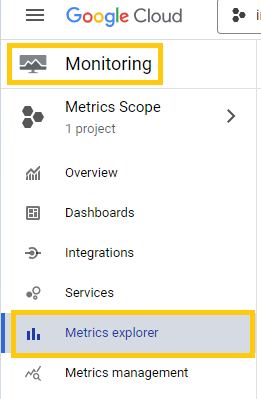
Step 1: Access the Metrics Explorer
To begin, navigate to the Monitoring section of your Google Cloud Console and locate the Metrics Explorer.
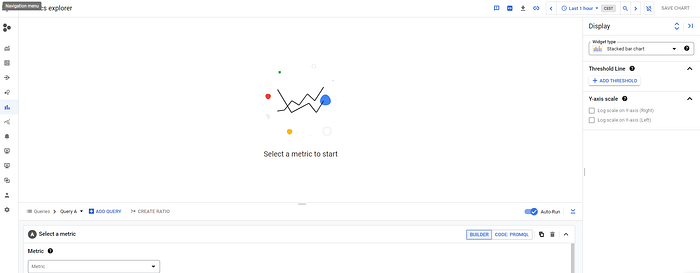
Metrics Explorer Home :
Step 2: Select the desired metric
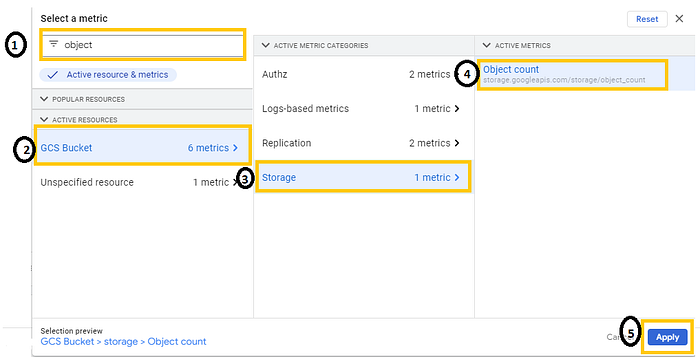
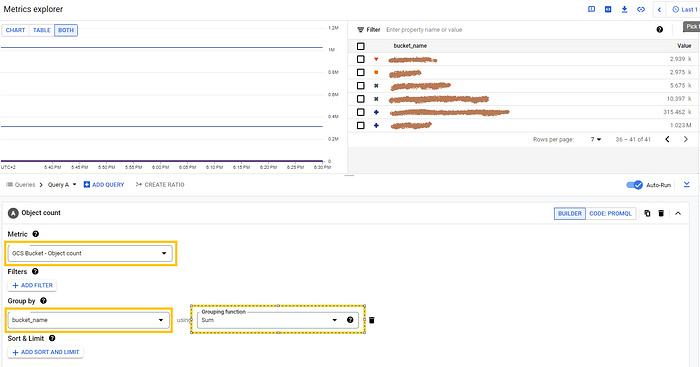
Once you're in the Metrics Explorer, scroll down to find the tab labeled "Select a metric." Click on it and type "Object" in the search box. From the dropdown menu, choose "GCS Bucket" and then select "Storage" followed by "Object Count." Apply the changes.
Metric Box → Type Object → select GCS Bucket → Storage → Object Count → Apply
Step 3: Configure the grouping & grouping function
Next, you'll need to configure the grouping for the metric. In the "Group by — labels" box, choose "Bucket_name." This will help organize the results.
In the "Grouping Functions" section, select "Sum." This will aggregate the object counts for each bucket.
Step 4: View the results
At this point, you should see a chart displaying the number of objects in each GCS bucket. If you prefer a table view, you can switch to that format using the options available in the top bar.
By following these simple steps, you can quickly obtain the count of objects in your GCS buckets. This information can be invaluable for various purposes, such as measuring the progress of a migration or managing your cloud resources effectively.
Remember, having access to metadata about your cloud resources is crucial in many situations. So, make use of this method and simplify your GCS bucket management today!