

Not a Medium member? Have free access to this story via this link.
Most Python developers use print() statements to record what their code is doing while it runs. This approach works well for small programs, but as the program grows larger, things start to break quietly.
Errors show up without enough context, bugs become hard to trace, and print() statements start to scatter throughout your code.
This is exactly where Python's logging module comes in. In this tutorial, we'll learn how to use this module and its powerful features to log your Python programs effectively and properly.
Alright, let's dive in!
What is Logging in Python (and How to Do it)?
Logging is just a way to keep track of what your Python program is doing while it runs. It helps you catch problems early, such as bad inputs or system failures, so you can see and understand what went wrong in your code and fix it immediately.
You can use Python's built-in logging module to track and log your code.
For example, let's try opening a file that doesn't exist and log an error message if the file isn't found:
import logging

try:
    with open("my_file.txt", "r") as file:
        content = file.read()
except FileNotFoundError:
    # Log the error message
    logging.error("File not found")
Output:
ERROR:root:File not foundPython Logging Levels
The logging module in Python lets you classify logging messages by severity, so you can decide which messages are important and which can be safely ignored. These classifications are called "logging levels."
From lowest to highest severity, these logging levels are:
DEBUG— Detailed information, usually useful for diagnosing problems.INFO— General information about program execution.WARNING— Something unexpected happened, but the program is still running normally.ERROR— A serious problem occurred; part of the program couldn't run correctly.CRITICAL— A very serious error; the program might not be able to continue.
Important: By default, the logging module in Python only shows messages with the highest severity levels, like WARNING, ERROR, or CRITICAL. Lower-level messages like INFO and DEBUG won't appear unless you configure the logging level using basicConfig() or a custom logger (which we'll cover next).
Now, consider the following example code, where we log the value of a variable using the INFO level:
import logging

logging.basicConfig(
    level=logging.INFO,
    format="%(levelname)s: %(message)s"
)

no_of_users = 30

logging.info("The value of no_of_users is %d", no_of_users)
In this example:
logging.basicConfig(…)sets up basic logging with theINFOlevel message and formats them so they're easier to read.logging.info(…)logs the value of the variableno_of_users.
Output:
INFO: The value of no_of_users is 30If you want, you can create custom logging levels, but the built-in ones are usually enough for most cases.
Logging Handlers
Logging handlers determine where your log messages will go. Python provides several built-in handlers, and the most commonly used ones are:
StreamHandler— Sends log messages to the console (standard output).FileHandler— Sends log messages to a file.RotatingFileHandler— Sends log messages to a file but automatically rotates the log file when it reaches a certain size.
Logging Messages at All Levels
Now, we'll explore the proper way to do logging in Python. Step by step, we'll log messages of all levels to a file using a custom logger.
Step 1: Import the logging module
import loggingStep 2: Create a logger
logger = logging.getLogger("CustomLogger")
logger.setLevel(logging.DEBUG)
Here:
getLogger("CustomLogger")creates a new logger object.setLevel(logging.DEBUG)ensures the logger captures all levels (DEBUGand above).
Step 3: Create a file handler
file_handler = logging.FileHandler("app.log")This will write log messages to a file named app.log.
Step 4: Set a format for log messages
formatter = logging.Formatter("%(asctime)s - %(levelname)s - %(message)s")
file_handler.setFormatter(formatter)
Here:
Formatteradds timestamp, level, and message to each log entry.setFormatterapplies the format to the file handler.
Step 5: Add the handler to the logger
logger.addHandler(file_handler)This connects the file handler to the logger so that all log messages are written to the file.
Step 6: Log messages of all levels
logger.debug("This is a debug message")
logger.info("This is an info message")
logger.warning("This is a warning message")
logger.error("This is an error message")
logger.critical("This is a critical message")
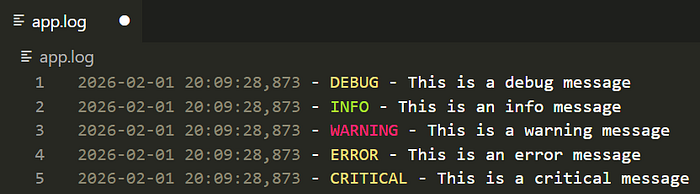
Now, when you run this code, a new file named app.log will appear in your current directory containing log messages for all levels like this:
Here's the complete code all in one place:
import logging

logger = logging.getLogger("CustomLogger")
logger.setLevel(logging.DEBUG)

file_handler = logging.FileHandler("app.log")

formatter = logging.Formatter("%(asctime)s - %(levelname)s - %(message)s")

file_handler.setFormatter(formatter)

logger.addHandler(file_handler)

logger.debug("This is a debug message")
logger.info("This is an info message")
logger.warning("This is a warning message")
logger.error("This is an error message")
logger.critical("This is a critical message")
Print vs Logging in Python: When to Use Each
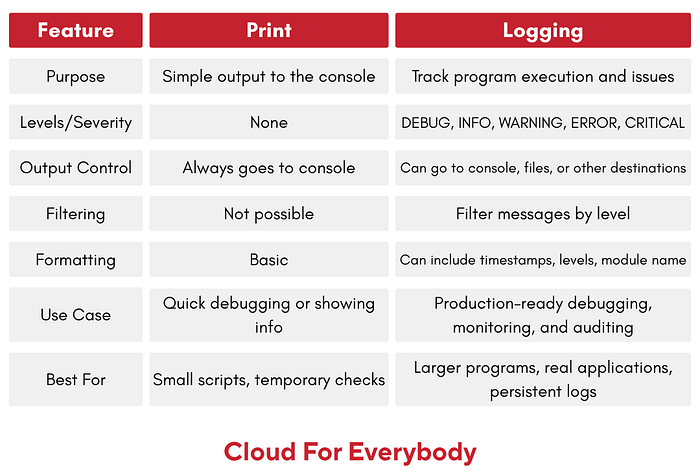
Here's a quick comparison between the print() statement and the Python's logging module to help you understand when to use each:
Takeaway
Use Python logging instead of print() for tracking your program's behavior. It offers multiple log levels, configurable outputs, and helps keep your code clean. Logging in Python makes debugging and monitoring your programs much easier, especially as they grow in size and complexity.
A Note from the Author
If you found this story helpful in your tech journey, consider subscribing! By following me, you'll stay updated on my latest articles, which are filled with valuable tech insights.
Thank you for reading, and see you in the next story!