
Understanding the Issue

I'm encountering an issue with Husky pre-commit hooks in a repository that contains both a C# .NET Core project and a React app. The .git directory is located in the root directory, while the React app project is in a subdirectory (client-app).
I am getting the following error when I attempt to commit in the Git Changes window in Visual Studio 2022: Oddly, it commits fine if I am in VSCode or using Git CMD Line in MS Terminal.
Detailed Script Explanation

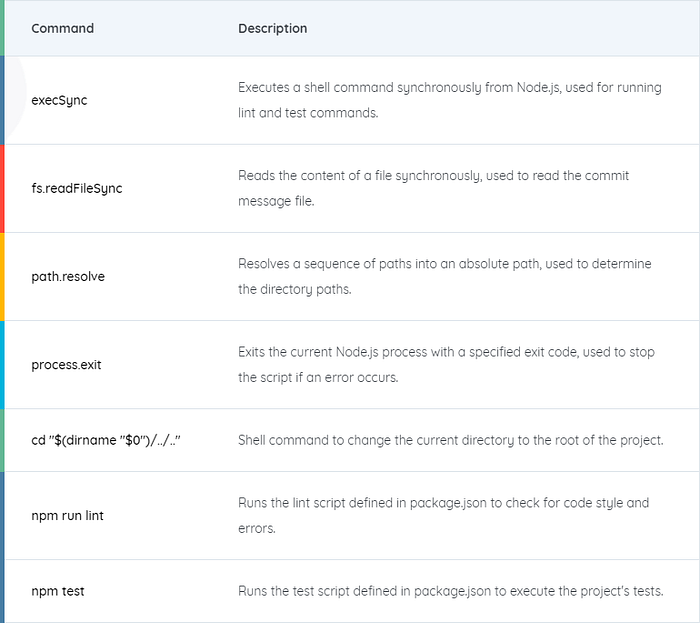
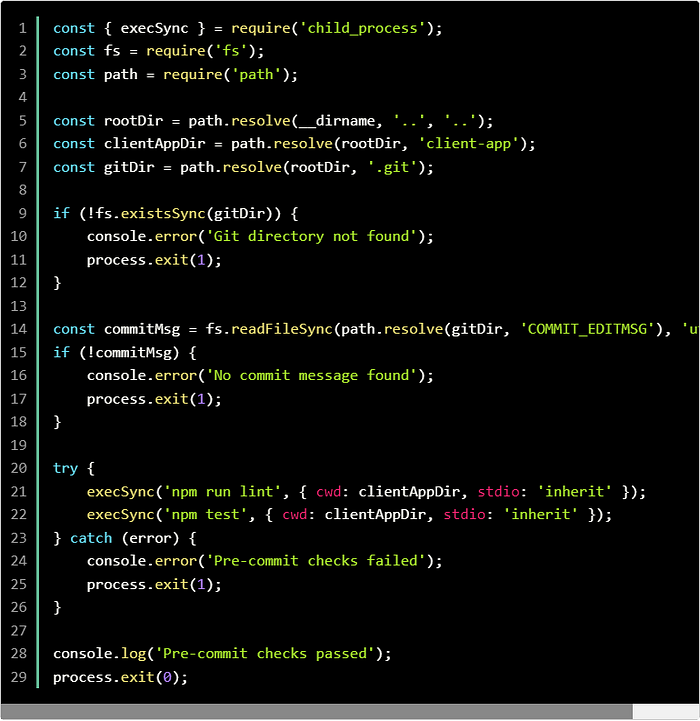
The scripts provided are designed to automate pre-commit checks for a repository containing both a C# .NET Core project and a React app. The Node.js script utilizes execSync from the child_process module to run shell commands synchronously. This is crucial for executing commands like npm run lint and npm test within the client-app directory. The script also makes use of fs.readFileSync to read the commit message, ensuring that the commit process can be halted if the pre-commit checks fail. The path module's path.resolve is used to determine the correct directory paths, making the script adaptable to different environments.
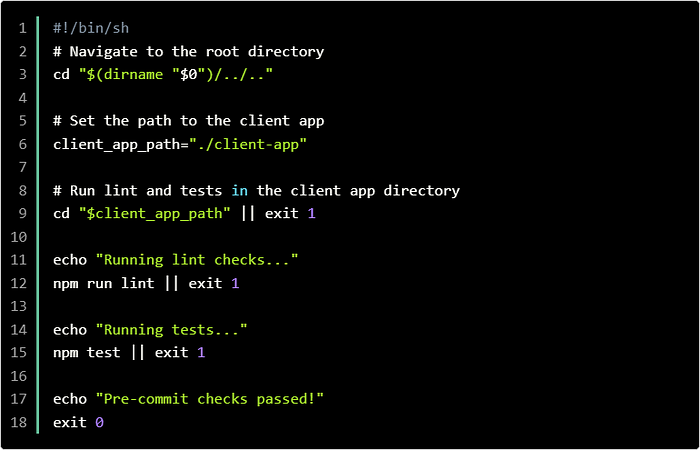
In the shell script, the cd "$(dirname "$0")/../.." command changes the current directory to the project's root. This is followed by navigating to the client-app directory and running npm run lint and npm test. If either of these commands fails, the script exits with an error code using exit 1. The integration of these scripts with Husky ensures that code quality checks are consistently enforced before any commits are made, preventing issues from being introduced into the codebase.
Fixing Husky Pre-Commit Hooks for Visual Studio 2022
Using JavaScript for Husky Configuration
const { execSync } = require('child_process');
const fs = require('fs');
const path = require('path');
const rootDir = path.resolve(__dirname, '..', '..');
const clientAppDir = path.resolve(rootDir, 'client-app');
const gitDir = path.resolve(rootDir, '.git');
if (!fs.existsSync(gitDir)) {
    console.error('Git directory not found');
    process.exit(1);
}
const commitMsg = fs.readFileSync(path.resolve(gitDir, 'COMMIT_EDITMSG'), 'utf-8');
if (!commitMsg) {
    console.error('No commit message found');
    process.exit(1);
}
try {
    execSync('npm run lint', { cwd: clientAppDir, stdio: 'inherit' });
    execSync('npm test', { cwd: clientAppDir, stdio: 'inherit' });
} catch (error) {
    console.error('Pre-commit checks failed');
    process.exit(1);
}
console.log('Pre-commit checks passed');
process.exit(0);
Ensuring Compatibility with Visual Studio 2022
Using Shell Script for Husky Pre-Commit
#!/bin/sh
# Navigate to the root directory
cd "$(dirname "$0")/../.."
# Set the path to the client app
client_app_path="./client-app"
# Run lint and tests in the client app directory
cd "$client_app_path" || exit 1
echo "Running lint checks..."
npm run lint || exit 1
echo "Running tests..."
npm test || exit 1
echo "Pre-commit checks passed!"
exit 0
Automating Pre-Commit Checks with Husky
Configuring Husky in package.json
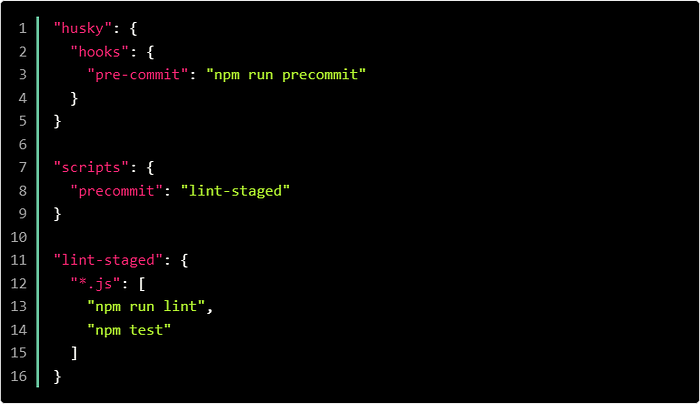
"husky": {
  "hooks": {
    "pre-commit": "npm run precommit"
  }
}
"scripts": {
  "precommit": "lint-staged"
}
"lint-staged": {
  "*.js": [
    "npm run lint",
    "npm test"
  ]
}
Exploring Additional Solutions
One aspect that hasn't been addressed is the potential impact of the Node.js environment on Husky hooks. Different versions of Node.js can sometimes cause compatibility issues with various npm packages, including Husky. Ensuring that the Node.js version used in Visual Studio 2022 matches the one used in VSCode and the Git CMD Line could resolve the inconsistencies. Using a tool like nvm (Node Version Manager) allows developers to switch between different versions of Node.js easily.
Additionally, configuring Husky to provide more detailed logging can help pinpoint where the issue lies. By adding verbose logging options in the Husky configuration, developers can gain insights into the specific steps and commands that fail. This information can be crucial in identifying differences in how Visual Studio 2022 handles pre-commit hooks compared to VSCode and Git CMD Line.
Common Questions and Answers about Husky Pre-Commit Hooks
Why do Husky hooks fail in Visual Studio 2022 but not in VSCode?
Visual Studio 2022 might handle Node.js environments differently, causing compatibility issues with Husky hooks.
How can I check the Node.js version used by Visual Studio 2022?
Use the node -v command in the Visual Studio terminal to check the Node.js version.
What is nvm and how can it help?
nvm (Node Version Manager) allows you to easily switch between different versions of Node.js, ensuring compatibility.
How do I install nvm?
Follow the instructions on the official nvm GitHub page to install and set it up.
How can I enable verbose logging for Husky?
Modify the Husky configuration in package.json to include more detailed logging options.
Can different npm package versions cause issues?
Yes, mismatched npm package versions can lead to unexpected behavior in Husky hooks.
How do I update npm packages to ensure compatibility?
Use the npm update command to update your npm packages to their latest versions.
What should I do if pre-commit hooks fail despite all these steps?
Consider reaching out to the Husky community or checking GitHub issues for similar problems and solutions.
Wrapping Up the Solution
The provided solution leverages Node.js scripts and shell commands to address the issue of Husky pre-commit hooks failing in Visual Studio 2022. By ensuring the correct Node.js version, detailed logging, and proper configuration of Husky, developers can maintain consistent code quality checks. The article covers various troubleshooting steps and emphasizes the importance of using compatible npm package versions. Implementing these solutions can help prevent commit errors and ensure a smoother development process.